
Receipt to Excel: How to Turn a Pile of Paper Receipts Into a Spreadsheet
My friend Ishita is a freelance photographer. At the end of last year she opened a shoebox. Inside were receipts for lenses, memory cards, taxi rides, a very expensive tripod, and a lot of coffee. About 200 of them, some faded to blank white paper, one stuck to a banana peel. She had two days to get her expenses ready for tax time. She spent one of them smoothing receipts flat and the other typing numbers into a spreadsheet. She told me, “I’m never doing this again.” She did it again the next year, because nobody had shown her a better way. So here’s a better way. This is how to get receipt to Excel, how to keep it from becoming a shoebox problem, and what to do when the numbers don’t add up.
Continue Reading:Bank Statement to Excel: How to Turn a PDF Statement Into a Sheet You Can Actually Use
Why Receipts Are Harder Than Other Documents
A bank statement is a neat table. A receipt is chaos.
Every shop prints them differently. The text is tiny. The paper is thin and curls. Thermal receipts, the shiny kind, fade in a few months, especially in a hot wallet. Some are long and skinny, some have coupons printed on them, and the total might be at the bottom, in the middle, or hiding in a footer.
That’s why a computer that reads receipts can make mistakes. It’s good, but not perfect, and with money, small mistakes matter.
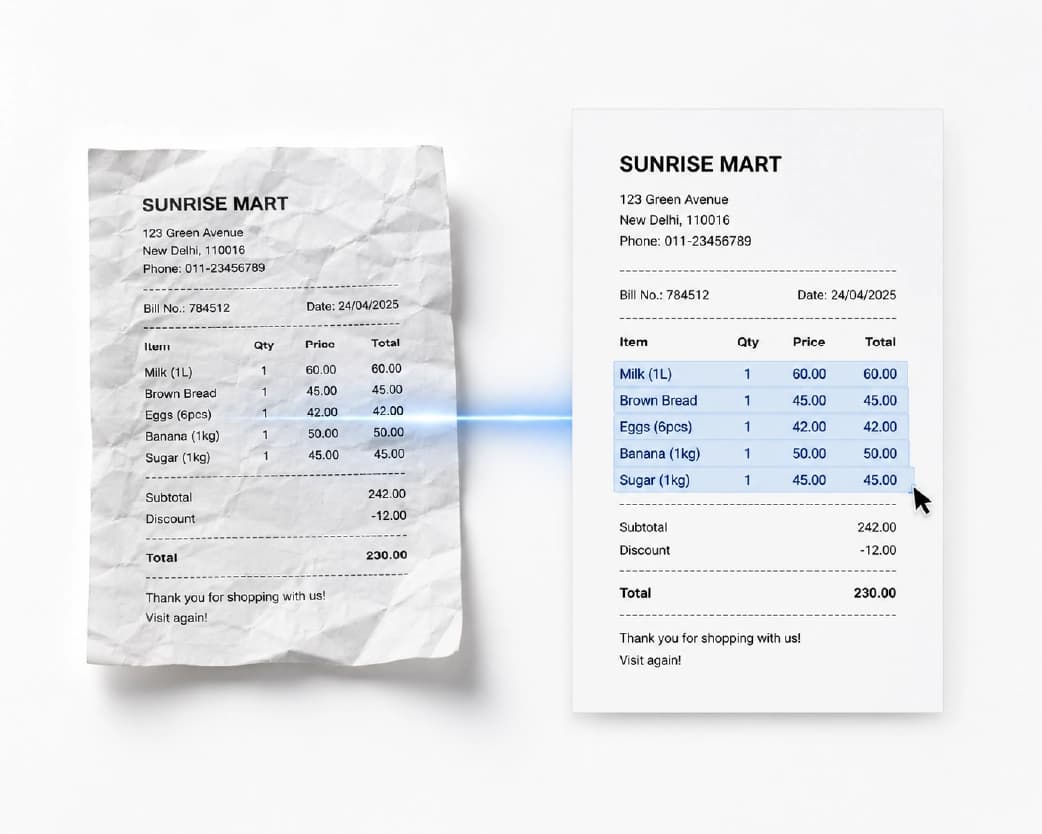
What Do You Actually Need From a Receipt?
Before you pick a method, decide what you need. Most people only need five things:
- Date
- Shop or vendor
- Total amount
- Tax amount, if you claim it
- Category, like meals, travel, supplies, or equipment
Some also want a note, like what the purchase was for. If you only need these five, you don’t need to capture every line item, and that makes everything easier.
Three Ways to Do It
1. Type it in yourself: For ten receipts a month, this is honestly fine. It takes a few minutes and the numbers are right because you looked at each one.
2. Use an OCR tool: For a bigger stack, a tool that reads the text from a photo or scan can save a lot of time. You take pictures, run them through OCR, and move the details into Excel. You still need to check the results.
3. Use a dedicated expense app: If you get receipts every week, a receipt-scanning app built for this might be the smarter choice. Many are made just for receipts and can read vendors, dates, and totals automatically. I’d rather tell you that than pretend one tool fits everyone.
Use whichever matches how many receipts you really have.
Photo, Scan, or PDF?
What you start with changes what you can do.
A photo of a paper receipt is a picture. A computer has to read it with OCR before it can turn it into text.
A scanned receipt works the same way, though scans are usually cleaner than phone photos.
An emailed or downloaded PDF receipt, like an online order confirmation, often has real text inside, so conversion is easier. Try to highlight the total with your mouse. If it highlights, the text is real.
If you have a mix, start with the PDFs. They’re quick and accurate. Then deal with the paper ones.

How to Take a Photo That Works
A good photo makes everything easier, and a bad one makes it miserable.
- Flatten the receipt. Smooth it out on a table. A curled receipt makes the lines look bent.
- Use a dark background. A plain dark table makes the edges easy to see.
- Use daylight. Avoid shadows and glare. Your own shadow is the most common culprit.
- Hold the phone straight above. Not at an angle, or the text gets squished.
- Fill the frame. The receipt should take up most of the picture, with nothing else in it.
- Check that it’s readable. Zoom in on the total. If you can’t read it, a computer can’t either.
- Snap it right away. Thermal receipts fade. Take the photo today.
I always snap a photo of every receipt right at the counter or in the car before tossing it into my bag so fading or crumpling never becomes a problem.
If you have a lot of pictures, the Images to PDF tool can help you bundle them into one single multi-page file before processing. If a photo is crooked or has junk around the edges, the Crop Image tool can trim it.

How to Get Receipt Data Into Excel with Plainscan
Plainscan runs in your browser and has over 100 document tools. Nothing to download. It works on a laptop, a tablet, or a phone. Here’s one way to do it.
- Prepare your files. Use clear photos or scans, or PDF receipts.
- Run OCR on photos and scans. Open the Scan & OCR tool, upload the image, and let it read the text. Free accounts can upload files up to 50 MB.
- Convert PDF receipts. For digital PDF invoices and receipts with selectable text, the PDF to Excel tool detects line totals, discounts, and item names even when the receipt layout is not a standard grid.
- Copy the five key details into Excel. Date, vendor, total, tax, and category. Plainscan’s OCR tool outputs the scanned text directly in a clean side-by-side text panel, making it fast and effortless to copy the store name, date, and final total directly into your spreadsheet.
- Check every total against the original. More on that next.
When I ran a crumpled grocery receipt through Plainscan’s Scan & OCR tool, it extracted the text in under three seconds with perfect date and total recognition.
Is it free?
You can start for free. After you create a free account, you can process up to 4 documents a day with the basic PDF tools, and that resets every 24 hours. Yes, Plainscan's Scan & OCR, Images to PDF, and PDF to Excel tools are all covered under your free daily allowance—giving you 4 document operations every 24 hours without charge. If you want AI features or unlimited use, there’s a paid plan, or you can buy credits and use them only when you need to.
Check Before You Trust
OCR is good, but receipts are tricky. It can confuse 8 and 3, 1 and 7, 0 and O, and decimal points and commas. A total of 18.50 can easily become 18.60, or 1850.
So do these checks every time:
- Compare each total with the receipt. It takes seconds per receipt, and it’s the best insurance you have.
- Check the date format. Make sure 03/04 means the right day.
- Check that line items add up. If you captured them, they should match the total.
- Look at the tax. If you claim it, make sure it’s the right amount.
- Flag anything faded or unclear. If you can’t read it, a computer can’t either. Make a note.
I always double-check any expense over 100 and compare my monthly spreadsheet total with my credit card statement to ensure no receipt got counted twice.
Build a Simple Spreadsheet
You don’t need anything fancy. A basic layout works well:
- Date
- Vendor
- Category
- Amount
- Tax
- Notes
- Receipt file
The “Receipt file” column is a lifesaver. Type the file name of the photo or PDF, so you can find the original later.
Once the data is in, Excel does the rest. Sort by date. Filter by category. Add a total at the bottom. Make a pivot table to see where your money goes. You can even add a column for personal versus business.
Keep the Originals
Here’s a point people overlook. Tax rules about receipts differ from place to place. Some tax offices accept digital copies. Others want the paper originals for a certain number of years. I’m not a tax advisor, so check with an accountant or your local tax office. Whatever the rule, keep clear photos and PDFs backed up, and name them well, like “2025-03-14-Camera-Shop-210.pdf.”
A Routine That Actually Sticks
The reason Ishita’s shoebox happened is that the work piled up. A tiny weekly habit beats a giant yearly project.
Take a photo of each receipt the day you get it. Once a week, spend ten minutes moving the details into your sheet. Once a month, check the totals against your bank. At the end of the year, you’re done before you start.
Who Uses This?
Freelancers and small business owners tracking expenses. Employees who need to file expense claims. Families keeping a budget. Students tracking spending. Anyone with a shoebox.
Is It Safe to Upload Receipts?
Fair question, since receipts can show your name, purchases, and part of your card number. Plainscan uses encrypted HTTPS connections, and uploaded files are deleted automatically within 24 hours.
Still, be thoughtful. Skim the privacy policy of any new tool before you upload financial documents. Cover or avoid sharing full card numbers. And delete extra copies you don’t need, especially from shared folders and downloads.
Mistakes I’d Skip
- Waiting until the end of the year. Thermal receipts fade.
- Trusting OCR blindly. Check every total.
- Taking bad photos. Flat, bright, and straight wins.
- Losing the link to the original. Add a file name column.
- Deleting the originals too early. Check your local rules.
- Forgetting the limits. Check file size and your daily cap before a big batch.
You may also like:Images to PDF Converter: How to Turn Photos and Scans Into One Clean PDF
Conclusion
Getting receipt to Excel isn’t complicated, but it works best when you start with clear photos, capture only the details you need, and check the totals. Pick the method that fits how many receipts you have, and make a small weekly habit of it. If you’ve got a pile of receipts waiting, try Plainscan on a few today. It’s an easy way to start moving receipts into Excel, and there are plenty of other free PDF tools worth a look while you’re there. Ishita did the next year in an hour a month, and the banana peel stayed out of it.
Recommended to Read:HTML to PDF Converter: How to Save Any Web Page as a Clean PDF
Related insights










Get the Plainscan App for iOS & Android