Base64 to Image Decoder: How to Turn a Long String Back Into a Picture
Someone sends you an API response. Or you open an email’s source code. Or you copy something out of a database. And right there, in the middle of it all, is a wall of text a mile long. It starts with something like “data:image/png;base64,” and then it just keeps going. Hundreds, maybe thousands of characters. That’s an image in disguise. And to see it, you need a Base64 to image decoder. Let’s go through what it does, how to use it, and what to do when it throws an error.
What Is Base64, in Plain English?
Images are stored as binary data, which computers read as long strings of ones and zeros. But some systems, like web pages, JSON files, and emails, work best with plain text.
Base64 solves that by rewriting the binary data using only 64 safe text characters: letters, numbers, and a couple of symbols. The picture doesn’t change. It’s just written in a different language.
A Base64 to image decoder does the opposite of an encoder. It reads that text and rebuilds the original image file.
Where Do Base64 Images Come From?
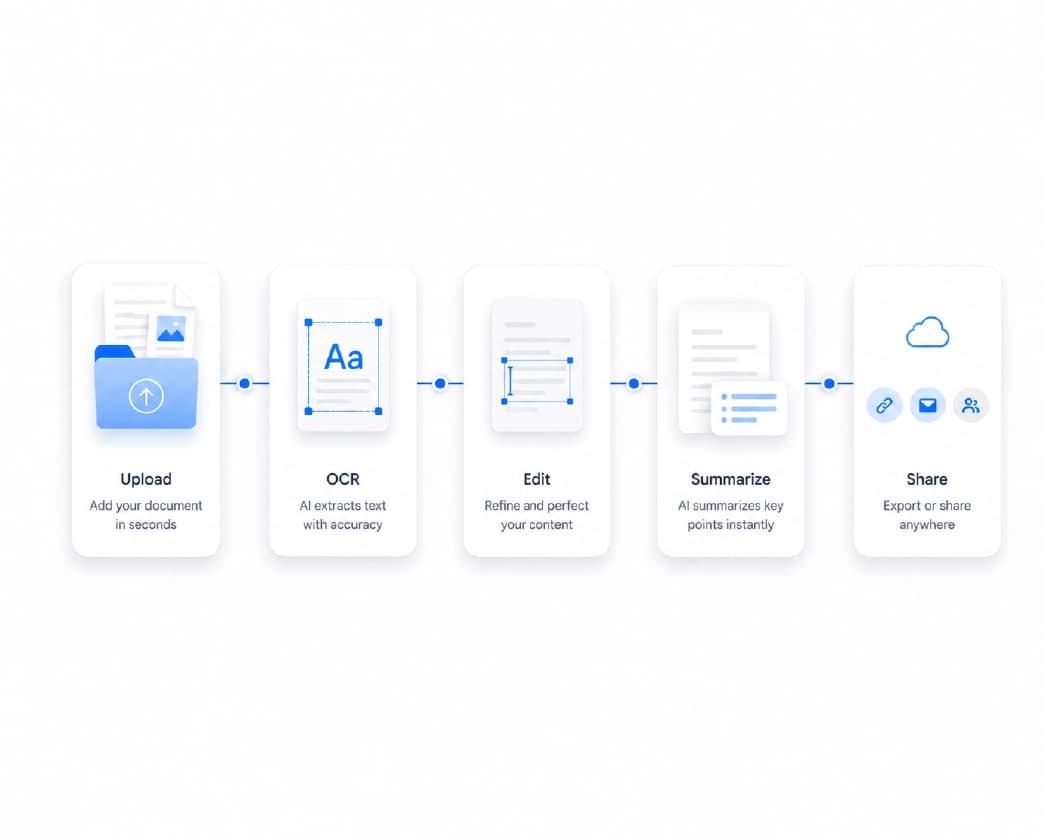
You’d be surprised how often they pop up.
Website code. Developers sometimes tuck small icons and logos right into HTML or CSS.
APIs. Many apps send and receive images as Base64 text inside JSON data.
Emails. Some emails embed pictures this way instead of linking to them.
Databases and forms. When a system only stores text, an image may be saved as a Base64 string.
Mobile apps and tools. Signatures, photo uploads, and screenshots are often passed around this way.
If you’ve got one of these strings, a decoder gets the picture out.

How to Use a Base64 to Image Decoder Step by Step
It’s easier than it looks. Most online decoders work the same way.
Copy the Whole String
Grab the entire Base64 text. Missing even a few characters at the end can break the image, so use the copy button if you have one, instead of selecting by hand.
Paste It Into the Decoder
Open an online Base64 decoder and paste the text into the box. Some tools want the full data URI, with the “data:image/png;base64,” part at the start. Others want only the long string after the comma. If one doesn’t work, try the other.
Decode and Preview
Click the decode button. Most tools show you a preview right away. If you see your picture, you’re in business.
Download the File
Save the image to your device. Pick the right format if you’re given a choice, like Base64 to PNG or Base64 to JPG. Usually the tool picks it for you based on the string.
How to Tell What Kind of Image It Is
Here’s a neat trick. The first few characters of a Base64 string can hint at the file type, even if there’s no label.
- Strings starting with
iVBORw0KGgoare usually PNG files - Strings starting with
/9j/are usually JPG files - Strings starting with
R0lGODare usually GIF files - Strings starting with
UklGRare often WebP files - Strings starting with
JVBERi0are actually PDFs, not images
So if you decode a string and it won’t show up as an image, check the start. You might be holding a PDF or another file type, and that’s why the preview looks wrong.

Why Won’t It Decode? Common Problems and Fixes
This is where most people get stuck. Here are the usual culprits.
The String Is Cut Off
Long strings get chopped when you copy them from a small text box or a log file. Go back to the source and copy the whole thing.
There Are Extra Spaces or Line Breaks
Stray characters can break the decoding. Clean them out, or paste the string into a plain text editor first to see what’s in there.
The Prefix Is Confusing the Tool
If the tool says “invalid” and your string starts with “data:image,” try removing everything up to and including the comma. Or the other way around, if the tool needs the full label.
It Uses a Different Version of Base64
Some strings use a “URL-safe” version, with dashes and underscores instead of plus signs and slashes. Many decoders handle it, but some don’t. If yours fails, a different tool may work.
The Padding Is Missing
Base64 often ends with one or two equal signs. If those got lost, the decoder may complain. Adding them back sometimes fixes it.
It Isn’t an Image at All
The text might hold a PDF, a document, or something else. Check the first characters, like we covered above.
Is It Safe to Decode Base64 From Unknown Sources?
Decoding the text itself is harmless. But what comes out could be anything. If you got a Base64 string from a stranger or a strange email, don’t open the file blindly, even if it’s supposed to be a picture.
Also, remember that Base64 isn’t a secret code. Anyone can decode it in seconds. So if a string contains private images, like IDs or personal photos, be careful where you paste it. Plainscan, for one, processes files over secure HTTPS connections and deletes them automatically within 24 hours. Still, the safest move is to avoid uploading anything you wouldn’t want out in public.
What to Do After You Decode
Once your image is back, you may want to tidy it up.
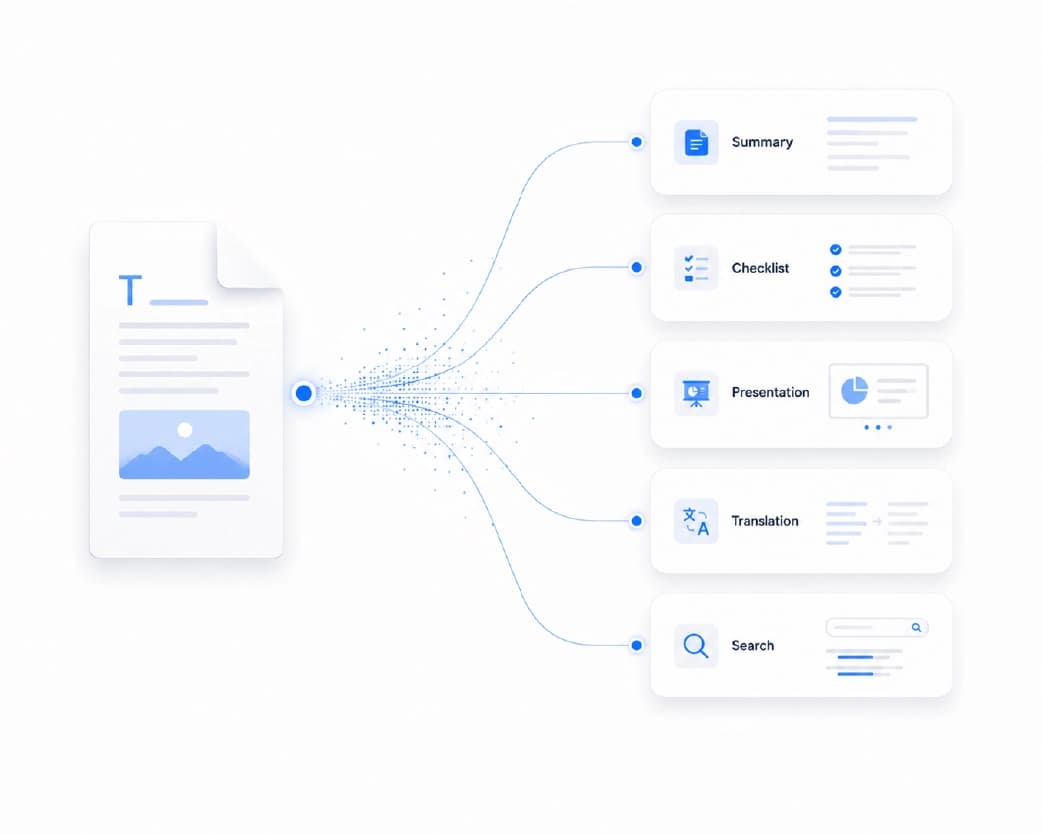
Maybe it’s too big, so you want to compress it. Maybe it needs cropping. Maybe it’s a logo with a messy background. Or maybe it’s a photo of a document, and you want the text out of it.
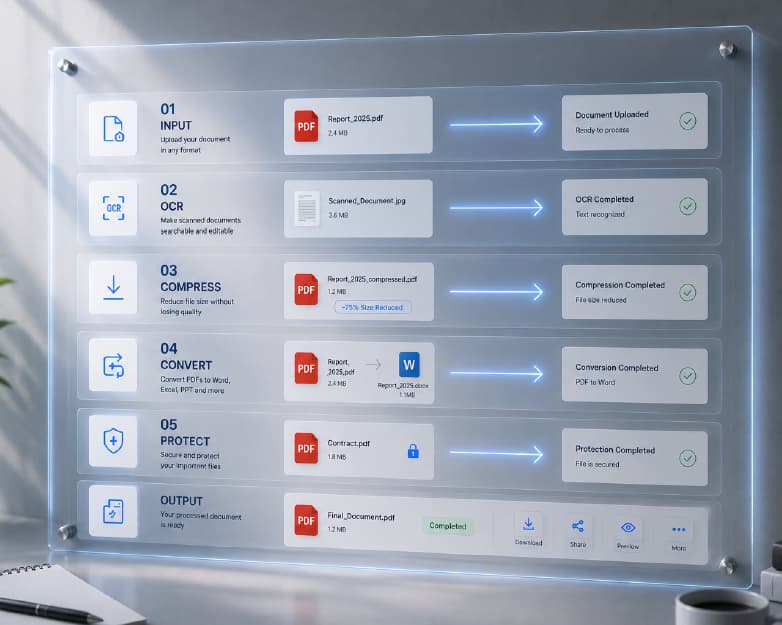
Plainscan can help with all of that. It’s a browser-based set of document and image tools. You can compress an image, crop it, or remove its background. If the decoded picture holds text, like a receipt or a scanned page, the Scan and OCR tool can pull the words out. And if you need a PDF, you can turn the image into one. Developers can also check out the Developer API page on the site, which covers OCR and document features.
You can try it all at Plainscan.
Conclusion
A Base64 to image decoder takes a long, confusing string and gives you back the picture inside it. It’s a simple job, but it saves a lot of head scratching. Copy the whole string, try it with and without the prefix, check the first few characters if it fails, and be careful with files from people you don’t know. Next time you find a mysterious wall of text where an image should be, you’ll know exactly what to do. And when your picture needs a little cleanup, Plainscan has the tools ready.
Further Reading:ATS Resume Scanner: How to Check Your Resume Before You Apply
Related insights



Get the Plainscan App for iOS & Android