Free Character Counter: How to Check Letters, Spaces, and Limits Fast
Back to Blog

Free Character Counter: How to Check Letters, Spaces, and Limits Fast

P
Plainscan Team
November 6, 2026
4 min read
Share

You write the perfect bio. It’s funny, short, and sounds just like you. Then the app says it’s too long. You delete a word. Still too long. You delete another. Now it doesn’t make sense. This happens all the time, and it’s why a free character counter is so handy. Instead of guessing which words to cut, you see the exact number and know how far over you are. Let’s go through how it works, when you need one, and how to use it well.

What Is a Character Counter?

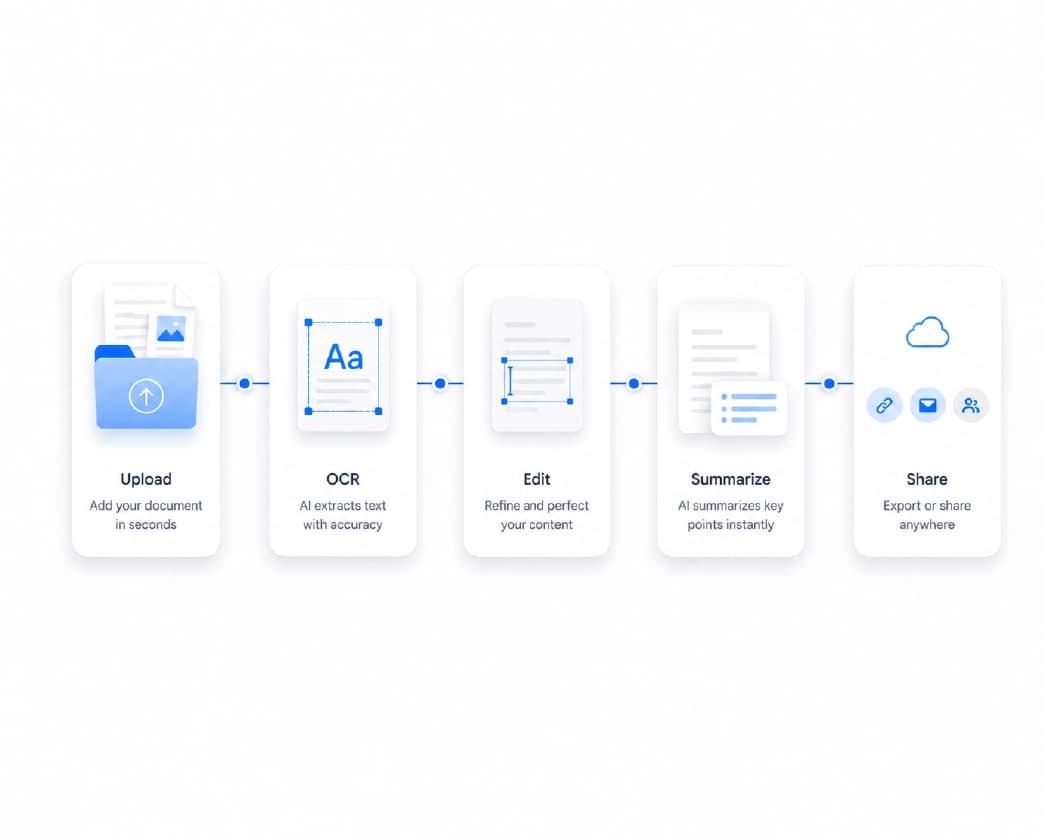
It’s a tool that counts every letter, number, space, and symbol in your text. You paste your writing into a box, and it shows you the total right away.

Most tools show two numbers: characters with spaces and characters without spaces. Many also show words, sentences, and paragraphs. Think of it as a ruler for your text.

You might see it called a letter counter or a text length checker. The names change, but the job is the same. And you can find a character count online in any browser, with nothing to install.
What Is a Free Character Counter

Characters vs. Words: What’s the Difference?

People mix these up, so here’s the quick version.

A word is a chunk of text between spaces. A character is a single piece, like one letter, one number, one space, or one punctuation mark.

So the sentence “I love pizza” has three words. But it has twelve characters if you count the spaces, and ten if you don’t.

Why does it matter? Because different jobs use different limits. A school essay cares about words. A text message, a search result, or a social bio cares about characters.

When Do You Need a Character Counter?

More often than you’d think.

Social Media Posts and Bios

Many platforms cap posts, captions, usernames, and bios at a set number of characters. Those limits change from time to time, so always check the current rules for the app you’re using. A counter helps you shape your text before you paste it in.

Text Messages

Standard text messages have a length limit per message. Go over it, and your message may split into pieces or cost extra on some plans. Emojis and special symbols can also shrink the space you have.

SEO Titles and Descriptions

If you run a website, you know search results show only part of your title and description. Titles are usually kept to around 60 characters, and descriptions to roughly 150 to 160. A meta title length checker keeps you inside that range so your text doesn’t get cut off. Search engines can show different lengths, so treat those numbers as a guide.

Forms and Applications

Some forms stop you at a set number of characters, like 250 for a short answer. It’s no fun to write a great answer and find out it doesn’t fit.

Ads and Product Listings

Ad headlines and product titles often have strict limits. A counter helps you get the most out of every letter.

When You Need a Character Counter

How to Use a Free Character Counter Step by Step

Here’s the quick routine.

Find a Tool

Search for a text length checker or open one you trust. Pick one that works right in your browser.

Paste Your Text

Copy your writing and drop it in the box. You can also type directly into it. The count should update as you go.

Check the Right Number

Look at whether you need the count with spaces or without. Most limits include spaces, but some don’t. If you’re not sure, read the rules for where you’re posting.

Edit and Recheck

Trim or change your text until you’re inside the limit. Then copy it out and use it.

Little Things That Throw Off Your Count

Sometimes the number on the counter doesn’t match what the website says. A few things can cause that.

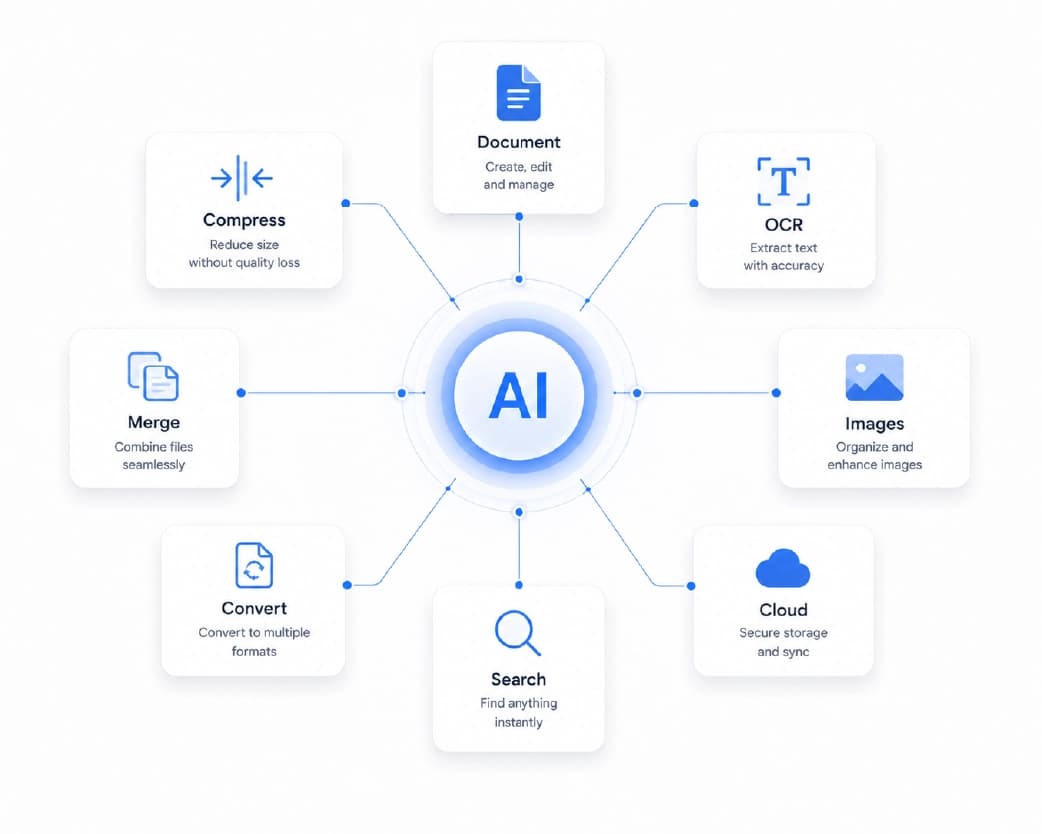
Line breaks. Pressing enter can count as one or more characters, depending on the system.

Emojis and special symbols. A single emoji may count as more than one character on some platforms.

Extra spaces. Double spaces after a period are easy to miss, but they add up.

Hidden formatting. If you copy text from a document, it may bring along strange invisible characters.

The easy fix is to leave yourself a little room. If the limit is 150, aim for 140. And if the platform has its own preview, trust that final number.
Tips to Shorten Your Text and Avoid Formatting Pitfalls

Tips to Shorten Your Text

Over the limit? Try these simple tricks.

Swap long words for short ones. “Use” beats “utilize” every time. Drop filler like “just,” “really,” and “very.” Use numerals instead of spelled-out numbers, so “5” instead of “five.” Cut any part of the message that doesn’t change the meaning. And if a sentence repeats something you already said, remove it.

Also, try rewriting the whole thing from scratch with the limit in mind. Sometimes it’s easier to start fresh than to keep trimming.

Why Short and Clear Wins

Limits can feel annoying, but they teach a good habit. Short writing is often better writing. A bio that says exactly who you are in a few words beats a long one that wanders.

The same goes for titles and descriptions. If someone can understand your point at a glance, they’re much more likely to click, read, or reply.
Count Characters in PDFs and Scans With Plainscan

Count Characters in PDFs and Scans With Plainscan

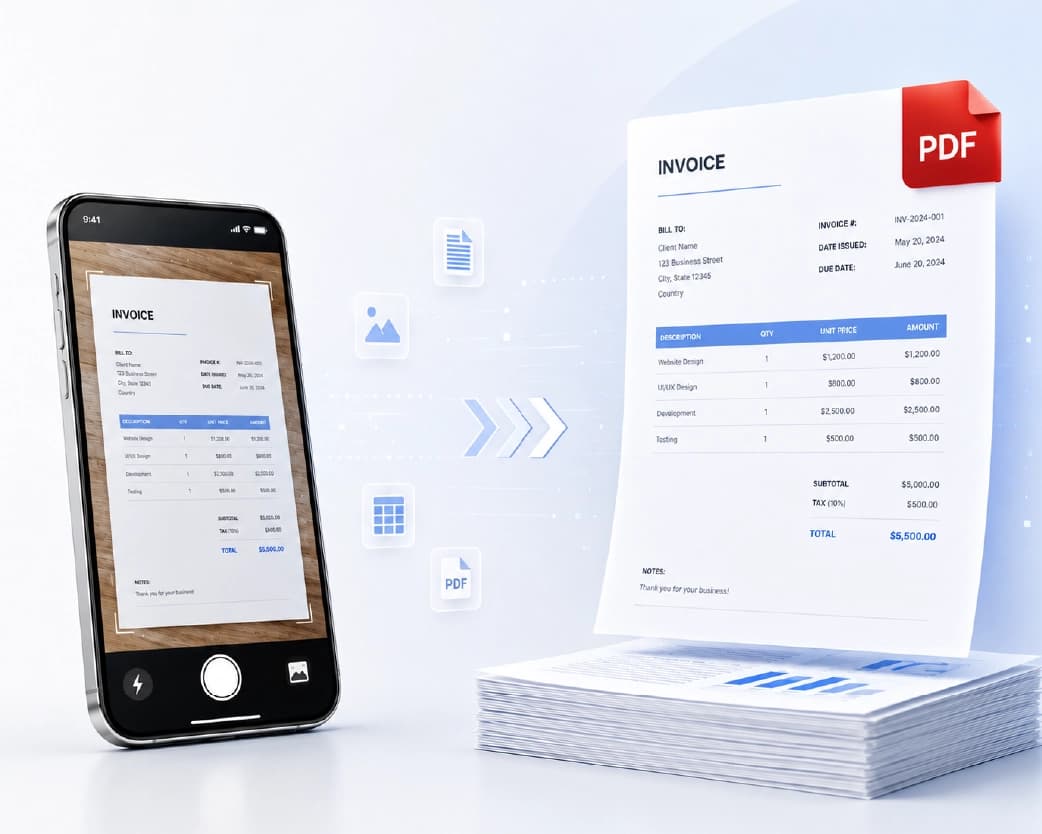
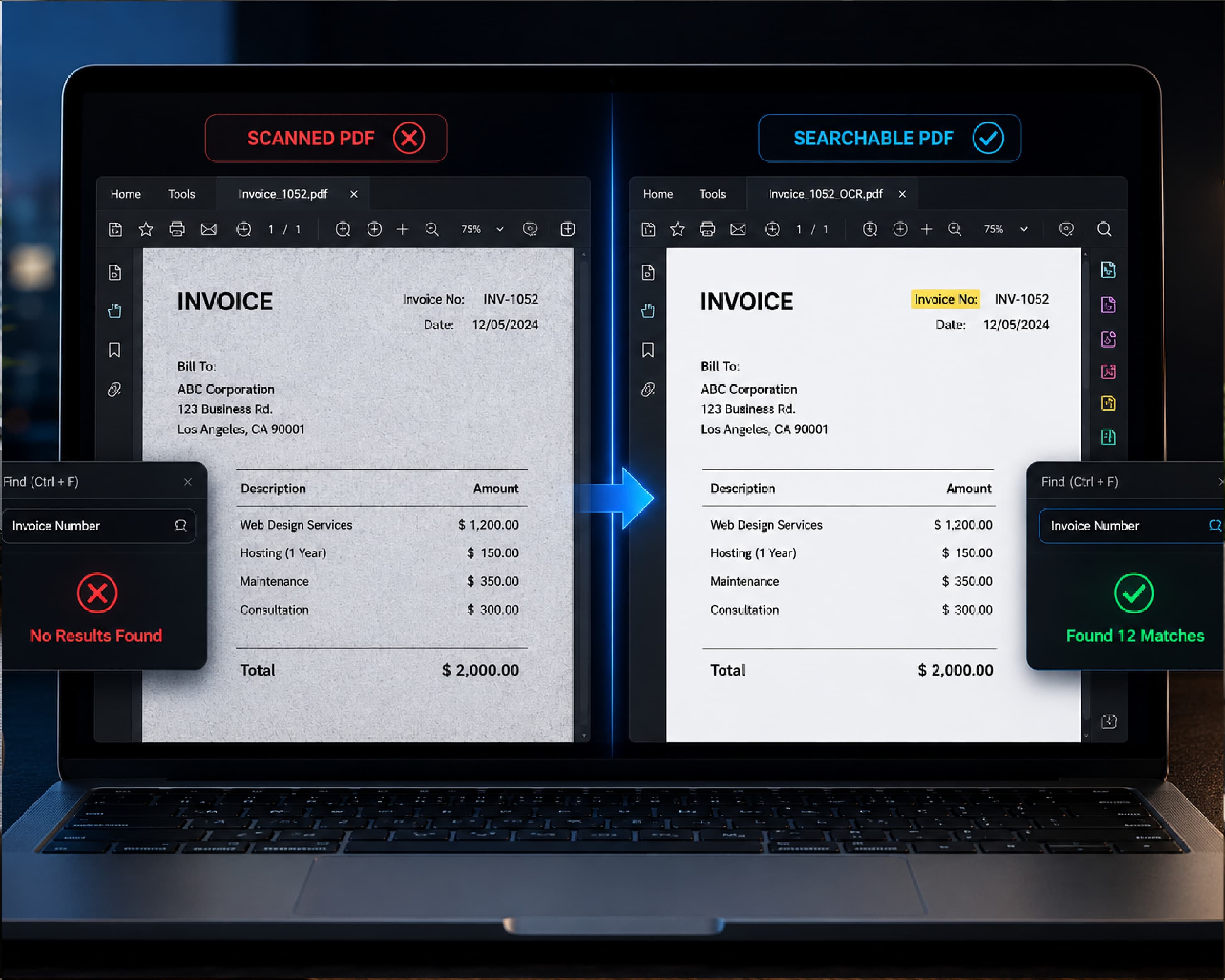
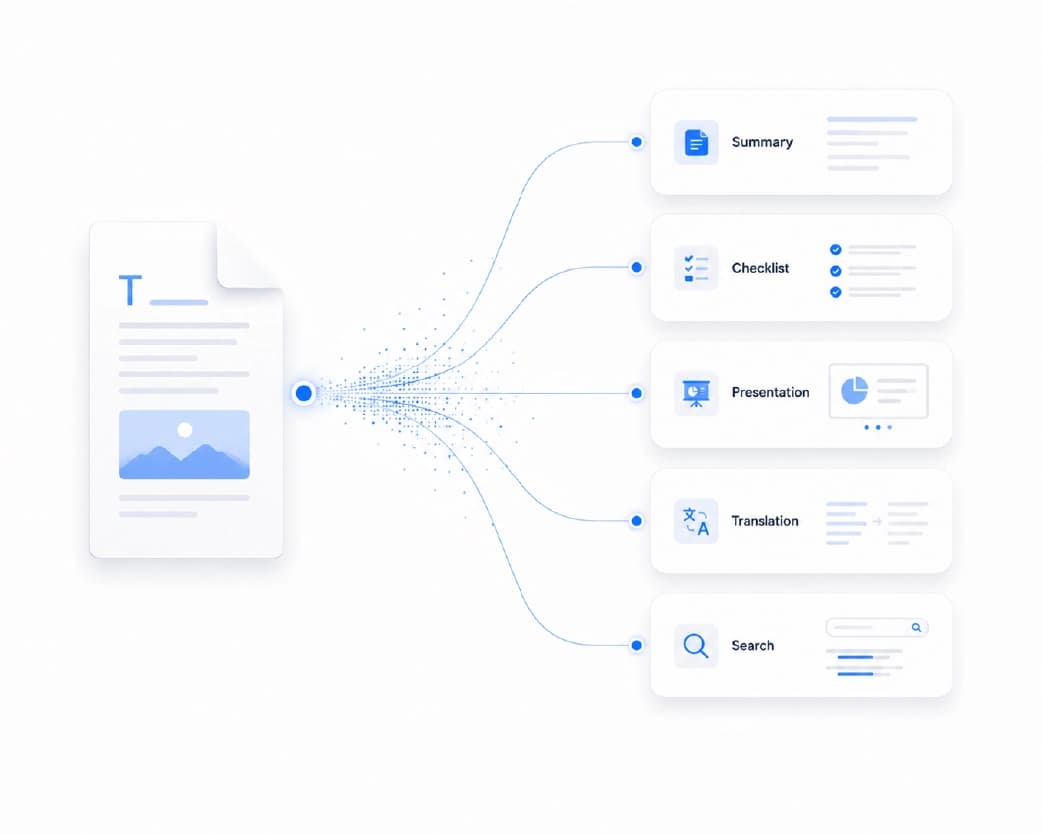
Sometimes your text isn’t in a box you can easily copy from. It might be locked inside a PDF or sitting in a scanned page.

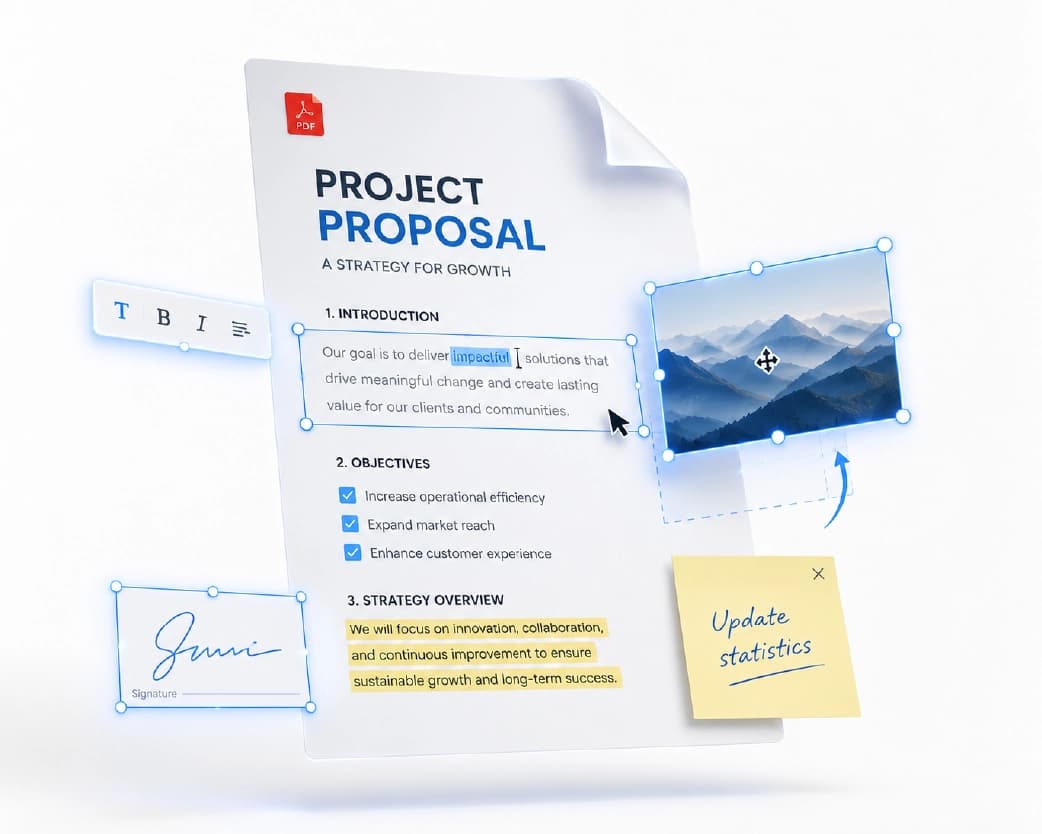
Plainscan can help with that. It’s a browser-based set of document tools. If your text is in a PDF, you can convert it to Word and copy it out. If it’s a photo or a scan, the Scan and OCR tool can pull the words out for you. And if you need to cut your text down, AI Rewriter and AI Summarize can help you tighten it. Just remember that Plainscan’s AI tools use credits or a Pro plan, while the basic PDF tools are free to start.

When your text is ready, you can save it as a PDF too. You can find all of this at Plainscan.

Conclusion

A free character counter is a small tool that saves a lot of frustration. It shows you where you stand, so you don’t have to guess or keep deleting words at random. Paste your text, check the right number, and leave a little room for safety. Then trim until it fits, and keep your message clear while you do it. Next time you hit a limit, don’t fight it. Count, edit, and move on. And if your words are stuck in a file, Plainscan can help you get them out.

Related insights

ID Card Templates: How to Design Clean, Professional Cards Fast

ARTICLE

ID Card Templates: How to Design Clean, Professional Cards Fast

Think about the last time you went to a big event, started a new job, or joined a club. Chances are, someone handed you a card or badge with your name on it. It’s a small thing. But it tells people who you are, where you belong, and that someone planned things properly. A messy, hand-written one does the opposite. Making ID cards from scratch can be a headache, though. Sizes, photo boxes, logos, spacing. That’s where ID card templates come in. They give you a ready-made layout, so you just add your details. Let’s go through how to pick one, how to customize it, and how to print something you’re proud of.

Plainscan Team·November 7, 2026
4 min read
Business Templates: How to Save Time and Look Professional From Day One

ARTICLE

Business Templates: How to Save Time and Look Professional From Day One

Picture a small business owner on a Tuesday night. She’s finished a great job for a client, and now she needs to send an invoice. She opens a blank document. Types the date. Wonders where the invoice number goes. Moves a table around. Fixes the font. Forty minutes later, she has something that looks okay, but she’s not sure it’s right. Next week, she’ll do it all again. This is the problem business templates solve. They give you a ready-made layout for the documents you use over and over, so you fill in the details and get back to real work. Let’s look at what they are, how to pick good ones, and how to use them well.

Plainscan Team·November 7, 2026
4 min read
Cover Letter Templates: How to Write a Strong One in 15 Minutes

ARTICLE

Cover Letter Templates: How to Write a Strong One in 15 Minutes

You finished your resume. It looks great. You’re ready to hit submit. Then you see it. “Please attach a cover letter.” Suddenly your motivation drops. What do you say? How long should it be? Do you start with “Dear Sir or Madam,” or is that a little 1995? And how do you write about yourself without sounding like you’re bragging? This is exactly where cover letter templates help. They give you the layout and a clear flow, so you’re not staring at a blank page. Let’s look at how they work, how to use them well, and how to keep your letter from sounding like everyone else’s.

Plainscan Team·November 7, 2026
4 min read
Resume Templates: How to Pick the Right One (and Make It Work for You)

ARTICLE

Resume Templates: How to Pick the Right One (and Make It Work for You)

Opening a blank document to write your resume feels like standing at the bottom of a hill. Where does your name go? How big should the font be? Should your skills come first, or your job history? Twenty minutes later, you’ve moved a text box around eleven times and written nothing. That’s what resume templates are for. They give you the layout, the spacing, and the structure. You just add your story. Let’s talk about how to pick the right one, how to fill it in, and what to avoid.

Plainscan Team·November 7, 2026
4 min read
Free Photo Metadata Editor & EXIF Stripper: Share Photos Without Sharing Secrets

ARTICLE

Free Photo Metadata Editor & EXIF Stripper: Share Photos Without Sharing Secrets

You take a photo of the couch you’re selling and post it online. Simple, right? Here’s what you may not know. That photo might also contain the exact spot where you took it. If you took it at home, that could be your home address, tucked inside the file where nobody can see it. This hidden information is called metadata, and the most common type is EXIF data. A free photo metadata editor & EXIF stripper lets you look at it, change it, or remove it. Let’s go through what it all means and how to use it.

Plainscan Team·November 7, 2026
4 min read
Free Favicon Generator: How to Make a Site Icon in Minutes

ARTICLE

Free Favicon Generator: How to Make a Site Icon in Minutes

Look at the top of your browser right now. See those little pictures next to the page titles? Those are favicons. They’re tiny, but they do a lot. When you have ten tabs open, the icon is how you find the right one fast. When someone bookmarks your site, the icon helps them spot it in a long list. And a site with no icon at all looks a bit unfinished, like a house with no front door sign. The good news is that you don’t need a designer to make one. A free favicon generator can turn your logo into a full set of icons in about a minute. Let’s walk through it.

Plainscan Team·November 7, 2026
4 min read
Base64 to Image Decoder: How to Turn a Long String Back Into a Picture

ARTICLE

Base64 to Image Decoder: How to Turn a Long String Back Into a Picture

Someone sends you an API response. Or you open an email’s source code. Or you copy something out of a database. And right there, in the middle of it all, is a wall of text a mile long. It starts with something like “data:image/png;base64,” and then it just keeps going. Hundreds, maybe thousands of characters. That’s an image in disguise. And to see it, you need a Base64 to image decoder. Let’s go through what it does, how to use it, and what to do when it throws an error.

Plainscan Team·November 7, 2026
4 min read
Image to Base64 Converter: How to Turn Any Image Into Text (and When You Should)

ARTICLE

Image to Base64 Converter: How to Turn Any Image Into Text (and When You Should)

If you’ve ever poked around inside a website’s code, you might have seen something strange. A giant wall of random-looking letters and numbers, starting with “data:image/png;base64.” It looks like a cat walked across the keyboard. But it’s not random. It’s an actual image, turned into text. And the tool that makes it is called an image to Base64 converter. You might need one if you’re building a website, writing an email template, or working with an app that only accepts text. Let’s break down what Base64 is, how to use a converter, and the mistakes that trip people up.

Plainscan Team·November 7, 2026
4 min read
Free Word Counter: How to Check Words, Characters, and More in Seconds

ARTICLE

Free Word Counter: How to Check Words, Characters, and More in Seconds

“Write 500 words.” Seems simple until you’re staring at your draft wondering if you’re at 380 or 620. You could count by hand, but who has time for that? And if you guess wrong, you might lose points, get a post rejected, or have to rewrite half of it at the last minute. That’s where a free word counter comes in. Paste your text, and you see the numbers right away. Let’s look at what it does, who needs it, and how to use it without any stress.

Plainscan Team·November 6, 2026
4 min read
ATS Resume Scanner: How to Check Your Resume Before You Apply

ARTICLE

ATS Resume Scanner: How to Check Your Resume Before You Apply

You spent hours on your resume. You fixed the wording, checked the spelling, and made it look great. Then you applied to twenty jobs and heard back from none. That’s a rough feeling. And it makes you wonder what’s going wrong. Sometimes the problem isn’t your experience at all. It’s that the company’s software couldn’t read your resume properly. Most mid-size and large companies use something called an ATS, and if your file confuses it, your resume may never reach a person. A good ATS resume scanner can show you what the software sees, so you can fix problems before you hit apply.

Plainscan Team·November 6, 2026
4 min read

Get the Plainscan App for iOS & Android