ID Card Templates: How to Design Clean, Professional Cards Fast
Think about the last time you went to a big event, started a new job, or joined a club. Chances are, someone handed you a card or badge with your name on it. It’s a small thing. But it tells people who you are, where you belong, and that someone planned things properly. A messy, hand-written one does the opposite. Making ID cards from scratch can be a headache, though. Sizes, photo boxes, logos, spacing. That’s where ID card templates come in. They give you a ready-made layout, so you just add your details. Let’s go through how to pick one, how to customize it, and how to print something you’re proud of.
What Are ID Card Templates?
An ID card template is a pre-designed layout for an identification card. It has spots for a photo, a name, a title or role, an ID number, and your organization’s logo. You open it, replace the sample details, and you’re nearly done.
Most are editable, so you can change the colors, text, and images to match your brand. Many are also printable, so you can send them straight to a printer.
One quick note. These templates are meant for cards that your own organization issues, like a school ID, an employee badge, a gym membership card, or an event pass. They’re not for copying or imitating government-issued IDs. That’s illegal and a big no.
Who Uses ID Cards?
More people than you’d guess.
Schools and colleges use them to identify students and staff, and to give access to libraries and buildings.
Businesses use employee ID badges for security and so customers know who works there.
Event organizers hand out badges to attendees, speakers, volunteers, and staff.
Clubs, gyms, and associations use membership cards.
Volunteers and community groups wear badges so people can tell who’s helping.
Whatever the case, a clean design builds trust at a glance.
What Goes on an ID Card?
You don’t need to cram everything onto the card. Less is usually better. Here are the common parts.
- A clear photo of the person
- Their full name
- Their role, department, or class
- An ID number
- Your organization’s name and logo
- An expiration or issue date, if it applies
- A QR code or barcode, if you want cards to be scanned
- A contact number for lost cards
Think about what people actually need to see. A visitor badge needs a name and a date. An employee card might also need a department and an ID number.
Be careful about privacy, too. Don’t add home addresses, personal phone numbers, or other private details unless it’s really needed. If someone loses the card, you don’t want to give away more than you have to.

What Size Should an ID Card Be?
The most common size matches a standard credit card, about 3.4 inches by 2.1 inches (or 85.6 by 54 millimeters). Most card printers, holders, and wallets are built for it.
You can use it either sideways, which is called landscape, or upright, which is called portrait. Landscape is more common. Portrait is popular for badges worn on lanyards. Choose the one that suits how your cards will be worn and read.
How to Choose the Right ID Card Template
Here’s what to look for.
Clear and Easy to Read
Pick a layout where the name is big and easy to see. If someone has to squint at the card, it’s not doing its job.
Fits Your Purpose
A school card, a corporate badge, and a music festival pass all look different. Choose one that matches your setting.
Easy to Edit
You should be able to swap text, photos, and logos without breaking the layout.
Matches Your Brand
Look for a template that works with your colors and logo. A little consistency goes a long way.
Print-Ready
The template should be sized correctly for printing, with space around the edges so nothing gets cut off.

How to Make ID Cards Step by Step
Here’s an easy process from start to finish.
Pick Your Template
Choose a layout that suits your group. Plainscan has 100+ ready-to-use templates for documents, and you can browse the full collection on its templates page.
Add Your Logo and Colors
Put your logo in the same spot on every card. Use one or two main colors that match your brand.
Fill In the Details
Add each person’s name, role, and ID number. Double check the spelling. A misspelled name on an ID card is awkward and easy to avoid.
Add the Photo
Use clear, front-facing photos with a plain background. Keep the style the same across all cards, such as the same size, the same crop, and the same kind of lighting.
Review a Test Card
Print one card first. Check the colors, the text size, and the placement. Fix any problems before you print the rest.
Print and Finish
Print on thick card stock or use a card printer. Laminate the cards if you want them to last. Punch a small hole or add a clip if people will wear them on a lanyard.
Design Tips That Make a Difference
Use a clean, easy-to-read font, and don’t mix more than two. Make sure text has strong contrast against the background, such as dark text on a light color. Color coding helps, too. You might use a different color band for staff, visitors, and volunteers, so you can tell at a glance who’s who.
Leave a little space around the edges, so nothing gets trimmed during printing. And don’t overload the card. If it looks crowded, take something off.
Common Mistakes to Avoid
Blurry photos. Low quality pictures make the whole card look sloppy.
Tiny text. If it’s hard to read from arm’s length, make it bigger.
Too much information. More details mean more clutter and more privacy risk.
Skipping the test print. What looks great on screen can look different on paper.
Inconsistent photos. Mixed sizes and backgrounds make a set of cards look messy.
Get Your Photos and Files Ready With Plainscan
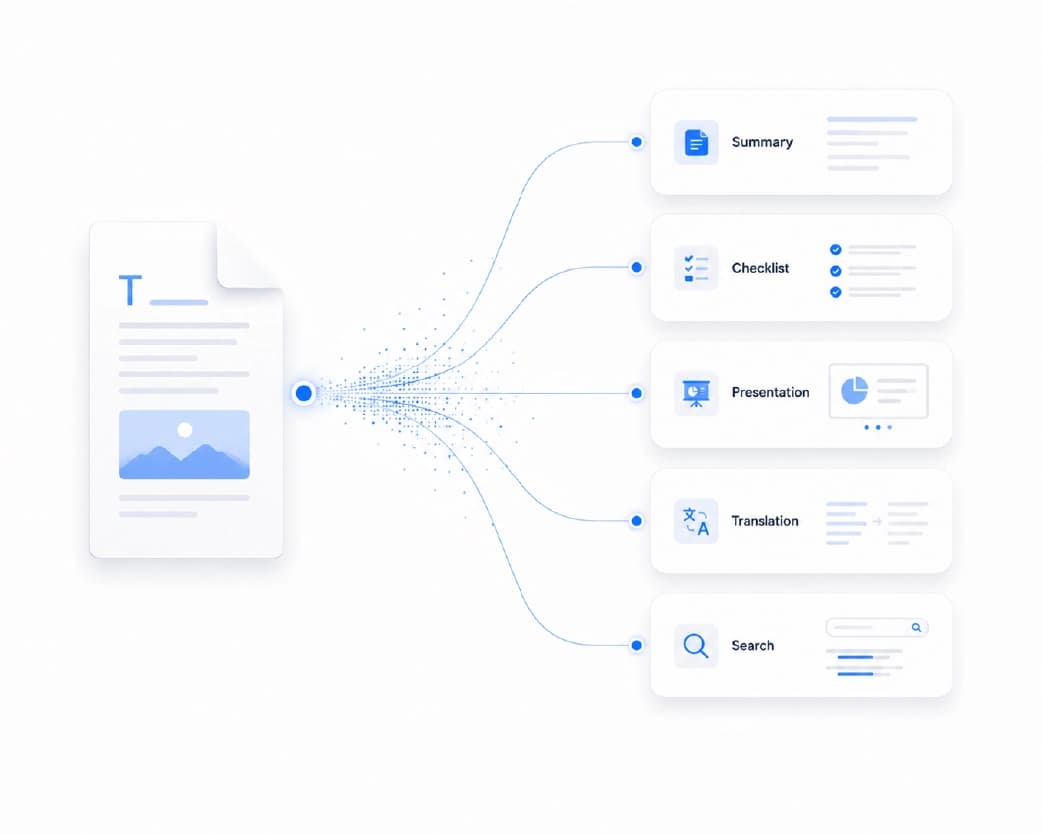
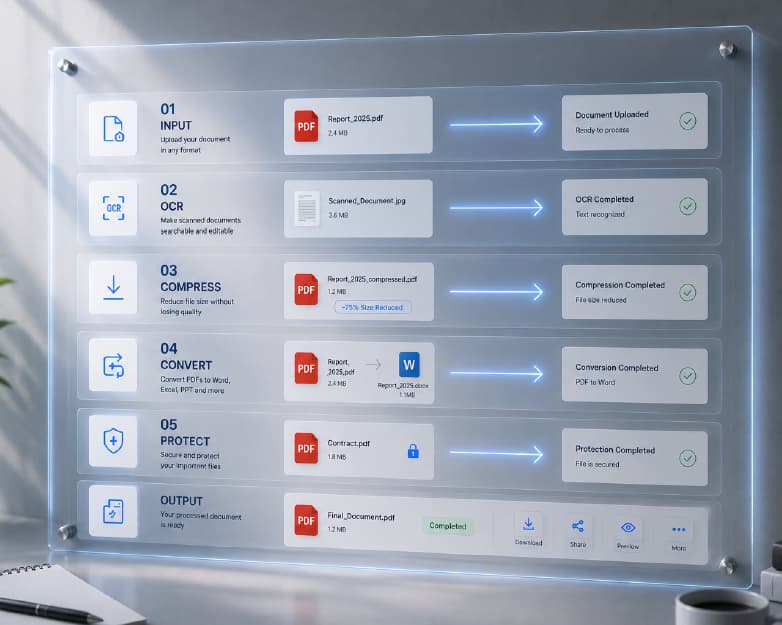
A good card starts with good photos. Plainscan is a browser-based set of document and image tools, so you can prep everything without installing software. The Remove BG tool can clear a messy background from a photo. The Crop Image tool helps you get every picture the same size. You can compress images so your files stay light, and use the Image Upscaler to sharpen a small logo. When your cards are done, you can save them as a PDF for printing. Just keep in mind that Plainscan’s AI features use credits or a Pro plan, while the basic tools are free to start.
You can try them at Plainscan.
Conclusion
A good ID card is simple, clear, and consistent. With the right ID card templates, you can build one without starting from zero, and you can make a whole batch that looks like it belongs together. Pick a clean layout, use sharp photos, include only the details people need, and print a test card first. Then you’re ready to hand them out with confidence. Ready to get started? Head over to Plainscan and see what’s waiting for you.
Related insights


Get the Plainscan App for iOS & Android