ATS Resume Scanner: How to Check Your Resume Before You Apply
Back to Blog

ATS Resume Scanner: How to Check Your Resume Before You Apply

P
Plainscan Team
November 6, 2026
4 min read
Share

You spent hours on your resume. You fixed the wording, checked the spelling, and made it look great. Then you applied to twenty jobs and heard back from none. That’s a rough feeling. And it makes you wonder what’s going wrong. Sometimes the problem isn’t your experience at all. It’s that the company’s software couldn’t read your resume properly. Most mid-size and large companies use something called an ATS, and if your file confuses it, your resume may never reach a person. A good ATS resume scanner can show you what the software sees, so you can fix problems before you hit apply.

What Is an ATS?

ATS stands for applicant tracking system. It’s software that companies use to collect, sort, and manage job applications.

When you apply online, your resume usually goes into this system. The software reads it, pulls out details like your name, job titles, skills, and dates, and stores everything in a database. Later, a recruiter can search that database for keywords, like “customer service” or “project management.”

Here’s something worth knowing. Many ATS tools don’t magically reject people on their own. More often, recruiters search and filter the results. But if the software can’t read your resume well, or your keywords don’t match the job, you may not show up in those searches. And that’s almost as bad as being rejected.
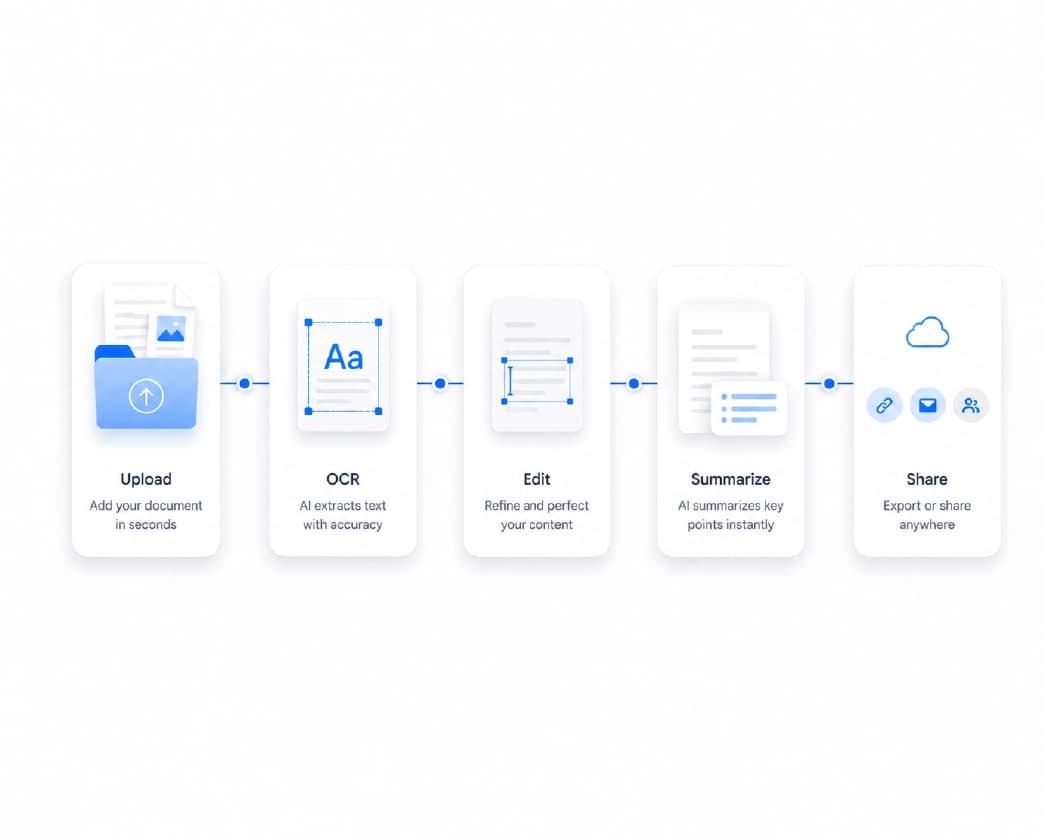
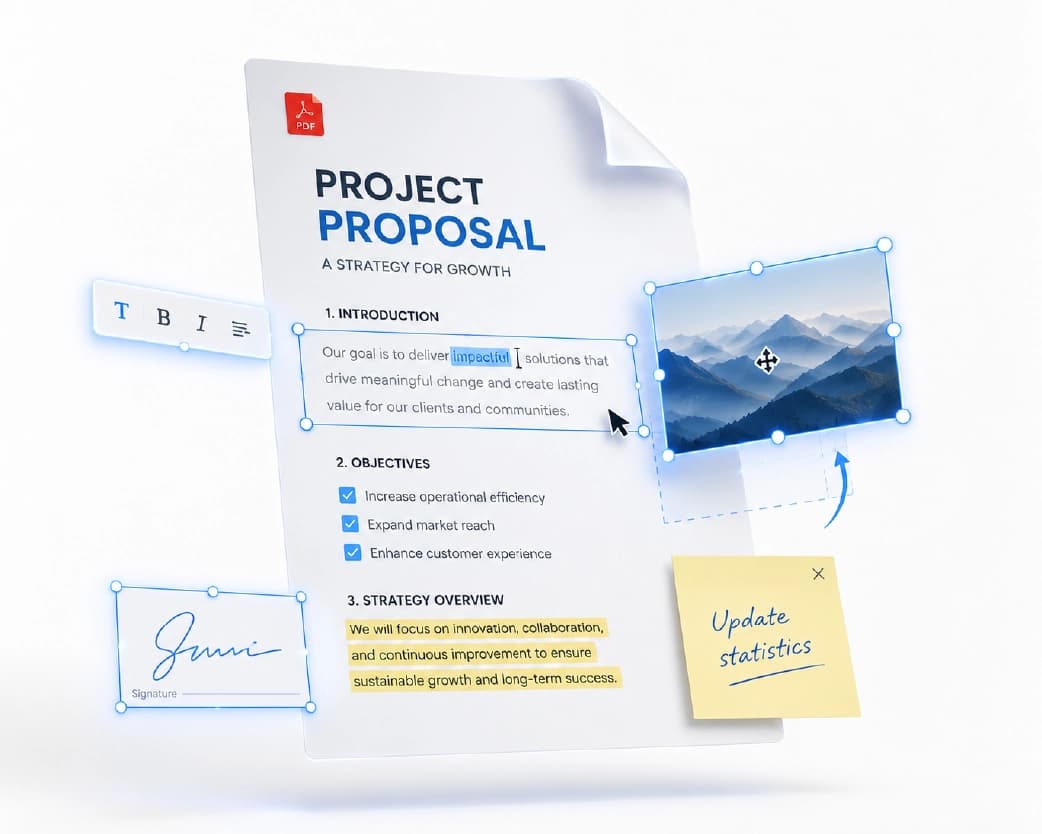
What Is an Applicant Tracking System (ATS)

What Is an ATS Resume Scanner?

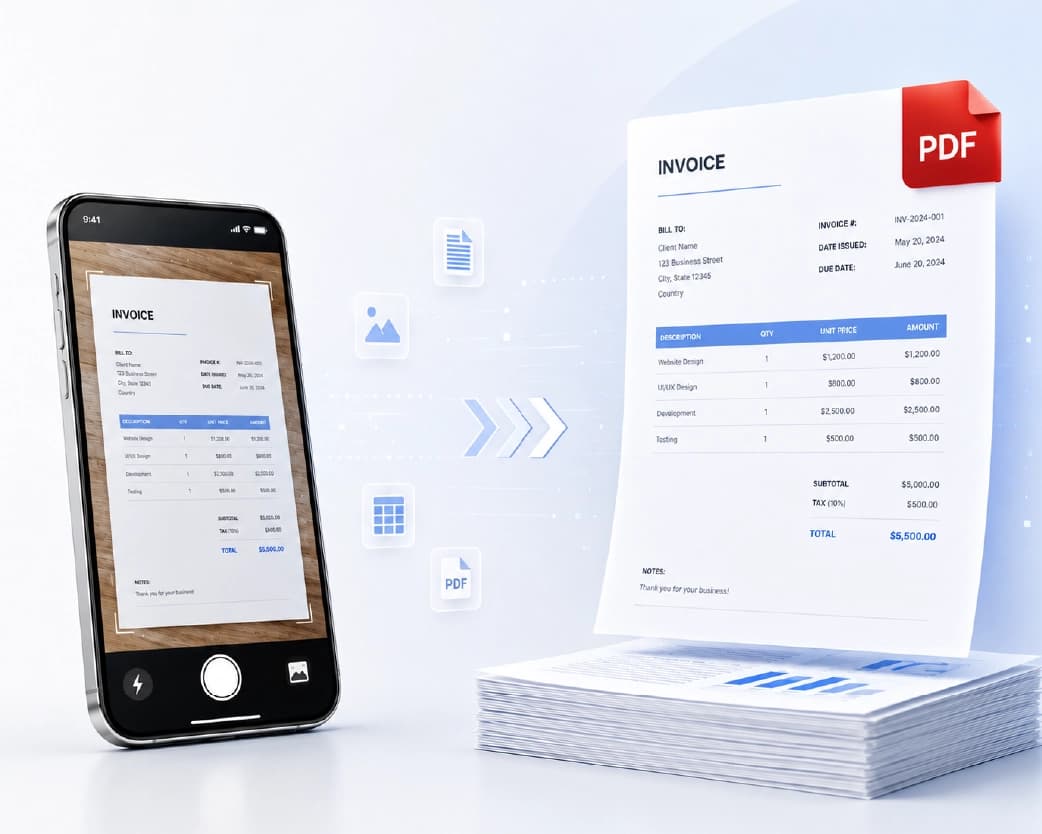
It’s a tool that checks your resume the way an applicant tracking system might. You upload your resume, and sometimes a job description too. The scanner looks at how readable your file is, what keywords you have, and how well you match the job.

You may also hear it called a resume checker. Many give you a resume score and a list of things to fix. Some are free, and some charge for the full report.

One thing to remember: the score is a guide, not a guarantee. Different companies use different systems, and no scanner can predict exactly what a specific one will do. Think of it as a helpful warning light, not a final grade.

What Does a Scanner Look For?

Most scanners check a few main things.

Format. Can the software read your file without getting confused? Fancy layouts are the biggest troublemakers.

Keywords. Does your resume include the skills and terms from the job post? If the job asks for “data analysis” and your resume never says it, that’s a gap.

Contact details. Is your name, email, and phone number easy to find and in the right place?

Section headings. Do you use plain headings like “Experience,” “Education,” and “Skills”? Creative names like “My Journey” can confuse the software.

Dates and job titles. Are they clear and consistent? Mixed date styles make parsing harder.
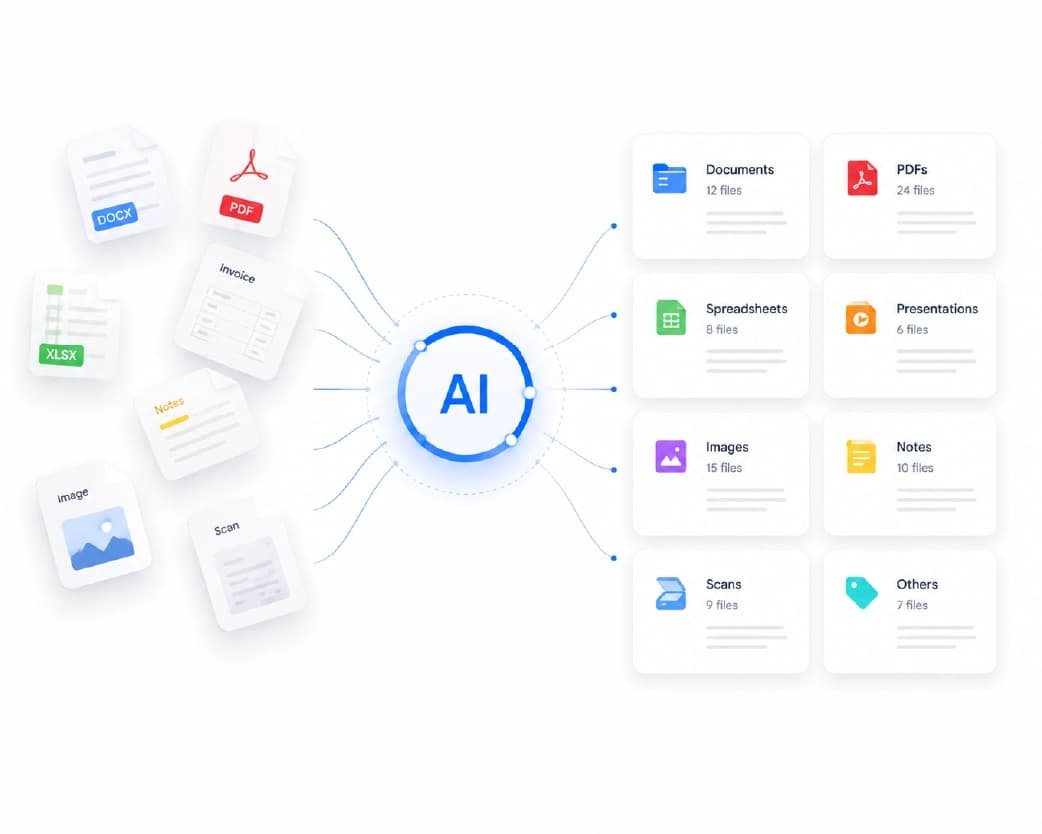
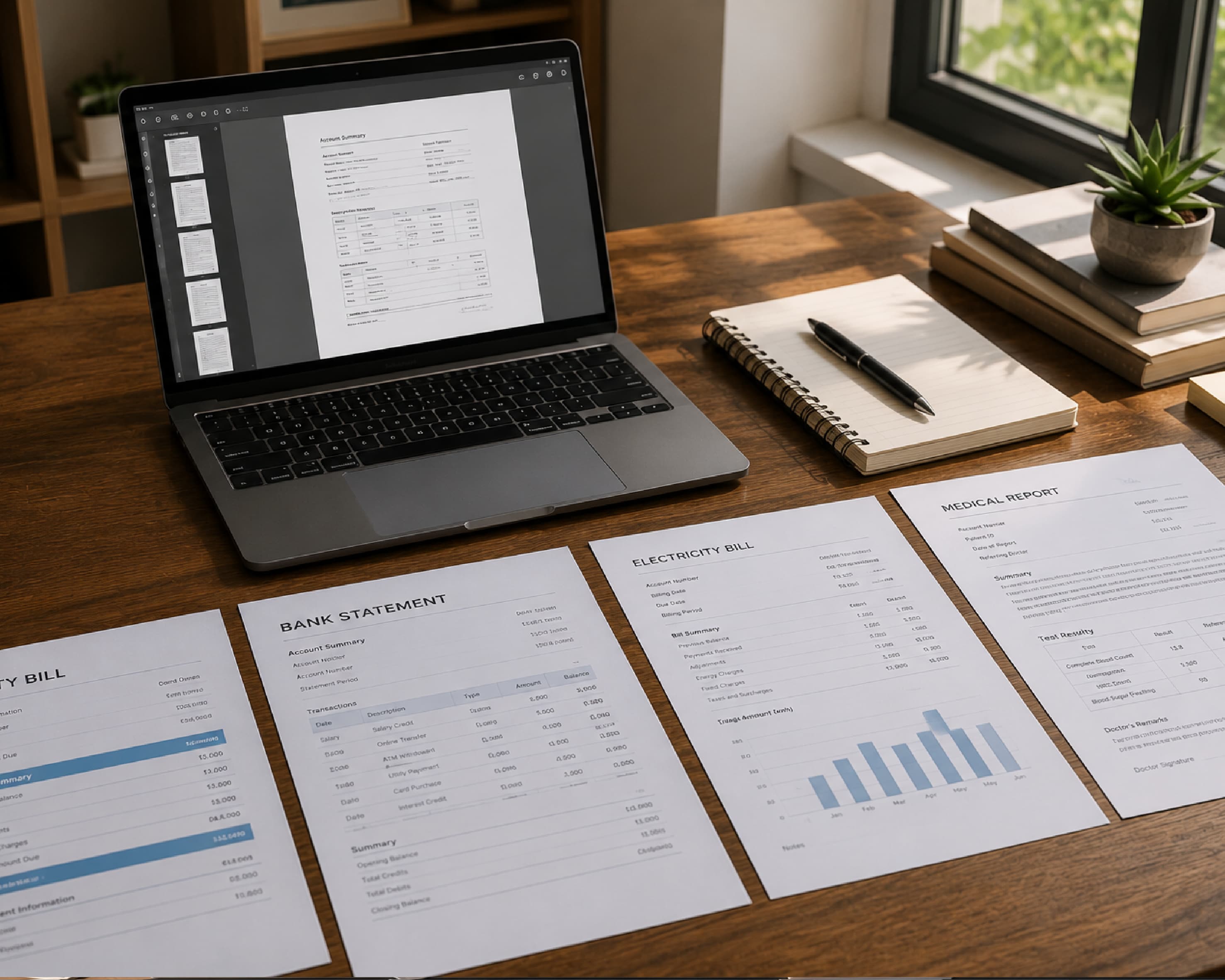
What ATS Resume Scanners Look For

How to Use an ATS Resume Scanner Step by Step

It’s simple, but a few smart choices make it work better.

Pick One Job to Aim For

Don’t scan your resume in general. Pick a real job you want and copy its description. A resume for a marketing assistant should look different from one for a sales rep.

Upload Your Resume and the Job Post

Most scanners compare the two. That’s how they find missing keywords and show how closely you match.

Read the Results

Look at what the tool flagged. Is it a format problem? Missing skills? Unclear headings? Make a short list of the top fixes.

Fix and Scan Again

Change what you can, then run it through again. Watch the score, but don’t chase a perfect 100. Aim for a resume that’s clear, honest, and matches the role.
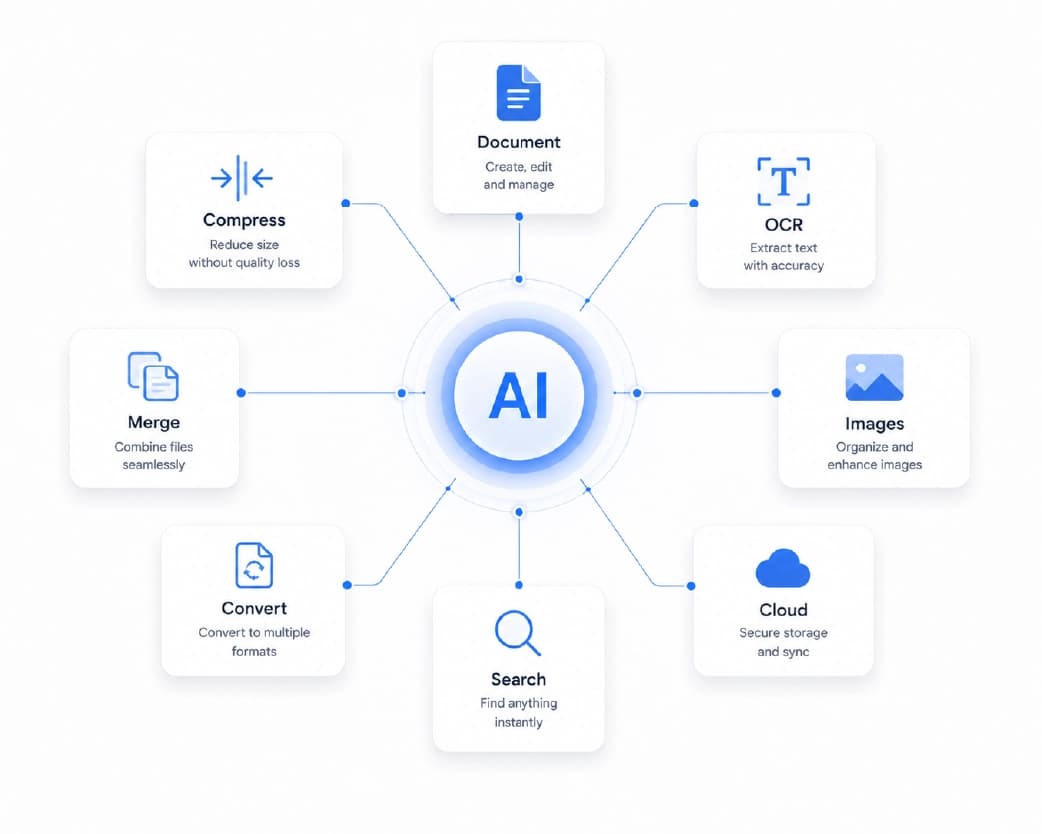
How to Make Your Resume ATS-Friendly

How to Make Your Resume ATS-Friendly

You don’t need a scanner to start. These simple habits help a lot.

Keep the Layout Simple

Skip tables, text boxes, columns, icons, and pictures. They look nice to people but can scramble the text for software. A clean, single column works best.

Use Standard Headings

Stick with names the software expects: Summary, Experience, Education, Skills. It’s boring, but it works.

Use Normal Fonts

Pick something clear and common, like Arial, Calibri, or Times New Roman. Avoid tiny sizes. Ten or eleven points is usually safe.

Match the Job Description

Read the job post carefully and use the same words for skills you really have. If it says “customer support” and you wrote “client assistance,” use their wording. But only include what’s true.

Keep Important Info Out of the Header and Footer

Some systems can’t read those areas. Put your name and contact details in the main body of the page.

Save It the Right Way

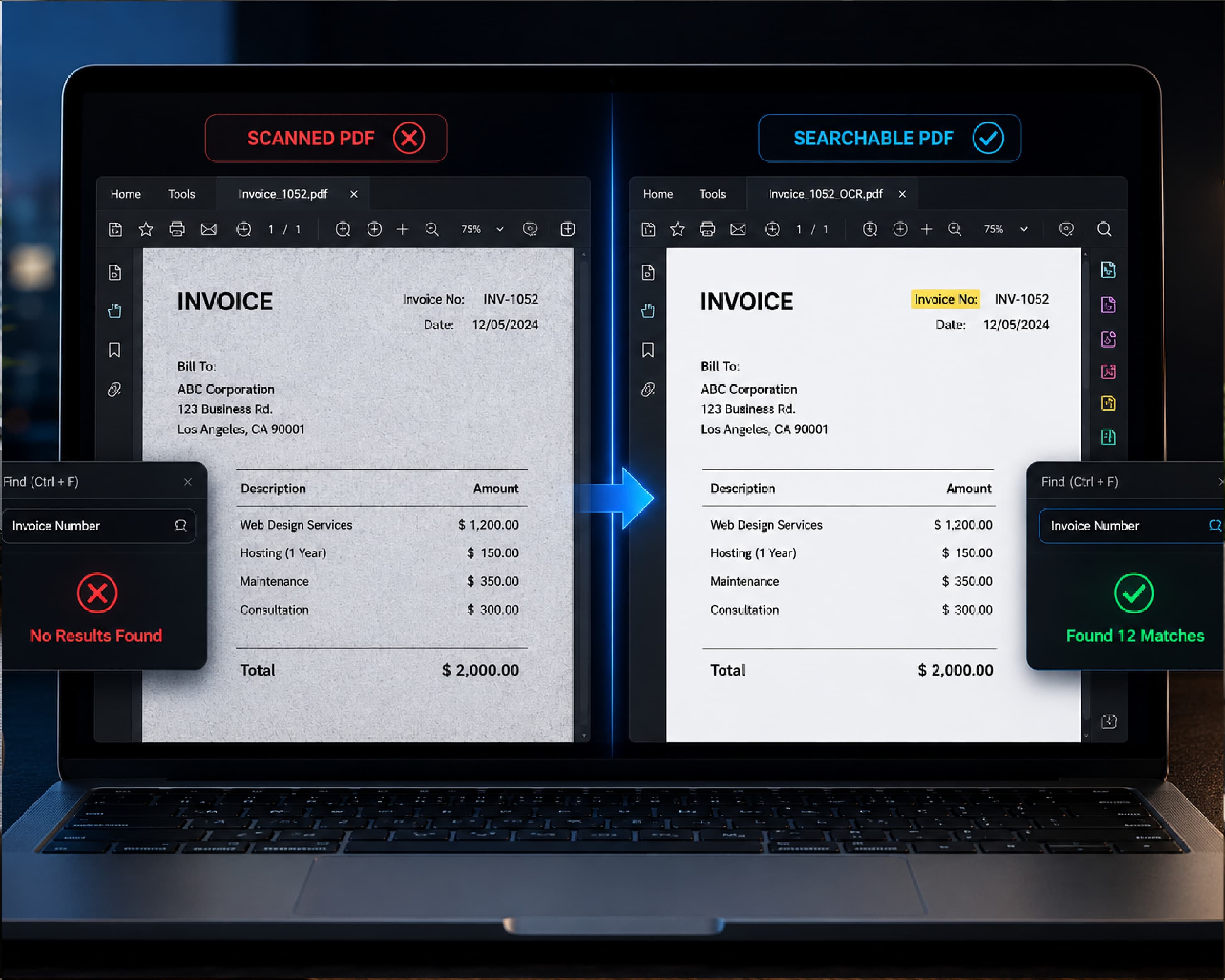
Check what file type the employer wants. A Word file or a PDF that contains real text usually works fine. A PDF made from a photo or scan often doesn’t, because the computer sees only an image.

Mistakes to Avoid

Don’t stuff your resume with keywords just to raise the score. If a recruiter sees a wall of buzzwords, they’ll notice. And never hide white text in the background to fool the system. Many tools catch it, and it can get you removed from consideration.

Also, don’t lie about skills you don’t have. You might get an interview, but you’ll struggle in it. Honest and clear always wins in the long run.
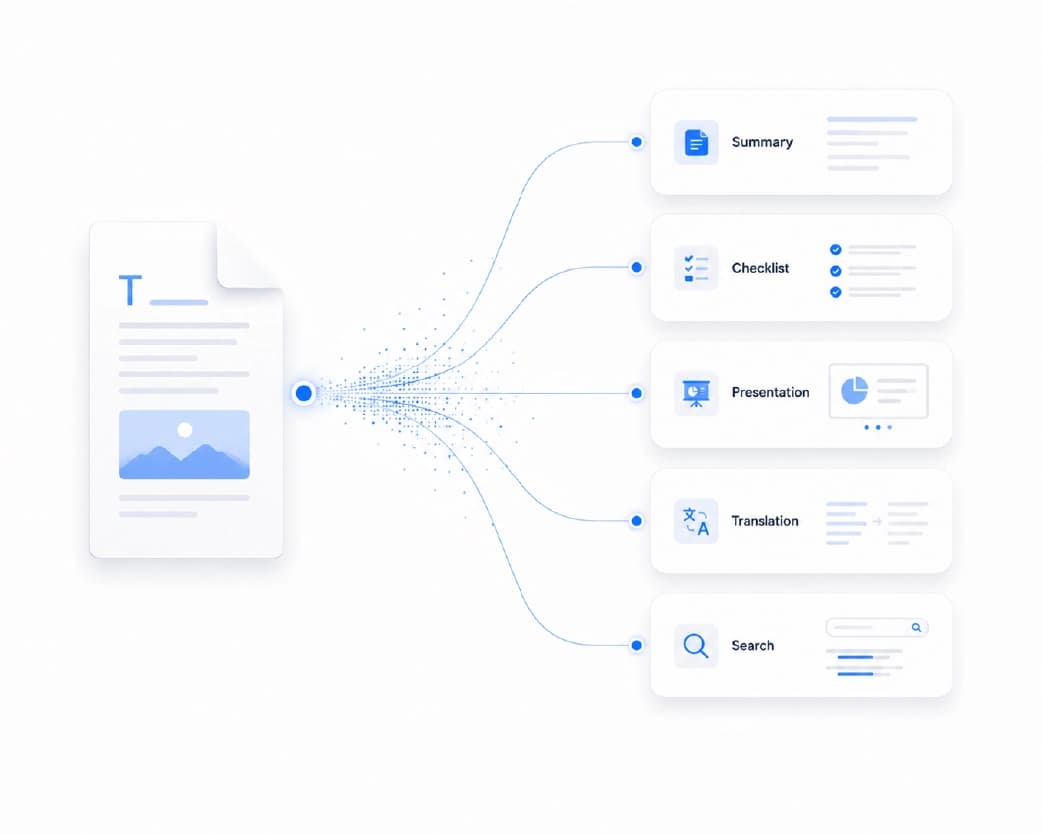
Optimizing Your Resume with Plainscan Tools and Templates

Get Your Resume in Shape With Plainscan

A scanner tells you what’s wrong. You still have to fix it, and that’s where Plainscan can help.

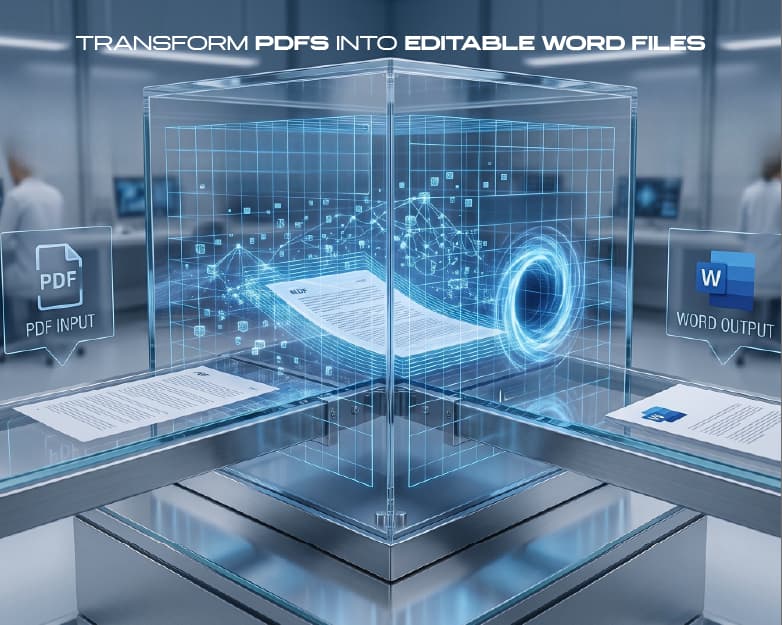
Plainscan has a library of ready-made resume templates, including classic, modern, and executive styles. If you choose one, pick a simple layout and run it through a scanner, since sidebar and heavy design styles can confuse some systems. If your old resume is stuck in a PDF, you can convert it to Word and edit it. If it’s a scanned copy, the Scan and OCR tool can turn it into real text. And once it’s polished, you can save it as a PDF for sending. There are cover letter templates too, so your whole application looks like it belongs together.

You can find it all at Plainscan.

Conclusion

An ATS resume scanner can’t get you the job. But it can help you avoid the silly problems that keep your resume from being read at all. Keep your layout simple, use the words from the job post, check your file, and be honest about your skills. Then let a real person take it from there. Before your next application, give your resume a quick check. And if it needs a fresh start, Plainscan has the templates and tools to get you there.

Related insights

ID Card Templates: How to Design Clean, Professional Cards Fast

ARTICLE

ID Card Templates: How to Design Clean, Professional Cards Fast

Think about the last time you went to a big event, started a new job, or joined a club. Chances are, someone handed you a card or badge with your name on it. It’s a small thing. But it tells people who you are, where you belong, and that someone planned things properly. A messy, hand-written one does the opposite. Making ID cards from scratch can be a headache, though. Sizes, photo boxes, logos, spacing. That’s where ID card templates come in. They give you a ready-made layout, so you just add your details. Let’s go through how to pick one, how to customize it, and how to print something you’re proud of.

Plainscan Team·November 7, 2026
4 min read
Business Templates: How to Save Time and Look Professional From Day One

ARTICLE

Business Templates: How to Save Time and Look Professional From Day One

Picture a small business owner on a Tuesday night. She’s finished a great job for a client, and now she needs to send an invoice. She opens a blank document. Types the date. Wonders where the invoice number goes. Moves a table around. Fixes the font. Forty minutes later, she has something that looks okay, but she’s not sure it’s right. Next week, she’ll do it all again. This is the problem business templates solve. They give you a ready-made layout for the documents you use over and over, so you fill in the details and get back to real work. Let’s look at what they are, how to pick good ones, and how to use them well.

Plainscan Team·November 7, 2026
4 min read
Cover Letter Templates: How to Write a Strong One in 15 Minutes

ARTICLE

Cover Letter Templates: How to Write a Strong One in 15 Minutes

You finished your resume. It looks great. You’re ready to hit submit. Then you see it. “Please attach a cover letter.” Suddenly your motivation drops. What do you say? How long should it be? Do you start with “Dear Sir or Madam,” or is that a little 1995? And how do you write about yourself without sounding like you’re bragging? This is exactly where cover letter templates help. They give you the layout and a clear flow, so you’re not staring at a blank page. Let’s look at how they work, how to use them well, and how to keep your letter from sounding like everyone else’s.

Plainscan Team·November 7, 2026
4 min read
Resume Templates: How to Pick the Right One (and Make It Work for You)

ARTICLE

Resume Templates: How to Pick the Right One (and Make It Work for You)

Opening a blank document to write your resume feels like standing at the bottom of a hill. Where does your name go? How big should the font be? Should your skills come first, or your job history? Twenty minutes later, you’ve moved a text box around eleven times and written nothing. That’s what resume templates are for. They give you the layout, the spacing, and the structure. You just add your story. Let’s talk about how to pick the right one, how to fill it in, and what to avoid.

Plainscan Team·November 7, 2026
4 min read
Free Photo Metadata Editor & EXIF Stripper: Share Photos Without Sharing Secrets

ARTICLE

Free Photo Metadata Editor & EXIF Stripper: Share Photos Without Sharing Secrets

You take a photo of the couch you’re selling and post it online. Simple, right? Here’s what you may not know. That photo might also contain the exact spot where you took it. If you took it at home, that could be your home address, tucked inside the file where nobody can see it. This hidden information is called metadata, and the most common type is EXIF data. A free photo metadata editor & EXIF stripper lets you look at it, change it, or remove it. Let’s go through what it all means and how to use it.

Plainscan Team·November 7, 2026
4 min read
Free Favicon Generator: How to Make a Site Icon in Minutes

ARTICLE

Free Favicon Generator: How to Make a Site Icon in Minutes

Look at the top of your browser right now. See those little pictures next to the page titles? Those are favicons. They’re tiny, but they do a lot. When you have ten tabs open, the icon is how you find the right one fast. When someone bookmarks your site, the icon helps them spot it in a long list. And a site with no icon at all looks a bit unfinished, like a house with no front door sign. The good news is that you don’t need a designer to make one. A free favicon generator can turn your logo into a full set of icons in about a minute. Let’s walk through it.

Plainscan Team·November 7, 2026
4 min read
Base64 to Image Decoder: How to Turn a Long String Back Into a Picture

ARTICLE

Base64 to Image Decoder: How to Turn a Long String Back Into a Picture

Someone sends you an API response. Or you open an email’s source code. Or you copy something out of a database. And right there, in the middle of it all, is a wall of text a mile long. It starts with something like “data:image/png;base64,” and then it just keeps going. Hundreds, maybe thousands of characters. That’s an image in disguise. And to see it, you need a Base64 to image decoder. Let’s go through what it does, how to use it, and what to do when it throws an error.

Plainscan Team·November 7, 2026
4 min read
Image to Base64 Converter: How to Turn Any Image Into Text (and When You Should)

ARTICLE

Image to Base64 Converter: How to Turn Any Image Into Text (and When You Should)

If you’ve ever poked around inside a website’s code, you might have seen something strange. A giant wall of random-looking letters and numbers, starting with “data:image/png;base64.” It looks like a cat walked across the keyboard. But it’s not random. It’s an actual image, turned into text. And the tool that makes it is called an image to Base64 converter. You might need one if you’re building a website, writing an email template, or working with an app that only accepts text. Let’s break down what Base64 is, how to use a converter, and the mistakes that trip people up.

Plainscan Team·November 7, 2026
4 min read
Free Character Counter: How to Check Letters, Spaces, and Limits Fast

ARTICLE

Free Character Counter: How to Check Letters, Spaces, and Limits Fast

You write the perfect bio. It’s funny, short, and sounds just like you. Then the app says it’s too long. You delete a word. Still too long. You delete another. Now it doesn’t make sense. This happens all the time, and it’s why a free character counter is so handy. Instead of guessing which words to cut, you see the exact number and know how far over you are. Let’s go through how it works, when you need one, and how to use it well.

Plainscan Team·November 6, 2026
4 min read
Free Word Counter: How to Check Words, Characters, and More in Seconds

ARTICLE

Free Word Counter: How to Check Words, Characters, and More in Seconds

“Write 500 words.” Seems simple until you’re staring at your draft wondering if you’re at 380 or 620. You could count by hand, but who has time for that? And if you guess wrong, you might lose points, get a post rejected, or have to rewrite half of it at the last minute. That’s where a free word counter comes in. Paste your text, and you see the numbers right away. Let’s look at what it does, who needs it, and how to use it without any stress.

Plainscan Team·November 6, 2026
4 min read

Get the Plainscan App for iOS & Android