
Image to Base64 Converter: How to Turn Any Image Into Text (and When You Should)
If you’ve ever poked around inside a website’s code, you might have seen something strange. A giant wall of random-looking letters and numbers, starting with “data:image/png;base64.” It looks like a cat walked across the keyboard. But it’s not random. It’s an actual image, turned into text. And the tool that makes it is called an image to Base64 converter. You might need one if you’re building a website, writing an email template, or working with an app that only accepts text. Let’s break down what Base64 is, how to use a converter, and the mistakes that trip people up.
What Is Base64?
Computers store images as binary data, which is a long string of ones and zeros. That works great for files, but some systems can only handle plain text. Think of things like HTML code, CSS files, JSON data, and emails.
Base64 is a way to turn that binary data into regular text. It uses 64 safe characters: capital letters, lowercase letters, numbers, plus a couple of symbols. Because those are all normal text, they travel through text-only systems without breaking.
So when you convert an image to Base64, you’re not changing how the picture looks. You’re just writing it down in a different form.
What Does an Image to Base64 Converter Do?
It takes an image file, like a PNG or JPG, and gives you back a long string of text. That string is your image. You can paste it into code, and the browser or app turns it back into a picture.
You might also hear it called a Base64 encoder. And there’s a reverse tool too. A Base64 to image converter takes the text and turns it back into a file you can save.
Most converters give you two options. One is the plain Base64 string. The other is a data URI, which adds a short label at the front, so browsers know what kind of image it is. It looks like this:
data:image/png;base64,iVBORw0KGgo...
The dots at the end stand in for a much longer string.
When Is It Useful?
Base64 isn’t for every image. But it shines in a few spots.
Small icons and logos. If your page uses a tiny icon, you can embed it right in the code. The browser doesn’t need to fetch a separate file.
Email templates. Some email setups handle embedded images better than linked ones, though results vary by email app.
APIs and JSON. When you need to send an image through a system that only accepts text, Base64 is the usual answer.
Single-file projects. If you want one HTML file that has everything inside it, Base64 lets you tuck the images in.
Storing images in text fields. Some databases and forms only accept text, so encoding the image makes it fit.
When You Should Skip It
Here’s the honest part. Base64 has a cost.
The encoded text is about one third bigger than the original file. A 100 KB image becomes roughly 133 KB of text. For a tiny icon, that’s no big deal. For a big photo, it’s a real problem.
Embedded images also can’t be cached on their own. If the same picture appears on ten pages, the browser may have to download it ten times, because it’s baked into each page. That can make your site slower.
So as a simple rule: use Base64 for small images, and use normal image files for big ones.

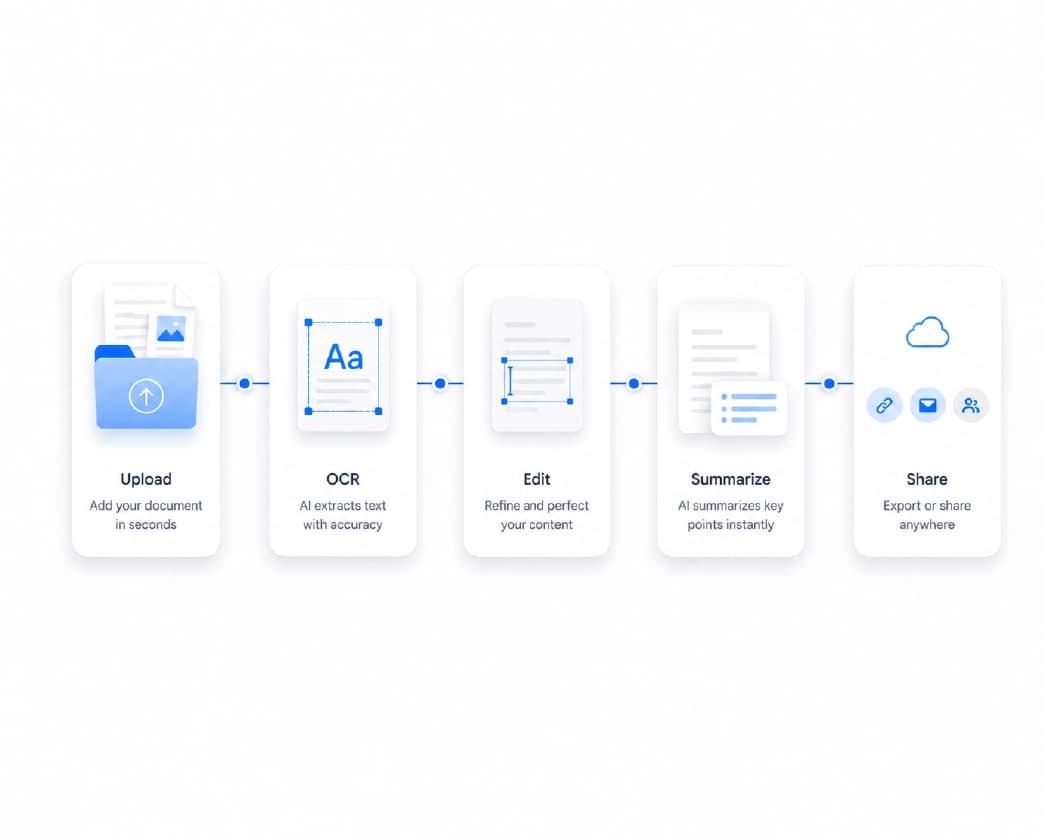
How to Use an Image to Base64 Converter Step by Step
It’s quick, and you don’t need to be a coder to do it.
You may also like:Free Word Counter: How to Check Words, Characters, and More in Seconds
Pick a Small, Clean Image
Choose the image you want to encode. If it’s large, shrink it first. A smaller image makes a shorter string.
Upload It to the Converter
Open an online tool and upload your file. PNG to Base64 and JPG to Base64 both work the same way. Most tools also accept GIF, WebP, and SVG.
Choose Your Output
Decide whether you want the plain string or the full data URI. If you’re putting it in HTML or CSS, you usually want the data URI.
Copy the Result
Hit copy and paste the text where you need it. Here’s a basic HTML example. The long string goes inside the quotes, right after “base64,”.
<img src="data:image/png;base64,YOUR_TEXT_HERE" alt="Small logo">
Test It
Open your page and make sure the image shows up. If it’s broken, check that you copied the whole string and that the image type at the start, like “png” or “jpeg,” matches your file.

Common Mistakes
A few small slips cause most of the trouble.
Copying only part of the string. These strings are long. If you miss the end, the image breaks. Use the copy button instead of selecting by hand.
Using the wrong image type. If your file is a JPG but the label says PNG, some browsers may complain. Match them up.
Leaving extra spaces or line breaks. Stray characters can break the string. Clean them out.
Embedding giant images. If your page suddenly feels slow, a huge Base64 image may be the reason.
Is Base64 Secure?
This one surprises people. Base64 is not encryption. It doesn’t hide anything. Anyone can turn the text back into the image in seconds.
So don’t use it to protect private pictures. If an image is sensitive, handle it with proper security instead. And think twice before uploading private images to any online tool. Plainscan, for example, processes files over secure HTTPS connections and deletes them automatically within 24 hours, but the safest choice is still to avoid sending anything you wouldn’t want out in the world.

Get Your Images Ready With Plainscan
The best Base64 results start with a well-prepared image. A smaller file gives you a shorter string and a faster page.
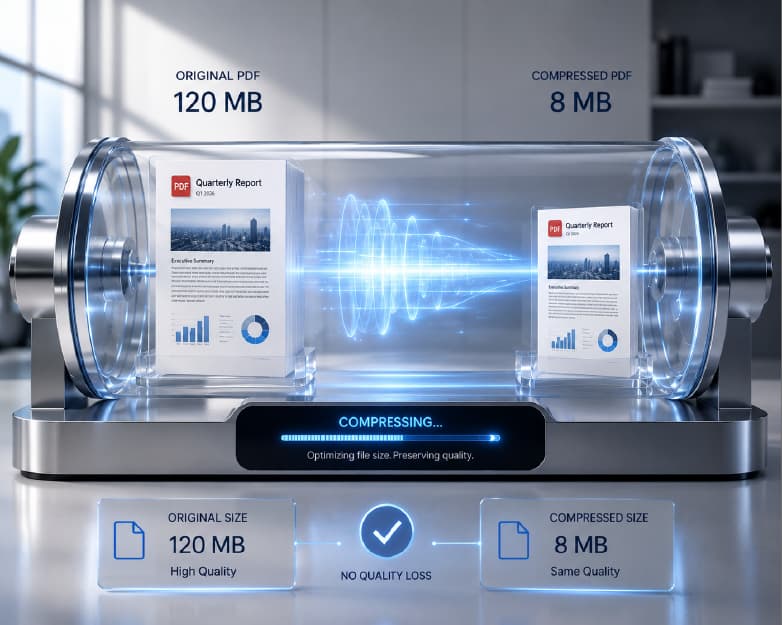
That’s where Plainscan can help. It’s a browser-based set of document and image tools. You can compress an image to shrink its file size before you encode it. You can crop out the parts you don’t need. And if you want a clean logo or icon, the Remove BG tool can strip the background, so you end up with a tidy image that works well when embedded. If you’re a developer, Plainscan also has a Developer API page for automating document and image tasks, which you can read about on the site.
You can try the image tools at Plainscan.
Recommended to Read:ATS Resume Scanner: How to Check Your Resume Before You Apply
Conclusion
An image to Base64 converter turns a picture into text, which makes it easy to tuck images into code, emails, and data that only handle plain text. It’s handy for small icons and logos, and not so great for big photos. Remember the basics. Keep images small, use the full data URI when you need it, test your result, and don’t mistake Base64 for security. Next time you’re building a page or working with an API, give it a try. And if your image needs a little prep first, Plainscan has the tools to help.
Related insights



Get the Plainscan App for iOS & Android