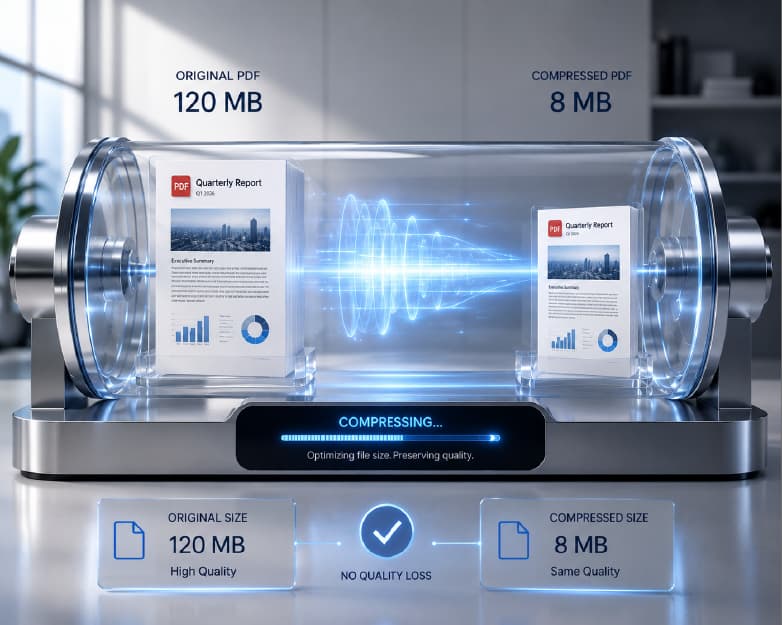
How to Use AI to Extract Key Points from Any Document
Back to Blog

How to Use AI to Extract Key Points from Any Document

P
Plainscan Team
November 6, 2026
4 min read
Share

You get a long document. Maybe it’s a report, a contract, or notes from a meeting that ran way too long. Somewhere inside is the one thing you need. A date. A number. A decision. Who’s supposed to do what. You start scrolling. Then you start skimming. Then you realize you’ve read the same page twice and still don’t know the answer. There’s an easier way. You can use AI to extract key points from any document and get the important stuff in a list, in seconds. I’ll explain how it works, how to ask for what you need, and how to make sure the results are right.

What Are “Key Points,” Exactly?

They’re the parts of a document that really matter. The stuff you’d underline with a highlighter if you had all day.

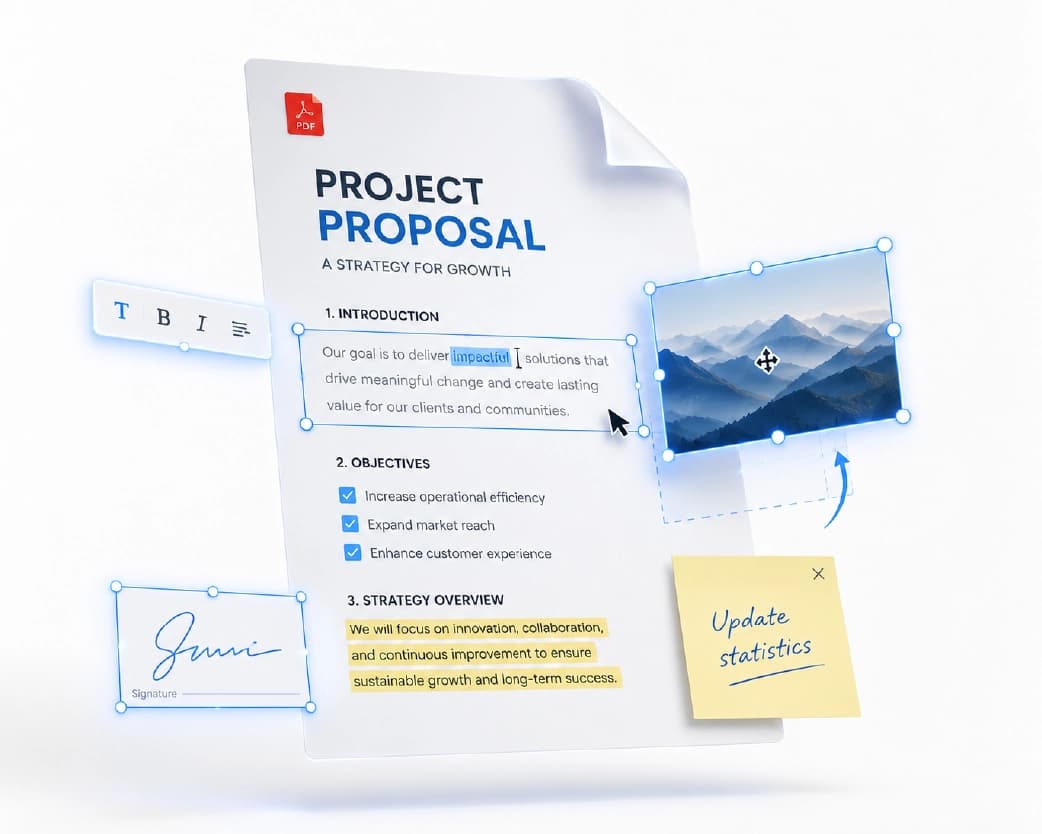
Depending on what you’re reading, that could be the main ideas of a report, the deadlines in a contract, the decisions made in a meeting, the findings in a research paper, or the numbers in a budget. It could also be action items, which are the tasks someone has to do after a meeting.

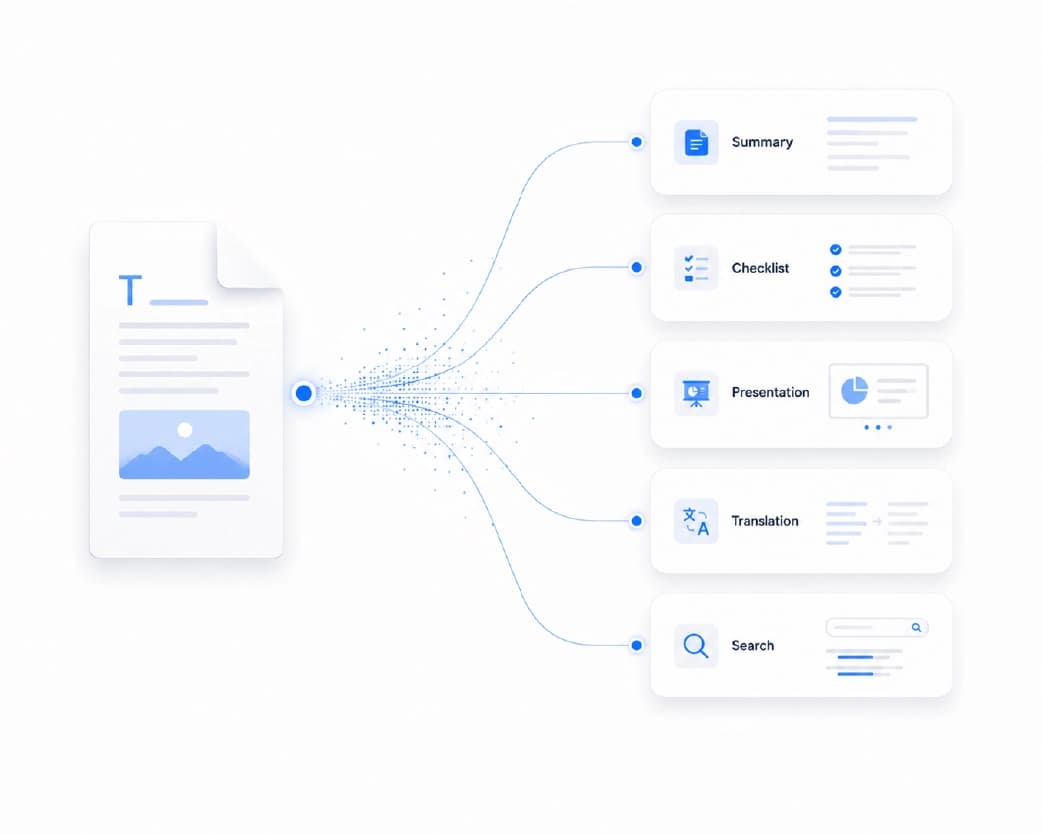
A key points list is different from a summary. A summary tells you the story in a shorter form. A key points list pulls out the specific things you’d want to act on or remember. Think of a summary as a short movie trailer and key points as a checklist.
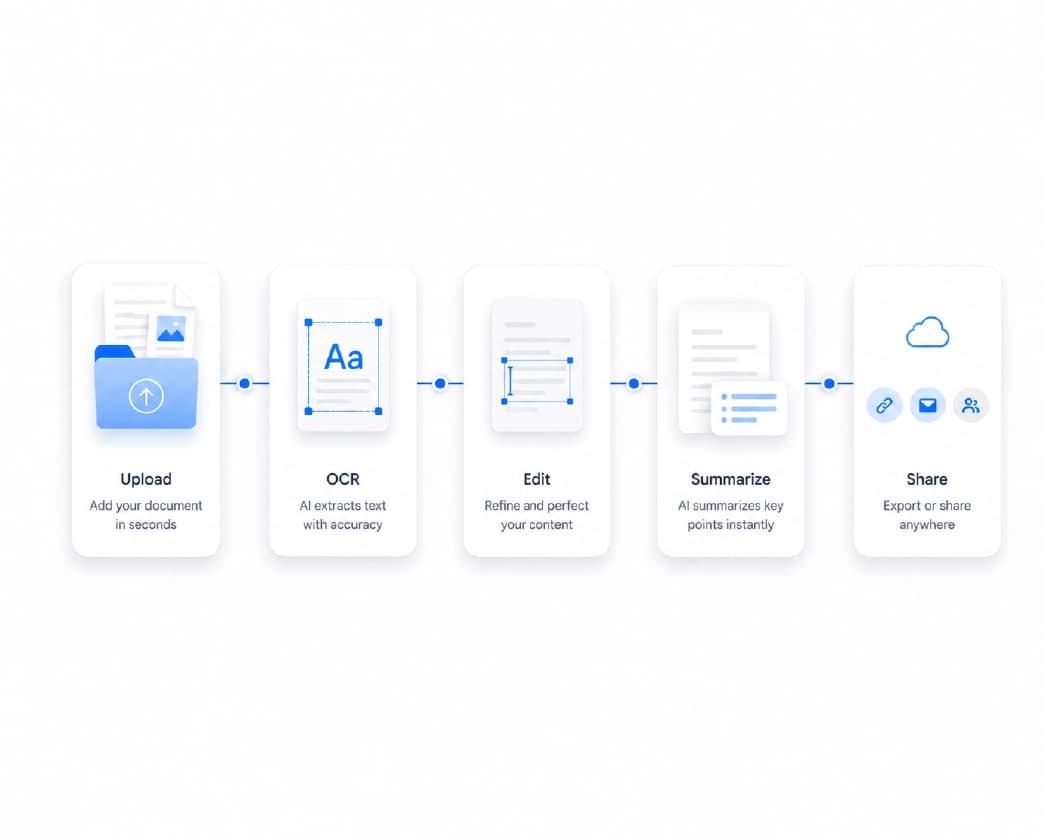
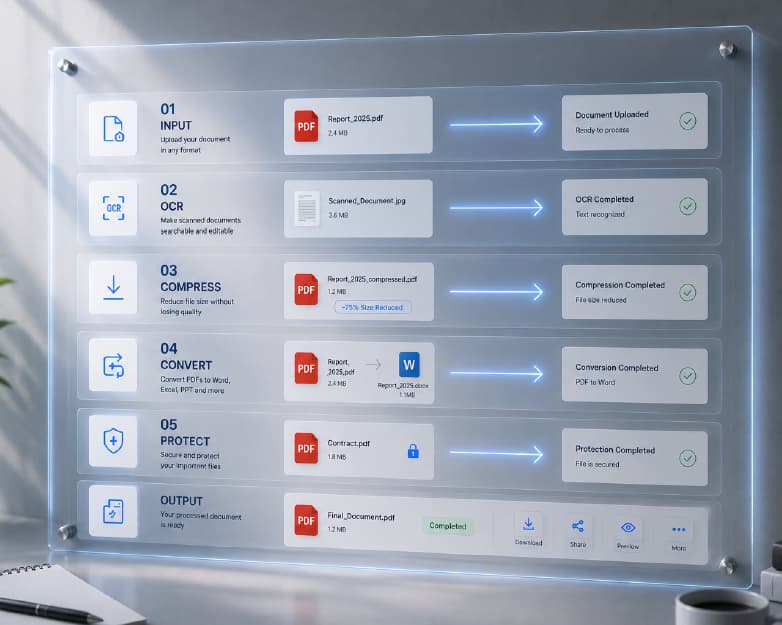
What Are Key Points and How AI Extracts Them from Documents

When Does This Help Most?

More often than you’d guess.

Meeting notes are a big one. Long notes are hard to scan, and the action items get buried. Reports and proposals are another, since you often just need the findings and the next steps. Contracts and agreements have dates, amounts, and conditions you don’t want to miss. Research papers have findings that matter far more than the background. And long email chains hide the actual answer under ten replies.

If you ever think, “Somewhere in here is what I need,” this is for you.

How to Use AI to Extract Key Points on Plainscan

Plainscan works in your browser, so there’s nothing to install. Phone, tablet, laptop, whichever’s closest. The site has over 100 document tools, including AI ones, and it’s free to start.

  • Open the tool: Go to the AI key points page on Plainscan. You’ll see an upload area first.
  • Add your document: Drag your file in or pick it from your device. A longer file may need more time, so don’t worry if it’s not instant.
  • Tell it what you want: If the tool lets you choose, say what you’re after. Main ideas? Deadlines? Action items? The more specific you are, the more useful the list.
  • Read the list and check it: Go through the key points. For anything important, like a date, a number, or a name, look it up in the original. Then copy the list wherever you need it.
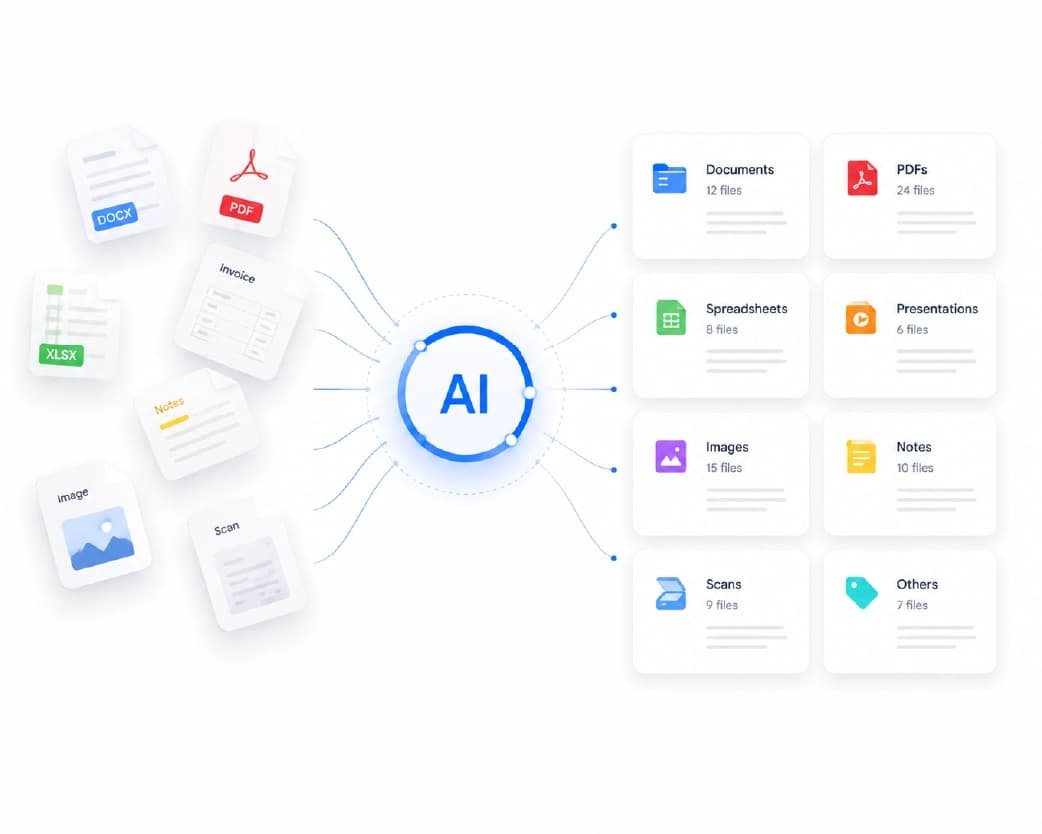
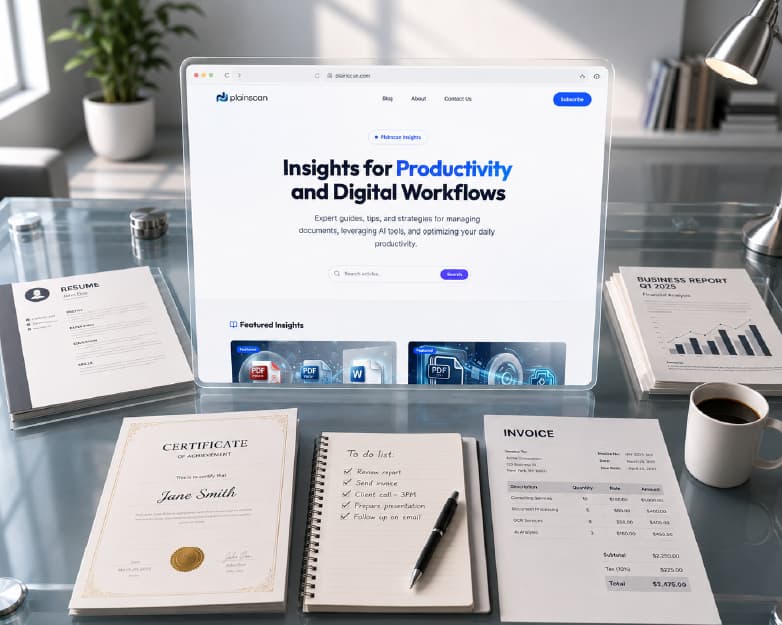
How to Use Plainscan AI to Extract Key Points and Action Items

Ask for the Right Things

A general request gets a general answer. A specific request gets something you can use.

Instead of “give me the key points,” try things like “list all deadlines,” “what decisions were made,” “who is responsible for what,” or “what are the main findings.” If your tool has a way to give instructions, use it.

Think about what you plan to do next. If you’re preparing for a meeting, ask for decisions and open questions. If you’re studying, ask for the main concepts. If you’re checking a contract, ask for dates and amounts. Matching your request to your goal saves you a lot of time.

Always Check the Results

Here’s the honest part. AI is fast, but it isn’t perfect.

It can miss a detail, mix up a number, or leave out an important exception. It can also get the importance wrong and pick something small while skipping something big. That’s not about one tool. It’s how this kind of technology works.

So treat the list as a first pass. Check the details that matter against the original, especially names, dates, and money. And for serious things like legal contracts or medical papers, read the original or ask a professional. A key points list tells you where to look. It shouldn’t replace the careful read.

What About Scanned Documents?

Good question, because many files are really photos of pages.

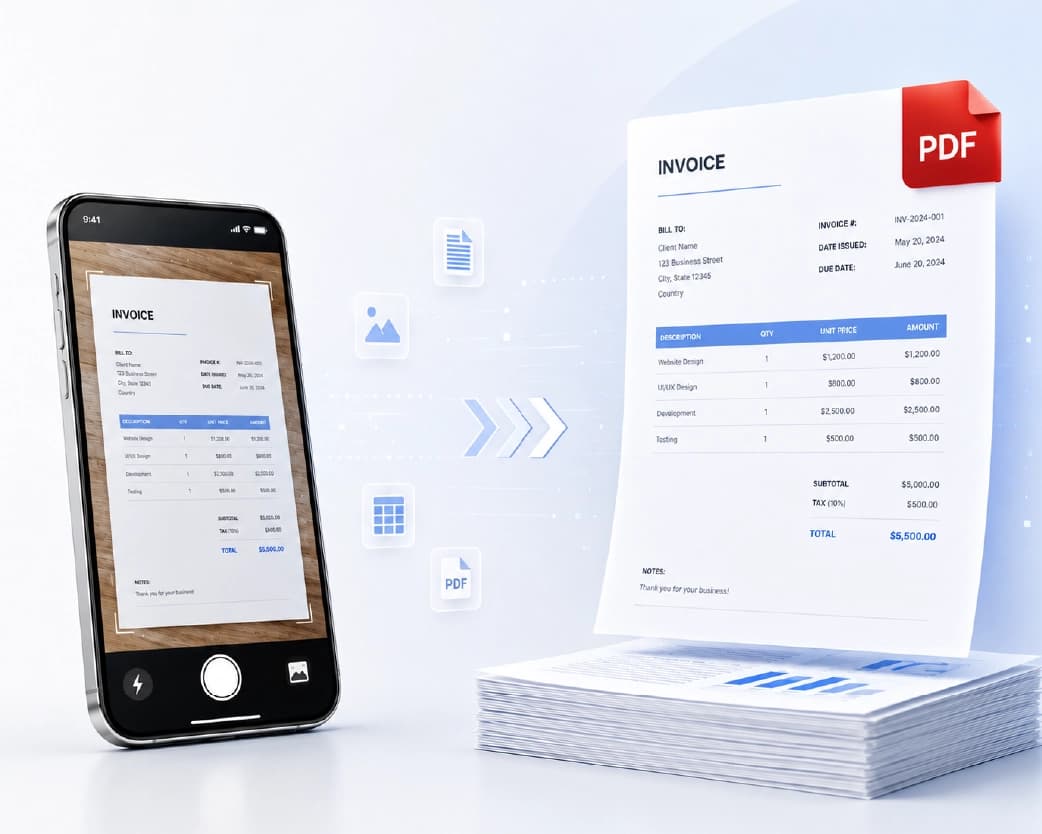
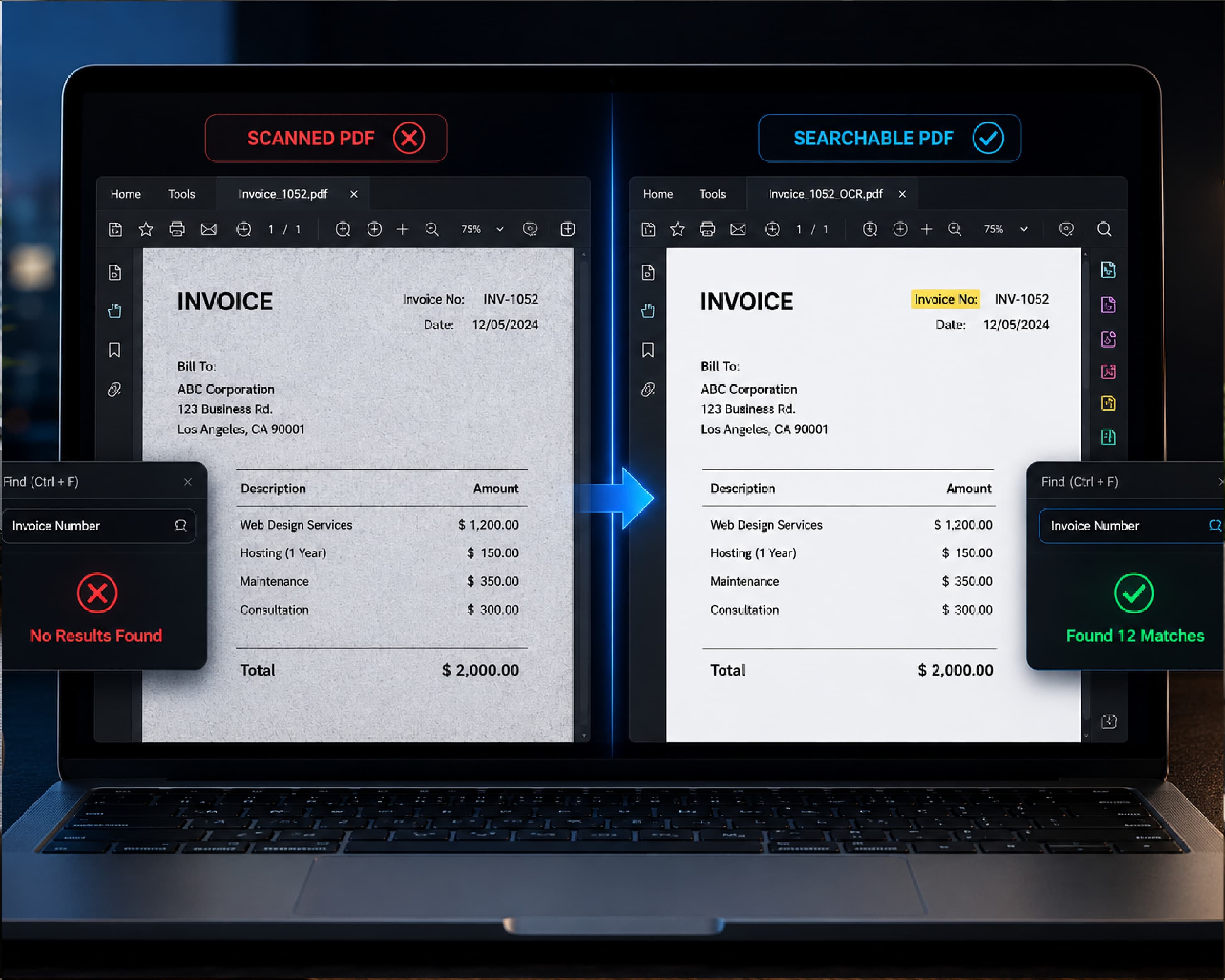
If your document is a scan, the AI can’t read the words yet. It just sees a picture. Run it through Scan & OCR first to turn the picture into text. Then try the key points tool again. You’ll get much better results.

A quick test: try highlighting a word in your file. If it highlights, you’ve got real text. If nothing happens, it’s probably a scan.
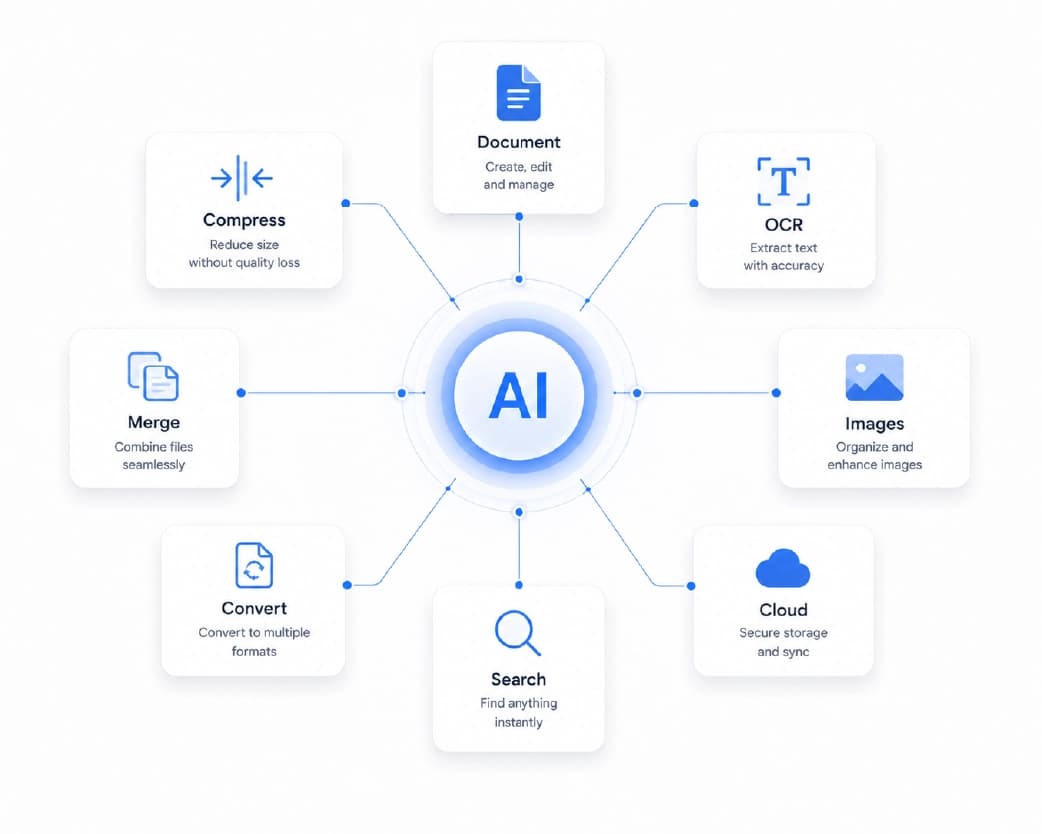
Turning Scanned Documents into Text Before Extracting Key Points

Put Your Key Points to Work

Getting the list is step one. What you do with it is what counts.

  • Copy the action items into your to-do list, and put the dates on your calendar.
  • Share the main points with your team so everyone starts on the same page.
  • Paste the findings into your notes or study sheet.
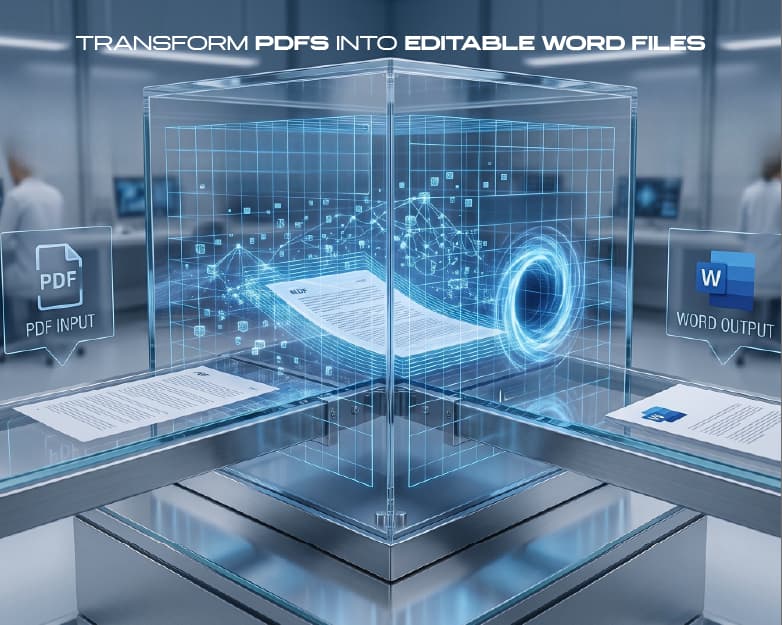
  • And if you need to edit the original, PDF to Word turns it into a Word file you can change.

A list that sits there doesn’t do much. Use it right away while it’s fresh.

Who Gets the Most Out of This?

  • Office workers: Meeting notes, reports, and long emails become easier to act on. You spend less time reading and more time doing.
  • Students: Long articles and study material turn into main ideas you can review quickly. It’s great for exam prep.
  • Small business owners: Contracts, quotes, and vendor papers are full of dates and numbers you can’t afford to miss. A key points list helps you catch them.
  • Researchers and writers: Sorting through lots of sources is faster when you can see the main findings of each one first.

Is It Safe to Upload a Document?

You should always ask. Plainscan uses encrypted HTTPS connections, and uploaded files are deleted automatically within 24 hours. The site also says it doesn’t share your files with third parties.

For everyday documents, that sounds reasonable. But if your file has very private details, like bank information, ID numbers, or confidential company secrets, think twice before uploading it to any website. That’s true for every online tool, not just this one.

What About the Free Plan?

You can start without paying. Plainscan has a free plan with daily limits, plus a Pro plan if you need more. There’s also a pay-as-you-go option where you buy credits only when you need them. If you only pull key points from a file now and then, free will probably be enough. Check the tool page for the current limits.
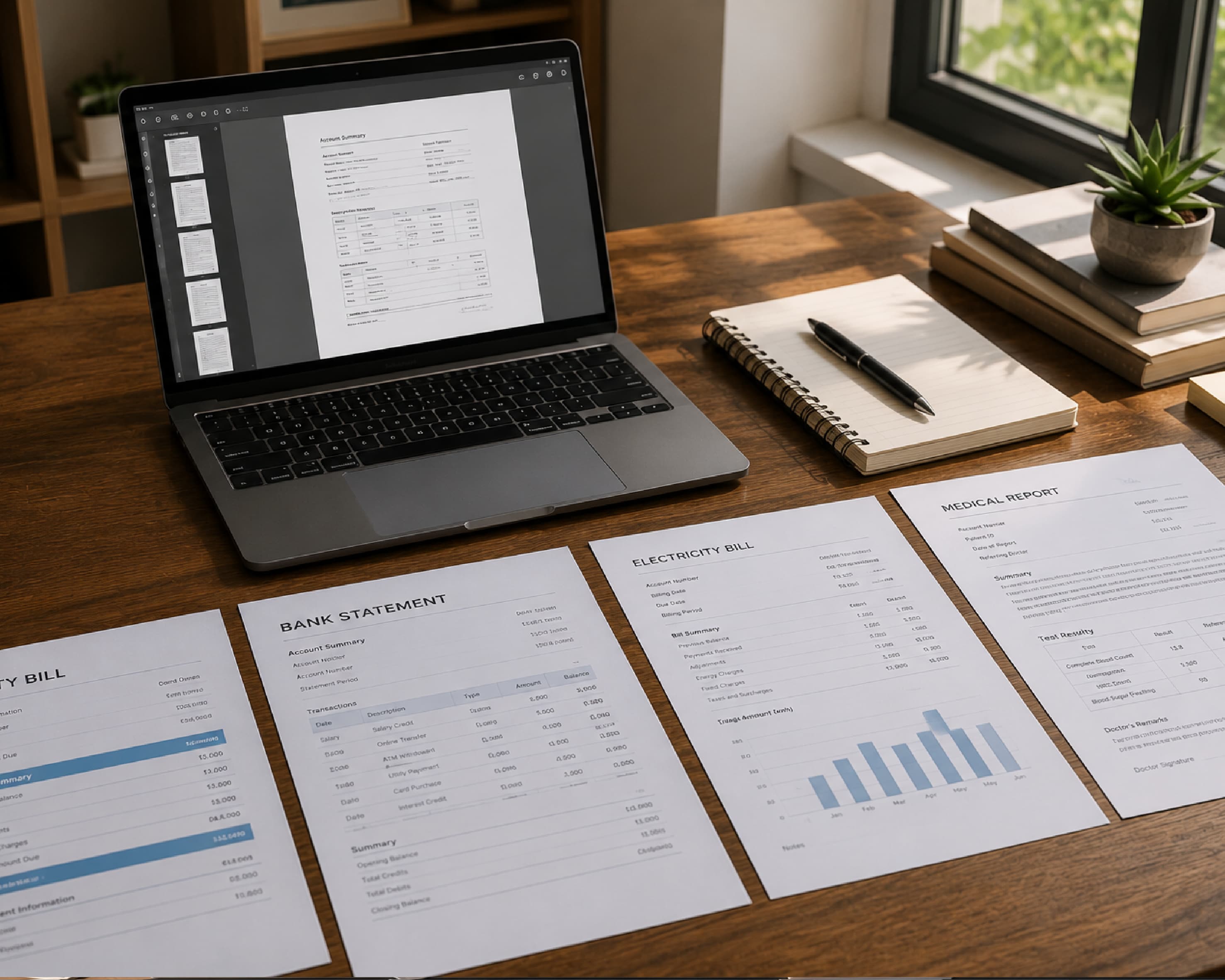
Safe and Private Document Analysis with Plainscan AI Tools

Mistakes to Avoid

  • Trusting every detail is the big one. Always double-check numbers, dates, and names that matter.
  • Another is asking for too little. A vague request can give you a vague list. Say what you need.
  • Feeding the tool a scan without OCR is a classic, too. If the AI can’t read the text, the list will be thin or empty.
  • And don’t use key points as your only source for a big decision. Go back to the original for the important parts.

Conclusion

Nobody has time to read every word of every file. When you use AI to extract key points from any document, you get to the important parts quickly, then spend your attention where it counts. So next time a long document lands on your desk, don’t scroll and hope. Open Plainscan, pull out the key points, check the details that matter, and get moving.

Related insights

ID Card Templates: How to Design Clean, Professional Cards Fast

ARTICLE

ID Card Templates: How to Design Clean, Professional Cards Fast

Think about the last time you went to a big event, started a new job, or joined a club. Chances are, someone handed you a card or badge with your name on it. It’s a small thing. But it tells people who you are, where you belong, and that someone planned things properly. A messy, hand-written one does the opposite. Making ID cards from scratch can be a headache, though. Sizes, photo boxes, logos, spacing. That’s where ID card templates come in. They give you a ready-made layout, so you just add your details. Let’s go through how to pick one, how to customize it, and how to print something you’re proud of.

Plainscan Team·November 7, 2026
4 min read
Business Templates: How to Save Time and Look Professional From Day One

ARTICLE

Business Templates: How to Save Time and Look Professional From Day One

Picture a small business owner on a Tuesday night. She’s finished a great job for a client, and now she needs to send an invoice. She opens a blank document. Types the date. Wonders where the invoice number goes. Moves a table around. Fixes the font. Forty minutes later, she has something that looks okay, but she’s not sure it’s right. Next week, she’ll do it all again. This is the problem business templates solve. They give you a ready-made layout for the documents you use over and over, so you fill in the details and get back to real work. Let’s look at what they are, how to pick good ones, and how to use them well.

Plainscan Team·November 7, 2026
4 min read
Cover Letter Templates: How to Write a Strong One in 15 Minutes

ARTICLE

Cover Letter Templates: How to Write a Strong One in 15 Minutes

You finished your resume. It looks great. You’re ready to hit submit. Then you see it. “Please attach a cover letter.” Suddenly your motivation drops. What do you say? How long should it be? Do you start with “Dear Sir or Madam,” or is that a little 1995? And how do you write about yourself without sounding like you’re bragging? This is exactly where cover letter templates help. They give you the layout and a clear flow, so you’re not staring at a blank page. Let’s look at how they work, how to use them well, and how to keep your letter from sounding like everyone else’s.

Plainscan Team·November 7, 2026
4 min read
Resume Templates: How to Pick the Right One (and Make It Work for You)

ARTICLE

Resume Templates: How to Pick the Right One (and Make It Work for You)

Opening a blank document to write your resume feels like standing at the bottom of a hill. Where does your name go? How big should the font be? Should your skills come first, or your job history? Twenty minutes later, you’ve moved a text box around eleven times and written nothing. That’s what resume templates are for. They give you the layout, the spacing, and the structure. You just add your story. Let’s talk about how to pick the right one, how to fill it in, and what to avoid.

Plainscan Team·November 7, 2026
4 min read
Free Photo Metadata Editor & EXIF Stripper: Share Photos Without Sharing Secrets

ARTICLE

Free Photo Metadata Editor & EXIF Stripper: Share Photos Without Sharing Secrets

You take a photo of the couch you’re selling and post it online. Simple, right? Here’s what you may not know. That photo might also contain the exact spot where you took it. If you took it at home, that could be your home address, tucked inside the file where nobody can see it. This hidden information is called metadata, and the most common type is EXIF data. A free photo metadata editor & EXIF stripper lets you look at it, change it, or remove it. Let’s go through what it all means and how to use it.

Plainscan Team·November 7, 2026
4 min read
Free Favicon Generator: How to Make a Site Icon in Minutes

ARTICLE

Free Favicon Generator: How to Make a Site Icon in Minutes

Look at the top of your browser right now. See those little pictures next to the page titles? Those are favicons. They’re tiny, but they do a lot. When you have ten tabs open, the icon is how you find the right one fast. When someone bookmarks your site, the icon helps them spot it in a long list. And a site with no icon at all looks a bit unfinished, like a house with no front door sign. The good news is that you don’t need a designer to make one. A free favicon generator can turn your logo into a full set of icons in about a minute. Let’s walk through it.

Plainscan Team·November 7, 2026
4 min read
Base64 to Image Decoder: How to Turn a Long String Back Into a Picture

ARTICLE

Base64 to Image Decoder: How to Turn a Long String Back Into a Picture

Someone sends you an API response. Or you open an email’s source code. Or you copy something out of a database. And right there, in the middle of it all, is a wall of text a mile long. It starts with something like “data:image/png;base64,” and then it just keeps going. Hundreds, maybe thousands of characters. That’s an image in disguise. And to see it, you need a Base64 to image decoder. Let’s go through what it does, how to use it, and what to do when it throws an error.

Plainscan Team·November 7, 2026
4 min read
Image to Base64 Converter: How to Turn Any Image Into Text (and When You Should)

ARTICLE

Image to Base64 Converter: How to Turn Any Image Into Text (and When You Should)

If you’ve ever poked around inside a website’s code, you might have seen something strange. A giant wall of random-looking letters and numbers, starting with “data:image/png;base64.” It looks like a cat walked across the keyboard. But it’s not random. It’s an actual image, turned into text. And the tool that makes it is called an image to Base64 converter. You might need one if you’re building a website, writing an email template, or working with an app that only accepts text. Let’s break down what Base64 is, how to use a converter, and the mistakes that trip people up.

Plainscan Team·November 7, 2026
4 min read
Free Character Counter: How to Check Letters, Spaces, and Limits Fast

ARTICLE

Free Character Counter: How to Check Letters, Spaces, and Limits Fast

You write the perfect bio. It’s funny, short, and sounds just like you. Then the app says it’s too long. You delete a word. Still too long. You delete another. Now it doesn’t make sense. This happens all the time, and it’s why a free character counter is so handy. Instead of guessing which words to cut, you see the exact number and know how far over you are. Let’s go through how it works, when you need one, and how to use it well.

Plainscan Team·November 6, 2026
4 min read
Free Word Counter: How to Check Words, Characters, and More in Seconds

ARTICLE

Free Word Counter: How to Check Words, Characters, and More in Seconds

“Write 500 words.” Seems simple until you’re staring at your draft wondering if you’re at 380 or 620. You could count by hand, but who has time for that? And if you guess wrong, you might lose points, get a post rejected, or have to rewrite half of it at the last minute. That’s where a free word counter comes in. Paste your text, and you see the numbers right away. Let’s look at what it does, who needs it, and how to use it without any stress.

Plainscan Team·November 6, 2026
4 min read

Get the Plainscan App for iOS & Android