AI Grammar Correction Tool: How to Fix Your Writing Without Losing Your Voice
My friend Tara runs a small bookkeeping business. She’s careful. She double-checks numbers for a living. Last spring she sent a client an invoice with a friendly note: “Please find attached the invoice for you’re review.” You’re review. Not your review. You’re review. Her client wrote back, very kindly, “Thanks! I will review it. (I’m sure it’s yours.)” Tara said she wanted to move to another country. She told me she’d read that email four times before sending it, and her eyes skipped right over the mistake every single time. That’s what eyes do. Your brain knows what you meant, so it quietly fixes things before you notice them. That’s exactly where an AI grammar correction tool helps. It doesn’t know what you meant. It just reads what you wrote, with fresh eyes, every time. Here’s how it works, where it shines, where it falls on its face, and how to use one without turning into a robot.
What Does It Actually Do?
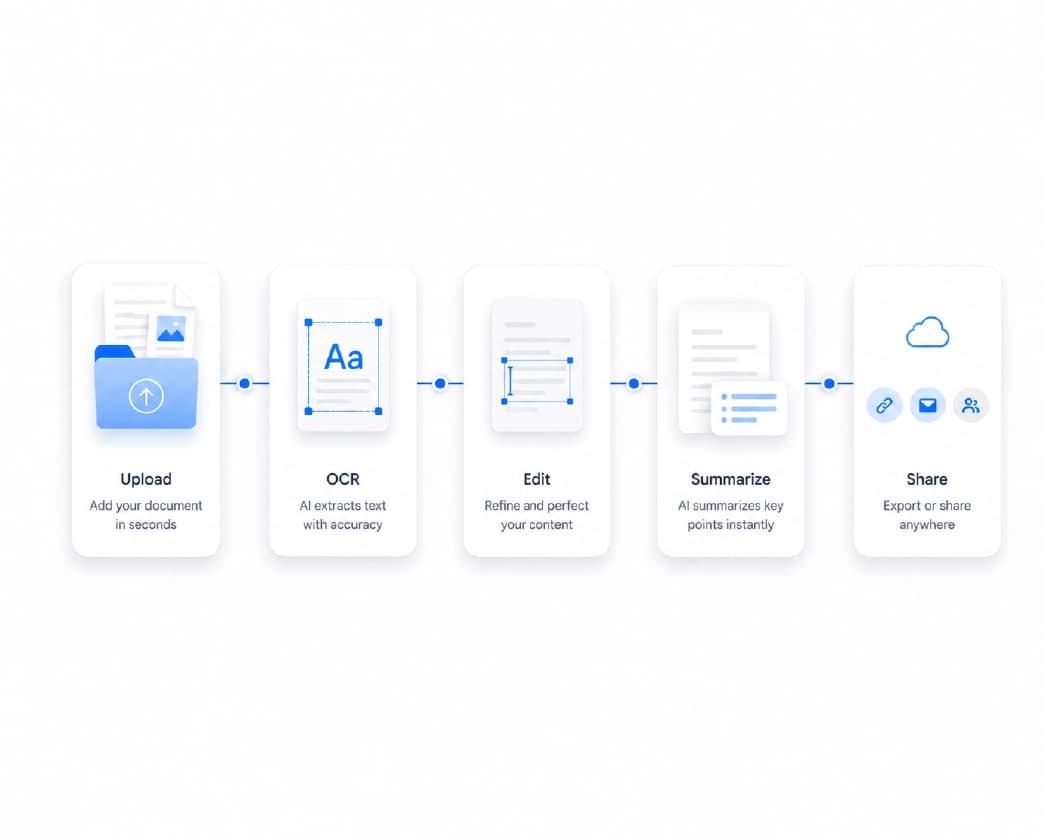
You paste in some writing. The tool points out mistakes and suggests fixes. Most check spelling, punctuation, and grammar, and some also look at word choice or clarity. Some let you accept each suggestion one at a time. Others rewrite whole sentences for you. Plainscan's grammar tool highlights grammatical mistakes, punctuation slips, and typos, offering clear suggestions so you stay in control of each change.
Think of a patient friend who’s good at grammar and never gets tired of reading your drafts. That’s the dream version anyway.
What It’s Great At
Typos, mostly. The “teh” and “recieve” kind. It also catches missing commas, extra apostrophes, and the word mix-ups we all make when we’re tired, like your and you’re, or its and it’s.
It spots sentences that don’t agree with themselves, like “the list of items are ready.” It notices run-ons, repeated words (“I went to to the store”), and forgotten capital letters.
For everyday writing, like emails, reports, essays, and posts, that’s a lot of catches for a few seconds of work.
Where It Falls Down
I’ll be straight with you, because trusting it blindly is how mistakes sneak through.
It doesn’t know what you meant. If you typed “form” but meant “from,” both are real words, so the tool might not blink.
It doesn’t know names. I’ve seen tools “fix” a person’s name, a brand, or a city into something else entirely.
It can change your meaning. A suggestion might sound smoother and say something slightly different. Always read the fix, not just the red squiggle.
It doesn’t check facts. A sentence can be perfectly grammatical and completely wrong.
And it can sand your voice flat. Jokes, casual phrases, and short punchy fragments for effect can get “corrected” into something stiff. If a suggestion kills the personality, ignore it.
So treat it like a second pair of eyes. Not the judge.

How to Use an AI Grammar Correction Tool with Plainscan
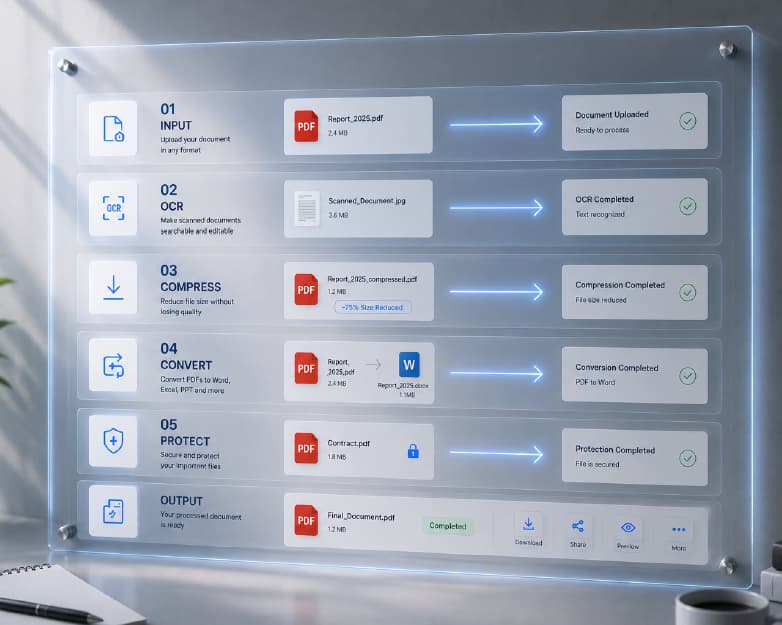
Plainscan runs in your browser and has over 100 document and image tools, so there’s nothing to install. It works on a laptop, a tablet, or a phone. You can jump straight to the Grammar Correction tool or start from the tools page.
Start at the tools page and open the tool. Paste or type your text. Paste up to several thousand words directly into the editor, or upload your document file. Pick your settings, if there are any, like language or US versus UK spelling. Run the check and wait a moment. Then go through the suggestions, accept the good ones, skip the bad ones, and copy your clean text.

Is it free?
You can start for free. After creating a free account, you can process up to 4 documents a day with basic tools. If you want unlimited use, there may be a paid plan, or you can buy credits and use them only when you need to.
My Routine (It Takes Five Extra Minutes)
Write first, fix later. Stopping to correct every sentence kills your flow, so get the ideas down, then clean up.
Take a short break. Even ten minutes helps. You’ll spot your own mistakes much better after you’ve thought about something else.
Run the tool and go through each suggestion one by one. Please don’t click “accept all.” That’s how a good sentence turns into a weird one.
Then read the whole thing out loud. The tool can’t hear rhythm, but you can. If a sentence makes you stumble, rewrite it. And check the details yourself, like names, dates, numbers, and links.
A simple habit I always follow: check the first and last sentence twice, since those are what readers remember most.
The Usual Suspects
If you want to learn from the fixes instead of just accepting them, here are the mistakes I see most.
- “It’s” means “it is,” and “its” shows ownership. The dog wagged its tail. It’s a happy dog.
- “You’re” means “you are,” and “your” shows ownership. You’re going to love your new desk.
- There, their, and they’re are a place, ownership, and “they are.” They’re leaving their coats over there.
- A comma splice is two full sentences jammed together with only a comma. “I love this tool, it saves me time.” Use a period, a semicolon, or “and” instead.
- And apostrophes don’t make plurals. “Two dog’s” is wrong. It’s “two dogs.”
Notice what’s happening here. Each time the tool fixes one of these, you learn something. After a few weeks, you’ll make these mistakes less often to begin with. That’s the best part of using a checker with an open mind.
Don’t Let It Flatten Your Voice
This is the part I care about most. Grammar tools learn from “correct” writing, and sometimes they nudge everything toward the same polite, blah tone.
Your writing may break a rule on purpose. A short fragment. A casual “gonna” in a note to a friend. A joke that needs a weird sentence shape. If a suggestion kills that, ignore it. Correct grammar matters. A human sounding like a human matters more.
If you just want help reshaping a clunky sentence, Plainscan’s AI Rewrite tool might help. It restructures awkward sentences and improves clarity without changing your intended meaning. The final voice should still be yours.
Be Honest About It
For emails, reports, and your own writing, a grammar checker is totally normal. But if you’re a student, check your school’s rules. Many schools are fine with grammar checkers but don’t allow tools that rewrite entire paragraphs for you. If you’re not sure, ask your teacher before you turn something in.
Keep Private Text Private
Think before you paste. Skip passwords, ID numbers, bank details, medical information, and confidential work documents. Read the privacy policy of a new tool first, and delete drafts you don’t need. If the text is sensitive, proofread it by hand.
Who Gets the Most Out of This?
Students polishing essays. Professionals writing emails. Non-native English speakers who want extra confidence. Job seekers checking resumes and cover letters. Small business owners fixing website text. And anyone who has hit send and spotted a typo two seconds later.
Mistakes I’d Skip
- Clicking “accept all.”
- Trusting it with names and technical words.
- Skipping the final read.
- Pasting private information.
- Letting it sand off your personality.
- And forgetting about limits, so check text length and any daily cap before a big document.
Conclusion
An AI grammar correction tool is a quick, friendly second pair of eyes. Use it to catch typos, punctuation slips, and word mix-ups, but keep your own judgment in charge. Review every suggestion, read your writing out loud, and protect the parts that sound like you. If you’ve got an email, essay, or post waiting for a check, try Plainscan today. It’s an easy way to use an AI grammar correction tool, and there are plenty of other free tools worth poking around in while you’re there. Tara now runs every client email through a checker and reads it out loud once before she sends it. The “your review” typo has never come back. Her client still brings it up at holidays.
Related insights


Get the Plainscan App for iOS & Android