Audio Transcription Online: How to Turn Recordings Into Text
You record an interview. It goes great. Two hours of good stuff. Now comes the part nobody talks about. Typing it up. If you’ve ever tried to type out an hour of speech, you know it can take three or four hours. You pause, rewind, squint at the screen, and wonder why people talk so fast. There’s a better way. With audio transcription online, a tool listens to your recording and writes down what it hears. Let me show you how it works, how to get cleaner results, and what to check before you trust the text.
What Is Audio Transcription?
It’s turning spoken words into written text. That’s the whole idea.
You’ve got a recording, like a lecture, a meeting, a phone call, a podcast, or a voice note. The transcription tool listens and types out what people said. Some people call it speech to text, audio to text, or voice to text. Same thing, different names.
Modern tools use AI to recognize speech. They’ve gotten a lot better in the last few years, but they’re not magic. We’ll get to that.
Why Bother Transcribing Audio?
Text is easier to work with than sound. That’s the short answer.
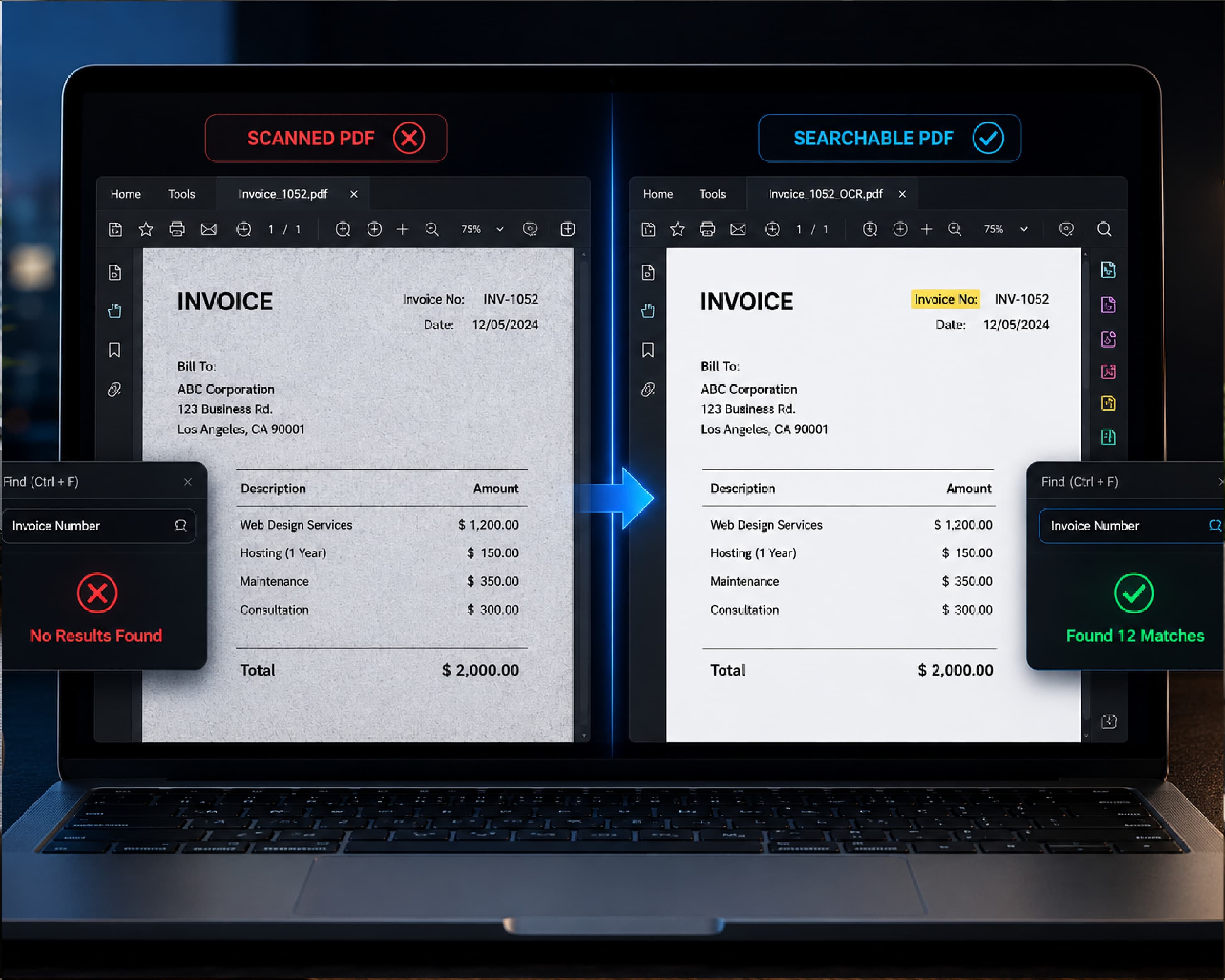
You can search text. Want to find the moment someone mentioned the budget? Hit Ctrl+F and you’re there, instead of scrubbing through an hour of audio. You can copy quotes, paste them into notes, and share them with people who don’t have time to listen. You can read much faster than you can listen. And text is easier to turn into other things, like summaries, articles, or study notes.
It also helps with accessibility. A transcript lets people who are deaf or hard of hearing follow along, and it helps anyone who’s in a place where they can’t turn on the sound.
How to Use Audio Transcription Online with Plainscan
Plainscan works in your browser, so there’s nothing to install. Phone, tablet, laptop, whichever’s closest. The site has over 100 document and image tools, and it’s free to start.
- Open the tool: Go to the audio transcription page on Plainscan. You’ll see an upload area first.
- Add your recording: Drag your audio file in or pick it from your device. Longer recordings can take a while, so be patient and keep the page open.
- Start the transcription: Choose your options if the tool offers them, like the language, then start the process.
- Read it and fix it: When it’s done, read through the text while you listen to the recording, at least for the important parts. Fix any mistakes, then copy or save your transcript.
Why Some Transcripts Come Out Better
Two recordings can give you very different results. A few things decide the quality.
- Clear sound matters most: A voice recorded close to the microphone in a quiet room will be transcribed far better than a muffled recording with a fan running in the background.
- Background noise is a problem: Traffic, music, and clattering dishes all make it harder for the tool to hear the words.
- Speakers who talk over each other cause trouble: When two people speak at once, the words can get jumbled or lost.
- Accents, fast talking, and unusual words can lead to mistakes: Names, technical terms, and slang are the most common problems.
Knowing this tells you what to fix, either before you record or when you check the text.
How to Record Better Audio
You can improve your results before you ever upload anything.
- Get close to the mic: Even a phone works well if you hold it near the speaker instead of across the room.
- Pick a quiet spot: Turn off fans, close the window, and put your phone on a soft surface so it doesn’t pick up table noise.
- Ask people to take turns: It makes the recording clearer, and it makes the conversation better, too.
- Do a quick test: Record ten seconds, play it back, and make sure you can hear everything clearly. It takes a moment and can save an entire interview.
Always Proofread the Transcript
Here’s the honest part. A transcript from a tool is a very good first draft, not a finished product.
Expect small errors. Names get misspelled. Similar-sounding words get swapped, like “there” and “their.” Numbers can be wrong. Sometimes a whole sentence is garbled when the audio is unclear.
So listen along as you read, especially for quotes, numbers, and names. If you’re going to publish something or rely on it for something important, a careful check is worth the time.
Get Permission First
A quick, friendly note. When you record other people, tell them. In many places, recording a conversation without permission can cause legal trouble, and it’s also just polite.
Ask before you record an interview, a meeting, or a call. And if the content is private or confidential, be careful about where you upload it. A little honesty goes a long way.
What to Do With Your Transcript
Getting the text is only the start.
Read through it and pull out the key points. Copy the quotes you need. Turn an interview into an article, or a lecture into study notes. Share the transcript with someone who wasn’t there. Or keep it as a searchable record, so you can find that one comment months later.
Who Gets the Most Out of This?
- Students: Record lectures and turn them into notes you can search. It’s great for exam prep, especially for classes that move fast.
- Journalists and writers: Interviews become text you can quote and organize, so you spend more time writing and less time typing.
- Office teams: Meetings and calls become written records, with decisions and tasks easy to find later.
- Podcasters and creators: Transcripts help you write show notes, pull quotes, and make your content easier to search.
Is It Safe to Upload Audio Online?
You should always ask, since recordings often contain personal conversations. Plainscan uses encrypted HTTPS connections, and uploaded files are deleted automatically within 24 hours. The site also says it doesn’t share your files with third parties.
For everyday recordings, that sounds reasonable. But if your audio has very private details, like medical information, financial details, or confidential company talk, think twice before uploading it to any website. That’s true for every online tool, not just this one.
What About the Free Plan?
You can start without paying. Plainscan has a free plan with daily limits, plus a Pro plan if you need more. There’s also a pay-as-you-go option where you buy credits only when you need them. If you only transcribe a recording now and then, free will probably be enough. Check the tool page for the current limits.
Mistakes to Avoid
- Trusting the text without checking is the big one. Always review names, numbers, and quotes.
- Starting with bad audio is another. A noisy, muffled recording gives a messy transcript. Better sound gives better text.
- Forgetting to ask permission is a mistake you don’t want to make. Always tell people before you record.
- And deleting the original recording. Keep it. You’ll need it to check anything that looks wrong.
Conclusion
Typing up a recording is slow, boring work. Audio transcription online turns it into a few minutes of waiting and a little proofreading, and you end up with text you can search, quote, and share. So next time you’ve got a lecture, a meeting, or an interview sitting on your phone, don’t dread the typing. Upload it, let the tool do the heavy lifting, and give the result a careful read.
Continue Reading:How to Use AI to Extract Key Points from Any Document
Related insights

Get the Plainscan App for iOS & Android