Free File to ZIP Converter: How to Bundle Your Files Into One
You need to send twelve files to your teacher. Or your boss. Or a client who wants “everything in one email, please.” You start attaching them. One, two, three. Then the email app says the total is too big. Or you realize you’ve got a whole folder, and most apps won’t let you attach a folder at all. It’s a small headache, but a real one. The fix is a ZIP file. And you don’t need to install anything. A free file to ZIP converter can bundle your files into one neat package in a few clicks. Let me explain how it works, when it helps, and a few mistakes to dodge.
Further Reading:Audio Transcription Online: How to Turn Recordings Into Text
So, What Is a ZIP File?
Think of it like a box. You throw a bunch of files in, close the lid, and now you’ve got one box instead of a pile of loose stuff.
A ZIP file is a single file that holds other files inside it. It can hold documents, photos, spreadsheets, even whole folders. When someone gets it, they open it up and everything comes out, just as you packed it.
There’s a bonus, too. ZIP files usually squeeze the contents a little, so the package is smaller than the files added up on their own. How much smaller depends on what’s inside, and we’ll get to that.
Why Zip Files at All?
There are a few good reasons.
One file is easier than twelve. You attach once, send once, and download once. It’s also tidier, since the person receiving it gets everything together instead of a messy scatter of attachments. ZIP files can keep your folder structure, so subfolders stay organized. And they often save space, which helps with email limits and storage.
Zipping also helps when you’re uploading files to a website. Many forms only let you upload one file. A ZIP lets you send many things in one go.
What Gets Smaller and What Doesn’t?
This surprises people, so it’s worth knowing.
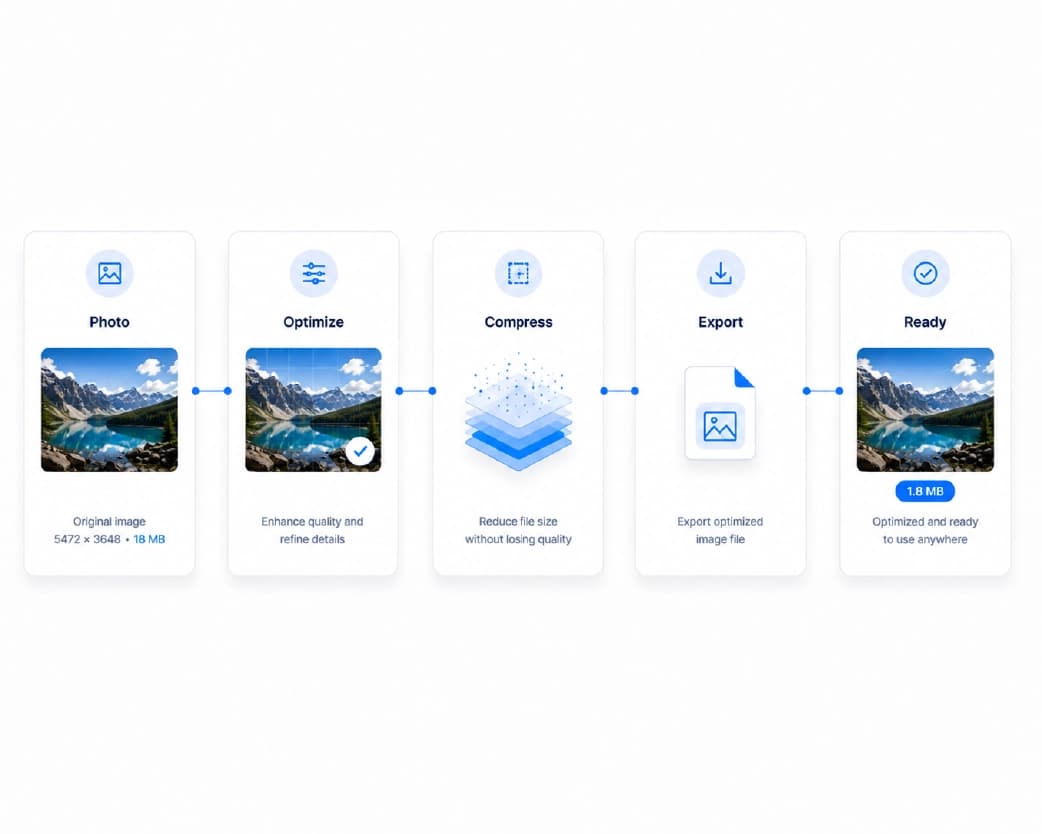
Text-heavy files shrink a lot. Documents, spreadsheets, and plain text often get much smaller in a ZIP. Photos and videos usually don’t, because formats like JPG and MP4 are already squeezed. Zipping a folder full of them will bundle them into one file, but the size won’t change much.
So think of ZIP as great for bundling, and good for shrinking some types of files. If your main problem is a huge photo or PDF, a different kind of compression may help more. More on that below.
How to Use a Free File to ZIP Converter on Plainscan
Plainscan works in your browser, so there’s nothing to install. Phone, tablet, laptop, whichever’s closest. The site has over 100 document and image tools, and it’s free to start.
- Open the tool: Go to the ZIP converter page on Plainscan. You’ll see an upload area first.
- Add your files: Drag your files in, or pick them from your device. You can usually add more than one. Take a second to make sure you’ve got everything you need.
- Create the ZIP: Start the process and wait a moment. Bigger files take longer, so don’t refresh the page.
- Download and test it: Save the ZIP file, then open it to make sure everything’s inside. It takes ten seconds and can save you an embarrassing “oops, I forgot the last file” email.
Tips for a Cleaner ZIP
A little planning makes the whole thing nicer for the person who opens it.
- Name your files clearly before you zip: “Invoice-March.pdf” beats “scan0047.pdf” every time. Use a sensible name for the ZIP too, like “Application-Documents”.
- Organize first: If you’ve got a lot of files, group them into folders, such as “Photos” and “Documents,” then zip the whole thing.
- Remove what you don’t need: Duplicate files and old drafts just add weight.
- Check the size limit: If you’re emailing it, look at what the email service allows. A ZIP that’s still too big won’t go through.
- And keep the originals: The ZIP is a copy, so your files stay safe on your device.
When a ZIP Isn’t the Best Answer
Sometimes another tool is a better fit.
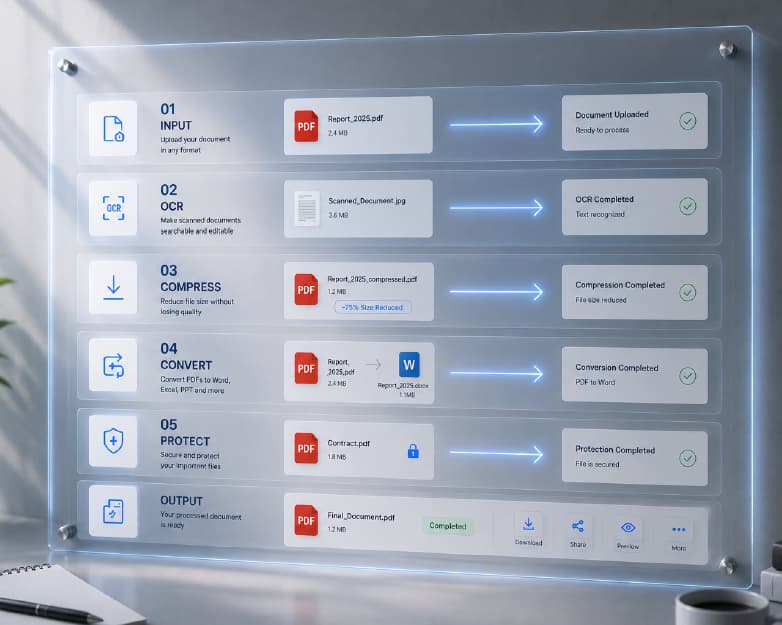
If your problem is a heavy PDF, Compress PDF can shrink it directly. If you’ve got big photos, Compress Image can make them lighter before you zip. And if you’re sending several PDFs that belong together, Merge PDF combines them into one document, which can be easier to read than a ZIP full of separate files.
Use ZIP when you’ve got a mix of file types, or when you need to keep things separate but packed together.
A Word About Safety
Two things are worth keeping in mind.
First, be careful about opening ZIP files from people you don’t know. A ZIP can hide files that harm your computer, and you can’t always tell from the outside. If you weren’t expecting it, don’t open it.
Second, ZIP files aren’t automatically private. Anyone who gets the file can open it, unless it’s protected in some way. If you’re sending something sensitive, think about how you share it, and who can see it.
Who Gets the Most Out of This?
- Students: Group your assignment, notes, and images into one ZIP so your teacher gets everything at once.
- Job seekers: Application portals often ask for many documents. A ZIP can keep your resume, certificates, and portfolio together.
- Small business owners: Send a client a full set of files, like invoices, contracts, and photos, as one tidy package.
- Anyone with a messy folder: A ZIP is a quick way to back up or share a pile of files without worrying about losing one.
Is It Safe to Upload Files Online?
Good thing to ask. Plainscan uses encrypted HTTPS connections, and uploaded files are deleted automatically within 24 hours. The site also says it doesn’t share your files with third parties.
For everyday files, that sounds reasonable. But if your files have very private details, like bank information, ID numbers, or confidential company secrets, think twice before uploading them to any website. That’s true for every online tool, not just this one.
What About the Free Plan?
You can start without paying. Plainscan has a free plan with daily limits, plus a Pro plan if you need more. There’s also a pay-as-you-go option where you buy credits only when you need them. If you only zip files now and then, free will probably be enough. Check the tool page for the current limits.
Mistakes to Avoid
- Expecting a ZIP to shrink everything is the big one. Photos and videos are already compressed, so the size may barely change.
- Forgetting to test the ZIP is another. Open it before you send it, and make sure all your files are there.
- Sending a ZIP that’s still too large for email is a classic. Check the limit first.
- And deleting your originals. Keep them until you know the person got the ZIP and could open it.
Continue Reading:How to Compress Video Online Free (Without Making It Look Terrible)
Conclusion
Sending many files at once doesn’t have to be messy. A free file to ZIP converter packs them into one tidy file, keeps your folders in order, and sometimes saves a little space too. So next time you’ve got a pile of files and a deadline, skip the twelve attachments. Open Plainscan, bundle them up, check that it opens, and hit send.
Related insights


Get the Plainscan App for iOS & Android