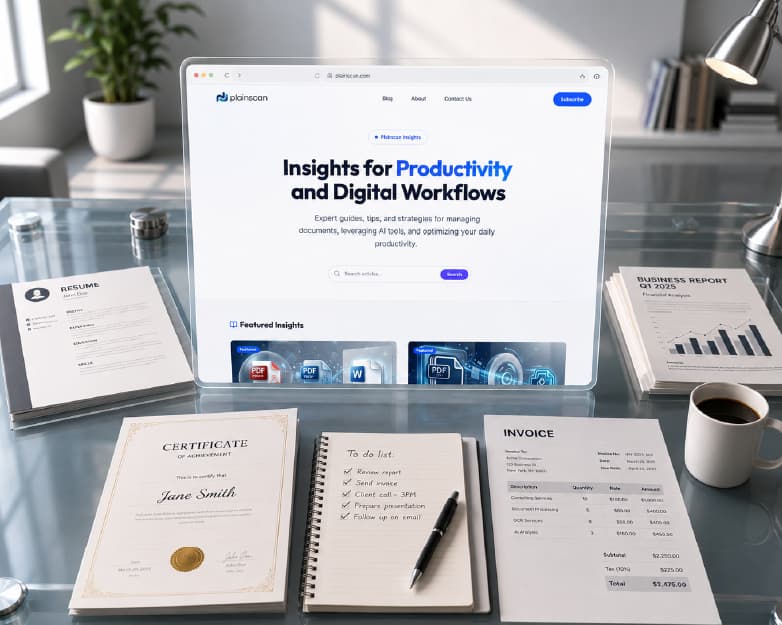
How to Create a Professional Invoice Online for Free (Templates Included)
Back to Blog

How to Create a Professional Invoice Online for Free (Templates Included)

P
Plainscan Team
September 23, 2026
7 min read
Share

You do not need design skills or paid software to create an invoice (bill). With the help of a 'Free Invoice Generator,' you can create a neat and professional invoice right in your browser. By simply entering your business and client details, you can download it as a PDF in less than five minutes-without even needing to sign up. This guide provides complete information on how to do this and what details to include to ensure timely payment.

What Is an Invoice, Exactly?

An invoice is a document you send to a client to request payment. It contains details about the goods sold or services provided, the cost, and the payment due date. It differs from a 'receipt' (which confirms that payment has been made) and a 'quote' (which is merely an estimate provided before work begins).

3 Ways to Create an Invoice Online:-

Before you pick a tool, it helps to know your options. There are three common paths:

1. Free templates (Word, Excel, Google Docs)
Good if you send one or two invoices a month. You type everything by hand, and Excel or Sheets can auto-calculate totals. The downside: no tracking, easy to make typing mistakes, and formatting takes time.

2. A free online invoice maker
This is the fastest option for most freelancers and small businesses. You fill a form, the tool calculates totals and tax for you, and you download or share the invoice instantly. There's usually no sign up needed to create your first invoice.

3. Full invoicing software
Worth it once you're billing many clients regularly and want features like payment reminders, recurring invoices, and expense tracking built in.

If you invoice occasionally, option 2 - aninvoice generator for freelancers and small teams - is usually the best balance of speed and features.
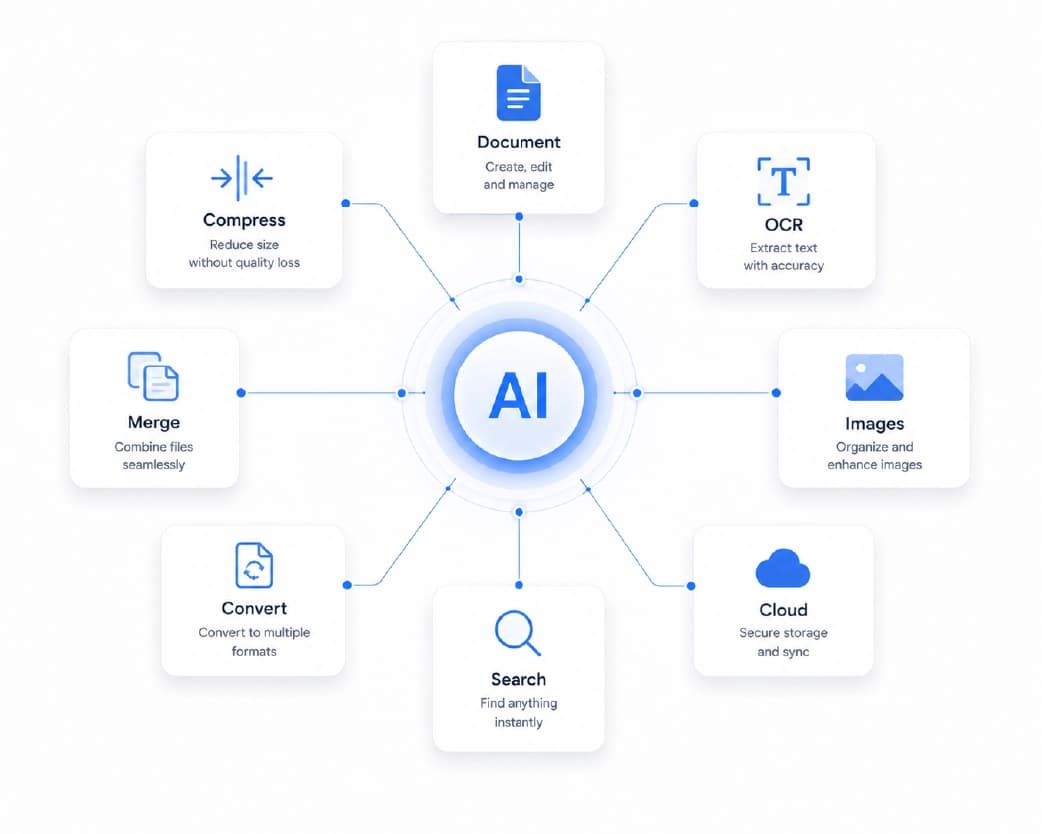
Create professional invoice online

How to Create a Professional Invoice Online (Step by Step)

Add your business and client details. Your legal business name, address, email, and phone number, followed by your client's name and contact details. Add your logo here too if you want the invoice to look consistent with the rest of your brand.

Give the invoice a unique number and date. Use a simple sequence like INV-001, INV-002 so nothing gets duplicated. Add the invoice date and a clear payment due date.

List your items or services. Write one line per product or service, with quantity and rate. Keep descriptions specific - "3 hours of website design" tells the client more than just "design work."

Add tax and calculate the total. Apply GST or any other tax that applies to your sale, note any discount, and show the final amount due clearly at the bottom.

Set payment terms and download. State how you accept payment (bank transfer, UPI, etc.) and your due date terms, such as "Net 15." Then download the finished invoice as a PDF and send it to your client.
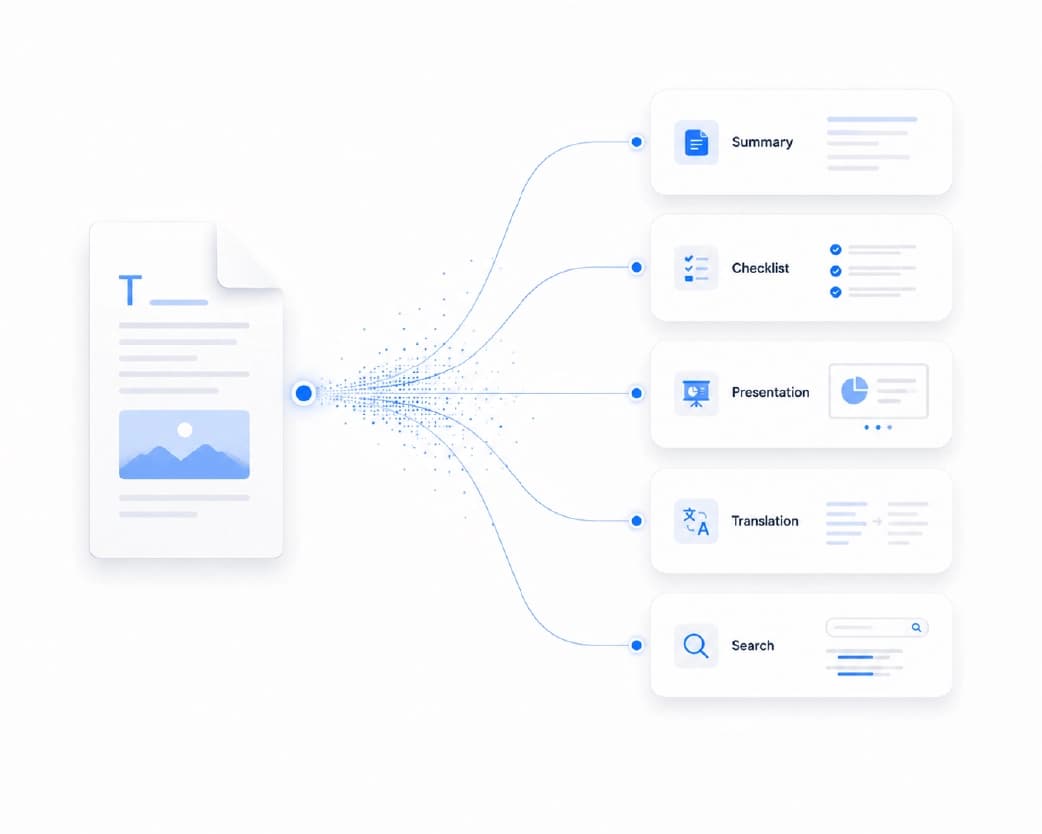
Invoice generation steps

What Every Invoice Should Include?

A professional invoice template - free or paid - should always cover these basics:

Invoice number and date
Your business details and the client's details
A description, quantity, and rate for each item
Subtotal, tax, and total amount due
Payment terms and accepted payment methods
Optional: your logo, notes, or a short thank-you line

Missing even one of these (especially the invoice number or due date) can slow down payment, since it gives the client a reason to come back with questions.
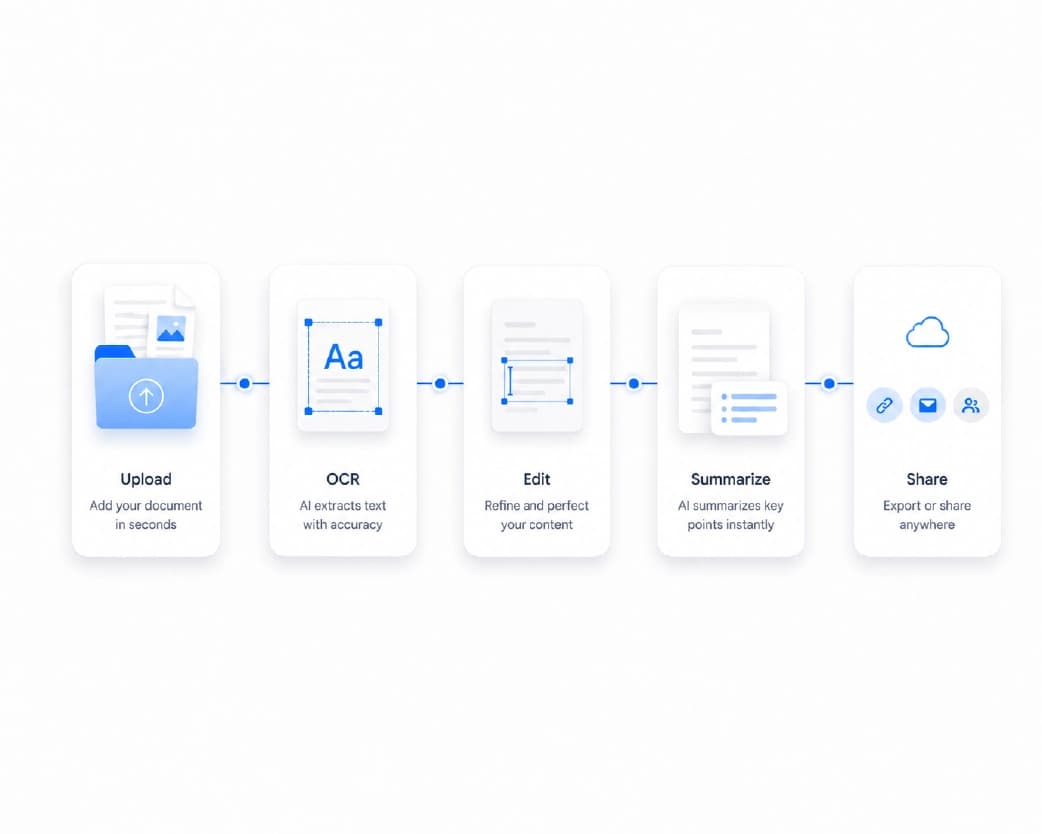
Invoice essential details

GST and Tax Details for Invoices in India

If you're billing clients in India, a few extra points matter:

A registered business must issue a proper tax invoice with its GSTIN if it sells taxable goods or services. If you're not GST-registered, or your goods/services are exempt, you issue a bill of supply instead.

Goods and services usually carry an HSN or SAC code on the invoice, used to classify what's being billed for GST purposes.

Services must generally be invoiced within 30 days of being delivered.

If you're unsure whether GST applies to you, it's worth a quick check with a tax professional before you start billing clients regularly.

Tips for Freelancers and Small Businesses

Keep your branding consistent. Using the same logo, business name, and colour on every invoice makes you look established, not like you're winging it.

Save your client details once. Many free tools let you reuse client information, so you're not retyping the same address every month.

Send invoices immediately after finishing work. The longer you wait, the more likely a client forgets the details or delays payment.

Keep a simple record. Even a folder of downloaded PDFs, named by month or client, makes tax season much easier.

Common Invoice Mistakes to Avoid

Forgetting to add an invoice date or due date

Vague item descriptions that leave room for disputes

Skipping the invoice number, making it hard to track later

Wrong tax calculations or missing GSTIN when it's required

Sending invoices days or weeks after the work is done

Downloading and Managing Your Invoice as a PDF

PDF is the standard format for invoices because it keeps your layout, fonts, and totals exactly as you designed them, on any device. Once you've downloaded your invoice as a PDF, a few small habits go a long way:

If the file feels too large to email, compress it before sending - tools like plainscan let you shrink a PDF's size in your browser without losing quality.

Billing several line items across departments? You can merge multiple invoice PDFs into one file for a client's records.

Need to edit an old invoice that's only saved as a PDF? Converting it to Word or Excel first makes changes much easier.

None of this needs extra software installs - it's the same browser-based convenience as creating the invoice itself.
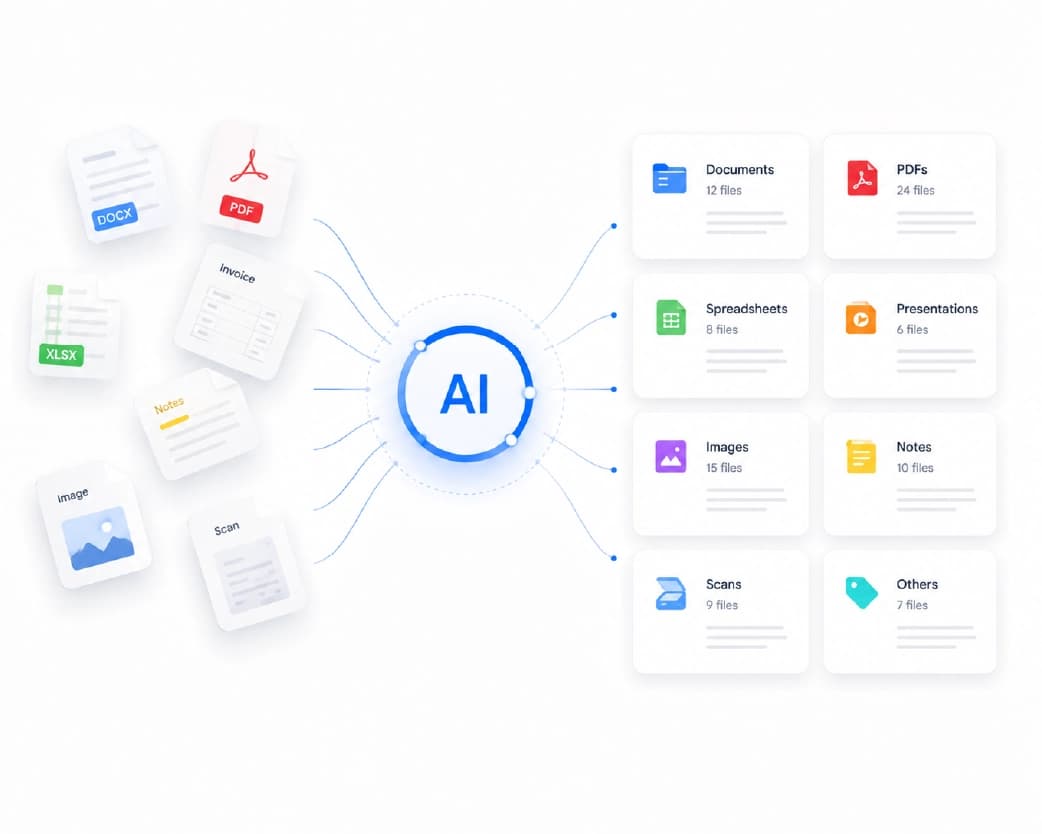
Downloading invoice as PDF

Frequently Asked Questions

Q1. Is creating an invoice (bill) online really free?
Yes. Most free invoice generators allow you to create and download basic invoices at no cost. Some tools charge only when you require additional features, such as recurring billing or a saved dashboard.

Q2. Do I need to register my business to send invoices in India?
No, freelancers and sole proprietors can send invoices without formal registration. However, if your annual turnover exceeds the GST threshold, you must register for GST and issue tax invoices accordingly.

Q3. Can I edit the invoice after downloading it as a PDF?
Yes, although the PDF format is not designed for easy text editing. It is easier to go back to the original invoicing tool to make changes, or-if you only have the PDF version-convert the PDF to Word or Excel first.

Q4. What is the difference between an invoice and a bill?
They are often the same document. The seller calls it an invoice, while the buyer usually calls it a bill. Both serve to request payment for goods or services provided.

Q5. How do I properly number my invoices?
Use a simple, sequential format like INV-001, INV-002, and never reuse a number. This keeps your records organized and makes it easier to locate any missing invoices later.

6. Can I create invoices on my phone without an app?
Yes. Most free online invoice generators work directly in your mobile browser, so you can create and download PDF invoices without installing anything.

7. Which payment terms should I use if I am unsure?
"Due on receipt" is suitable if you want quick payment. "Net 15" or "Net 30" (payment within 15 or 30 days) is common for ongoing work with a client.

Conclusion

Creating a professional invoice online for free doesn't have to be complicated. Pick a simple invoice maker, fill in your details step by step, double-check the tax and totals, and download it as a PDF. Get these basics right, and you'll look professional and get paid faster - whether you're billing one client a month or twenty.

Related insights

Trapped Data in Reports? 7 Smart Ways to Pull Tables Into Excel.

ARTICLE

Trapped Data in Reports? 7 Smart Ways to Pull Tables Into Excel.

To extract tables from reports into Excel, match the method to the file type. Use Excel's built-in PDF import feature for clean digital reports. Use OCR for scanned documents and photos. Use automation tools for repetitive tasks. Finally, verify the totals before relying on the figures. Below are seven ways to do this, along with simple tips for cleaning spreadsheet data. First, Know What Kind of Report You Have The file type determines the best method. A digital PDF contains actual text, whereas a scanned report is merely an image. Some reports exist as web pages, emails, or Word documents. Here is a quick test: try highlighting the text with your mouse. If it works, the file is digital. If it doesn't, you need OCR. OCR is software that reads characters within images. Additionally, not all tables have visible borders. Some tables consist simply of text arranged in columns, and tools might overlook them.

Plainscan Team·October 3, 2026
7 min read
Sign Contracts From Anywhere: A Remote-Ready Paperwork Playbook

ARTICLE

Sign Contracts From Anywhere: A Remote-Ready Paperwork Playbook

Remote contract signing allows two or more people to sign legal agreements online without meeting in person or sending physical documents via mail. You upload the document, add your signature with a few clicks, and send it back. This signature is backed by encryption and an 'audit trail' (a record of the process), making it legally valid in most countries-including under the US ESIGN Act, UETA, and the EU's eIDAS regulation. That is the short answer. Now, let's look at how it actually works, what makes it legally valid, and how it can be done securely.

Plainscan Team·October 2, 2026
6 min read
Why Files Look Different on Every Device?(Format Fixes Inside)

ARTICLE

Why Files Look Different on Every Device?(Format Fixes Inside)

Your file looks different on another device because each device uses its own fonts, software versions, and screen settings to 'rebuild' the file from scratch. A Word file does not contain a fixed image of itself-it merely holds instructions, and each device follows those instructions slightly differently. This is the primary cause of most file format compatibility issues, and it is also the reason why a PDF generally looks the same everywhere. Once you understand this, the solution is simple: convert documents that need to look identical across different platforms into a 'locked' format, such as PDF, before sharing them.

Plainscan Team·October 2, 2026
5 min read
Plainscan vs Adobe Acrobat: Which Free PDF Tool Wins in 2026?

ARTICLE

Plainscan vs Adobe Acrobat: Which Free PDF Tool Wins in 2026?

If you want to edit, convert, sign, or compress PDFs without any cost, Plainscan is a great option. It allows you to use tools like merging, converting, compressing, OCR, and e-signing for free, without requiring an account or imposing daily limits. In contrast, most actual editing features in Adobe Acrobat are available only under paid plans (starting at around $13 per month). Its free version, 'Acrobat Reader,' is limited to viewing files, adding comments, and filling out simple forms. In short: Plainscan is excellent for everyday, free PDF tasks. However, Adobe Acrobat remains superior for enterprise-level document control-though it comes at a cost.

Plainscan Team·September 29, 2026
6 min read
How to Remove a Password From a PDF Without Any Software?

ARTICLE

How to Remove a Password From a PDF Without Any Software?

You can remove a password from a PDF without installing any software by using your web browser's 'print-to-PDF' feature or a browser-based online tool. Both methods take less than a minute, require no downloads, and work on Windows, Mac, Android, or iPhone. You simply need the current password to unlock the file-none of these methods can remove the password if you do not know it. This guide explains both software-free methods, provides information on the two types of PDF passwords, and outlines what to consider when choosing a tool.

Plainscan Team·September 29, 2026
5 min read
How to Compress Video Files Online Without Losing Quality?

ARTICLE

How to Compress Video Files Online Without Losing Quality?

Instead of arbitrarily reducing the file size, the fastest way to compress a video while maintaining its quality is to use an online video compressor to lower its bitrate and resolution. You simply upload the video, select your desired size or quality level, and download the smaller file within minutes. There is no need to install software or create an account, and if you choose the right tool, the final video will not have a watermark. This guide explains how video compression actually works, how to do it step-by-step, and how to avoid common mistakes that degrade image quality.

Plainscan Team·September 23, 2026
7 min read
How to Redact Sensitive Information from a PDF (Permanently, Not Just Hide It)

ARTICLE

How to Redact Sensitive Information from a PDF (Permanently, Not Just Hide It)

To properly redact sensitive information from a PDF, you need to remove the data from the file itself rather than simply covering it with a black box. A genuine PDF redaction tool completely deletes the original text, images, or figures so that no one can subsequently select, copy, or recover them. If you merely draw a black rectangle over a name or account number, the original information usually remains underneath. This guide will show you how to permanently remove text from a PDF, how to avoid mistakes that expose information in "redacted" documents, and how to choose a free online PDF redaction tool that is truly effective.

Plainscan Team·September 23, 2026
7 min read
Is It Safe to Convert Sensitive Legal Documents Online? Privacy Guide for 2026

ARTICLE

Is It Safe to Convert Sensitive Legal Documents Online? Privacy Guide for 2026

Picture this. You have a signed contract, a court filing, or a client NDA sitting on your laptop. You need it in a different file format, fast. So you type an online PDF converter into Google, click the first free link, and drop your file in. Ten seconds later, you have your converted file. But here's the question almost nobody stops to ask: where did your original document just go? This guide answers that question in plain words. We look at what really happens when you upload a legal file to a random website, why extra care matters here, and how you can convert sensitive documents without putting your privacy at risk. By the end, you will know exactly when an online converter is fine to use, and when you should stay far away from one.

Plainscan Team·August 22, 2026
7 min read
How to Summarize 50+ Page Academic Papers and Research PDFs in Minutes

ARTICLE

How to Summarize 50+ Page Academic Papers and Research PDFs in Minutes

Picture this. You have a 60-page research paper due for review by tomorrow morning. You open it, see wall after wall of dense text, and your heart sinks a little. This happens to students, researchers, and busy professionals every single day. The good news is that you do not need to read every line to understand a paper. With the right approach and a good PDF summarizer, you can pull out the key findings, methods, and conclusions of a long academic paper in just a few minutes. This guide walks you through exactly how to do that. You will learn what a PDF summarizer really does, how AI reads your document, and the simple steps that turn a 50-page beast into a short, clear summary you can actually use.

Plainscan Team·August 22, 2026
8 min read
How to Convert Scanned PDF Forms into Fillable & Editable Word Documents

ARTICLE

How to Convert Scanned PDF Forms into Fillable & Editable Word Documents

Have you ever received a paper form as a scanned PDF and had no way to fill it in on your computer? You try to click on the text, and nothing happens. You try to copy a line, and you get an error. This happens because a scanned PDF is not real text. It is just a picture of text. The good news is that you can fix this. With the right steps, you can turn any scanned PDF form into a Word document that you can edit, type into, and even turn into a fillable form. This guide walks you through the full process, from checking your file to cleaning up the final document, using simple steps anyone can follow.

Plainscan Team·August 22, 2026
7 min read

Get the Plainscan App for iOS & Android







