
Free QR Code Generator: How to Create a QR Code in Seconds | Plainscan
QR codes are everywhere today. You see them on menus, posters, business cards, product packages, and even on TV ads. You point your phone camera at the little black-and-white square, and it takes you straight to a website, a menu, or a contact card. No typing. No searching. Just one scan. The best part is that you don't need any design skills or technical knowledge to make one. A free QR code generator lets anyone create a working QR code in seconds. This guide walks you through what a QR code is, how to make one step by step, and how tools like Plainscan make the whole process quick and simple.
What Is a QR Code?
QR stands for "Quick Response." A QR code is a small square pattern made of black and white boxes. It stores information such as a website link, a phone number, a Wi-Fi password, or a text message. When you scan it with a smartphone camera, the phone reads the pattern and opens the information right away.
A Japanese company called Denso Wave created the QR code in 1994. It was first used to track car parts on a factory line. Over time, phones got smart cameras, and QR codes moved from factories into everyday marketing, restaurants, and events.
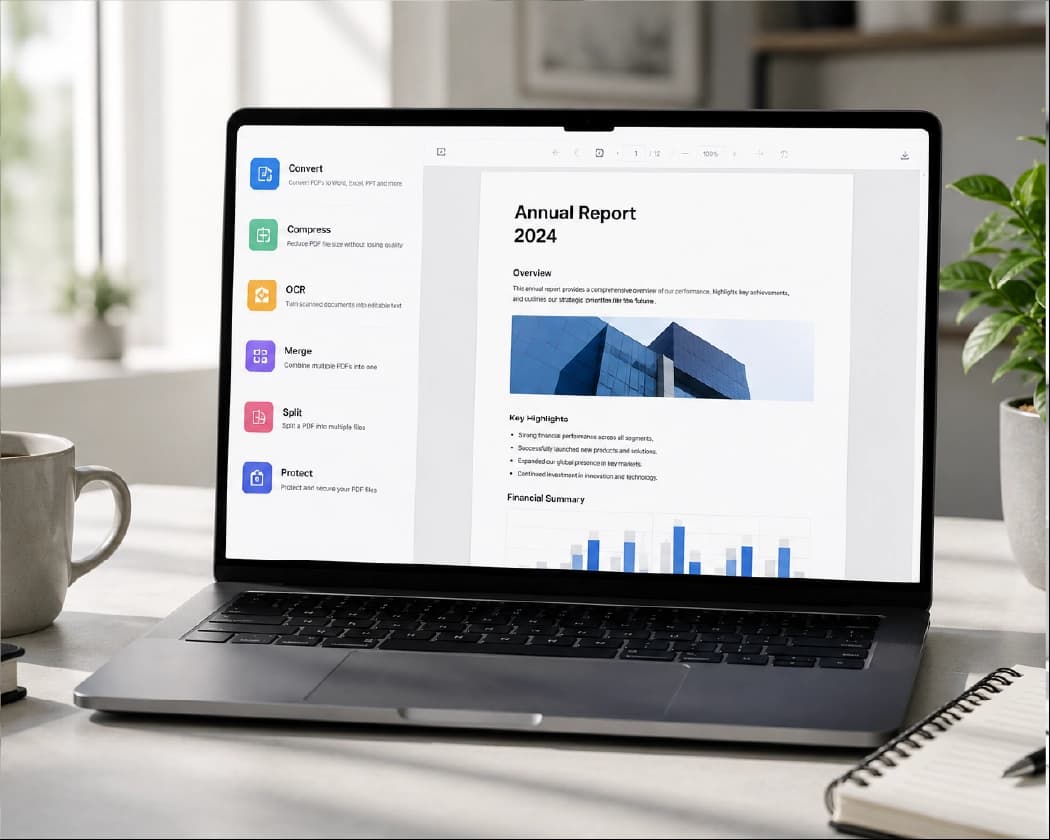
How to Create a QR Code Online in 3 Simple Steps
Making a QR code online does not take long. Most free tools, including Plainscan, follow the same basic flow:
- Step 1: Pick your QR code type. Choose what you want people to see when they scan, such as a website link, a phone number, a text message, or contact details.
- Step 2: Enter your information. Type in the details for the type you picked, like your website address or your phone number. Then pick your QR code's image size and select an error correction level, which controls how well the code still works if it gets a little dirty or scratched.
- Step 3: Generate and download. Click the generate button, and your QR code appears right away. Save it as an image, and test it once with your own phone before you print or share it anywhere.
Free QR Code Maker With No Sign Up
One of the biggest worries people have is being forced to create an account just to download a simple QR code. The good news is that many free generators skip this step entirely. You can make a fully working QR code without typing your email address or opening an account, and there is no hidden time limit attached to it.
This kind of free tool does not stop working after a few days, and it does not carry any spam or extra ads once you scan it. You simply enter your content, generate your code, and download it right away. This makes free QR code makers with no sign up a smart pick for quick, one-time needs like a flyer or a party invite.
How to Design a QR Code With a Logo
A plain black-and-white QR code works fine, but adding your brand logo makes it stand out and feel more trustworthy to the people scanning it. Here's how the process usually works:
First, you set your QR code's content, such as your website URL. Next, you customize the design by changing the color, the shape of the corners, and the body pattern. Then you upload your logo image, and the tool places it neatly in the center of the code.
This works because QR codes carry built-in error correction, which is basically a safety cushion of extra data. Even if up to 30% of the code is covered by a logo, most scanners can still read it correctly. Once you're happy with the design, you generate the final image and download it in high resolution for printing.
Make a QR Code Using a Design Tool
If you're already creating a flyer, poster, or business card in a design app, you can often add a QR code straight into that same design without switching tools. The usual steps look like this: open your design, search for "QR code" inside the elements or apps panel, and choose whether you want a static or dynamic code.
For a static code, you simply type in your link and generate it. For a dynamic code, you pick a pattern, enter your web address, and save it. Once it's placed on your design, you can resize it, change its color to match your brand, and download the final file as an image or PDF ready for printing.
QR Code Generator for PDF
Sometimes you don't want to send people to a website. You want them to open a document instead, like a menu, a brochure, or a resume. This is where a QR code generator for PDF comes in handy.
Instead of typing a long web link, you upload your PDF file to the generator. The tool creates a QR code that opens the document directly on the scanner's phone or computer. This works well for restaurants sharing digital menus, event organizers sharing schedules, or businesses sharing product catalogs, since guests can view the full file without downloading an app or entering an address.
Further Reading:How to Humanize AI Text and Pass AI Detectors in 2026
Dynamic vs Static QR Code
This is one of the most important things to understand before you create a QR code, especially for business use.
A static QR code holds fixed information that gets locked in the moment you create it. It always points to the same website, text, or contact card, and it cannot be changed later. If your link breaks or changes, you have to make a brand-new code and reprint everything.
A dynamic QR code works differently. It points to a short link that sits on a server, and that server then redirects the scanner to your real content. Because of this extra step, you can change the destination at any time, even after the code has been printed on thousands of flyers. Dynamic codes also let you track how many people scanned your code, and from which city or device.
For personal use, like sharing a Wi-Fi password or a text note, a static code is enough. For business campaigns where you want to track results or update links later, a dynamic code is the smarter pick.
Understanding Error Correction Level
Every QR code has a setting called the error correction level. It decides how much of the code can be damaged, dirty, or covered by a logo while still working correctly.
There are four levels: L (about 7%), M (about 15%), Q (about 25%), and H (about 30%). A higher level means the code can survive more damage, but it also makes the pattern more crowded and slightly harder to scan from far away.
For clean digital use or codes with lots of data, Level L or M usually works fine. For codes printed in a factory, on a product label, or anywhere they might get scratched or dirty, Level Q or H is a safer choice.
Fun and Practical Ways to Use QR Codes
QR codes aren't just for links anymore. Businesses and everyday users find creative ways to put them to work:
- Gather feedback: Add a QR code to a receipt or table tent so customers can leave a quick review after scanning.
- Explain your business: Link a code to an "about us" page or an instruction guide so new customers understand what you offer.
- Share a digital profile card: Instead of handing out paper business cards, let people scan your code to save your contact details straight to their phone.
- Promote events and discounts: Print a code on a poster or coupon that leads straight to an event sign-up page or a discount code.
Your Data Stays Private
A good QR code generator should respect your privacy. Trustworthy free tools, including Plainscan, do not track what you scan or store your personal data for other uses. The code you create today should keep working the same way months or years from now, without needing an account, a subscription, or ongoing tracking behind the scenes.
This matters most for personal QR codes, like ones you print on a wedding invite or a birthday card. You want them to keep working long after the event is over, without any strings attached.
Benefits of Using a Free QR Code Generator
There are several reasons free QR code tools have become so popular:
- They save time. You create a working code in under a minute, without design software or coding knowledge.
- They cost nothing. Most personal and small business needs are covered without paying a single rupee or dollar.
- They work for many needs. From a simple text note to a full Wi-Fi login, one tool can handle dozens of use cases.
- They print clearly. Good generators offer high-resolution downloads, so your code stays sharp even on large posters.
Tips for Creating a QR Code That Always Works
Before you print your final QR code, keep these points in mind:
- Test it first. Scan your code with two or three different phones before printing it in bulk.
- Keep good contrast. Use a dark foreground on a light background so scanners can read the code easily.
- Double-check your link. A single typo in a URL can break the entire QR code.
- Leave white space around it. This empty border, called the quiet zone, helps scanners find and read the code faster.
- Choose dynamic codes for print materials. If you might need to update the link later, a dynamic code saves you from reprinting everything.
Conclusion
Creating a QR code no longer takes any special skill or software. With a free online generator, you pick your content, customize the look if you want, and download your code in seconds. Whether you need a quick static code for a Wi-Fi password or a trackable dynamic code for a marketing campaign, tools like Plainscan make the process fast, free, and beginner-friendly. Pick the right type for your goal, test it before printing, and your QR code will be ready to connect people to your content instantly.
Related insights









Get the Plainscan App for iOS & Android