Online Batch PDF Converter: How to Convert Many PDFs Without Losing Your Mind
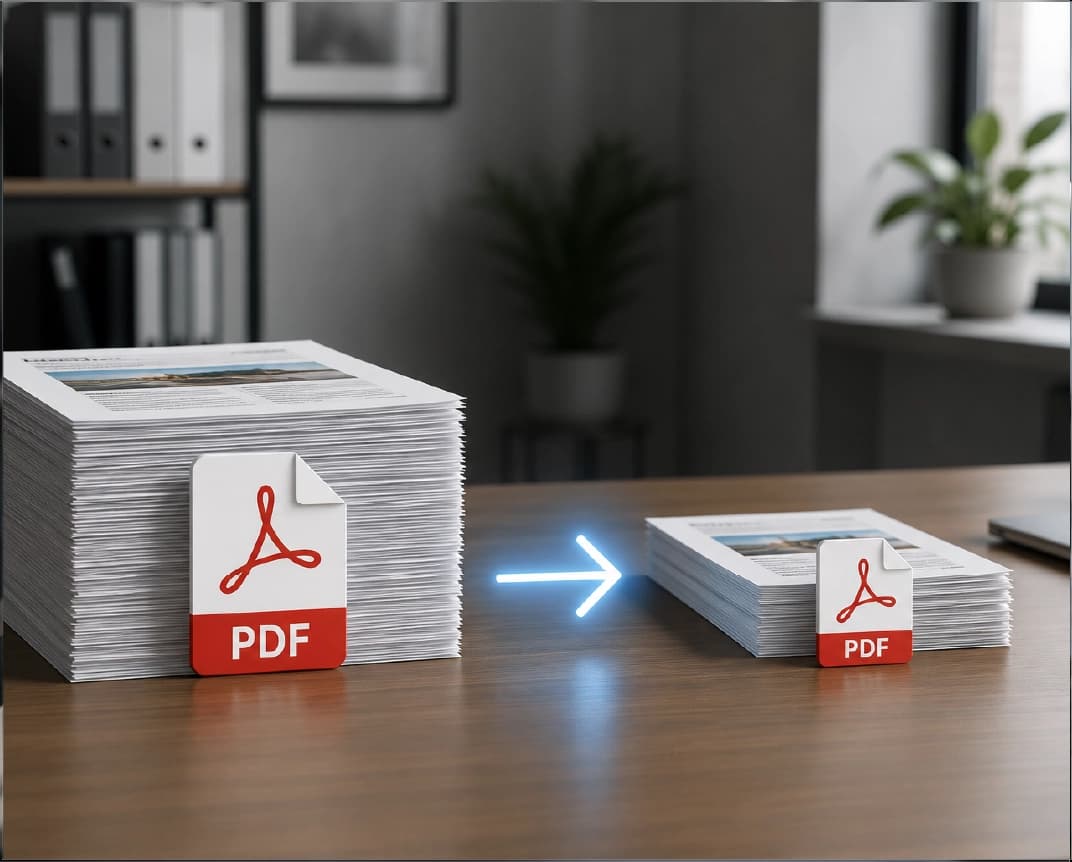
Quick question. How many PDFs are sitting in your downloads folder right now? Maybe it’s ten. Maybe it’s fifty. And someone just asked you to turn all of them into Word files, or shrink them, or send them in a different format. So you do the first one. Upload, convert, download. Then the second. Upload, convert, download. By number seven, you’ve started staring at the wall. There’s a smarter way to handle a pile like that, and it’s called batch conversion. Let me explain what it means, how to do it with an online batch PDF converter, and how to keep a big job from turning into a mess.
What Does “Batch” Mean?
It just means doing a group of things at once, instead of one at a time.
Think about laundry. You wouldn’t wash one sock, dry it, fold it, and then start on the next sock. You throw a whole load in together. Batch conversion works the same way. You hand over a stack of PDFs, and the tool applies the same job to every one of them.
You might hear it called bulk conversion or converting multiple PDFs at once. Same idea, different names.
When Does It Help?
More often than you’d think, especially if you work with lots of documents.
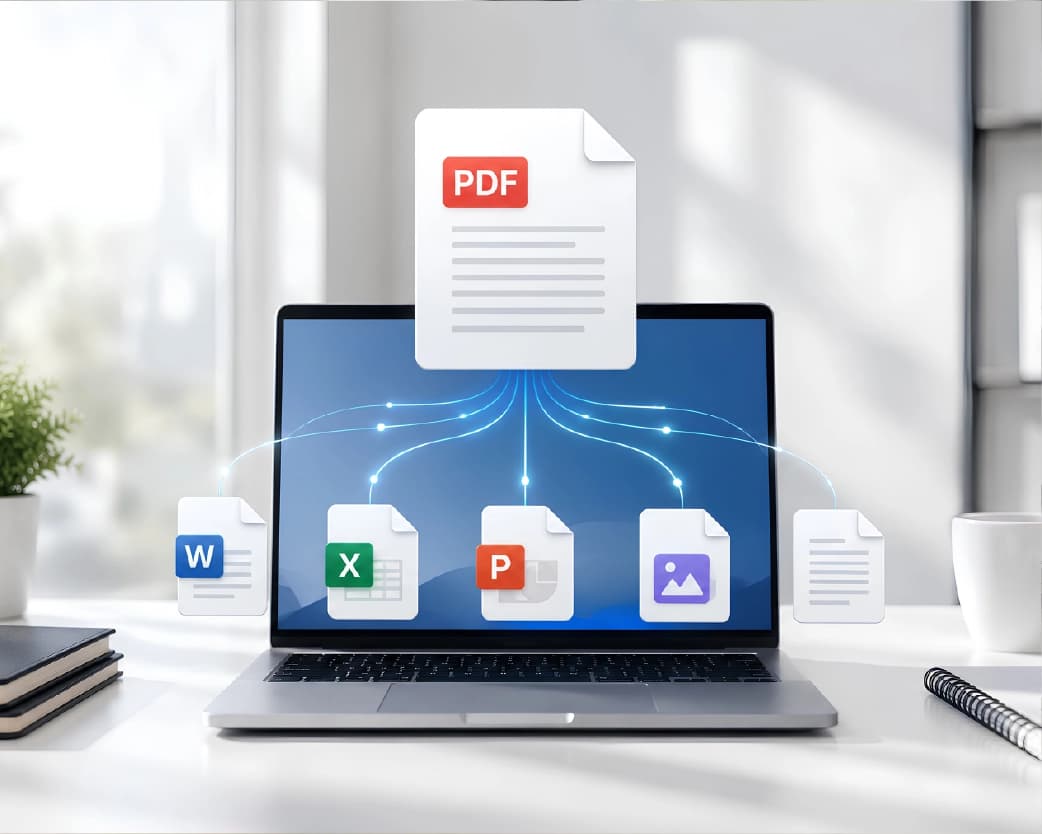
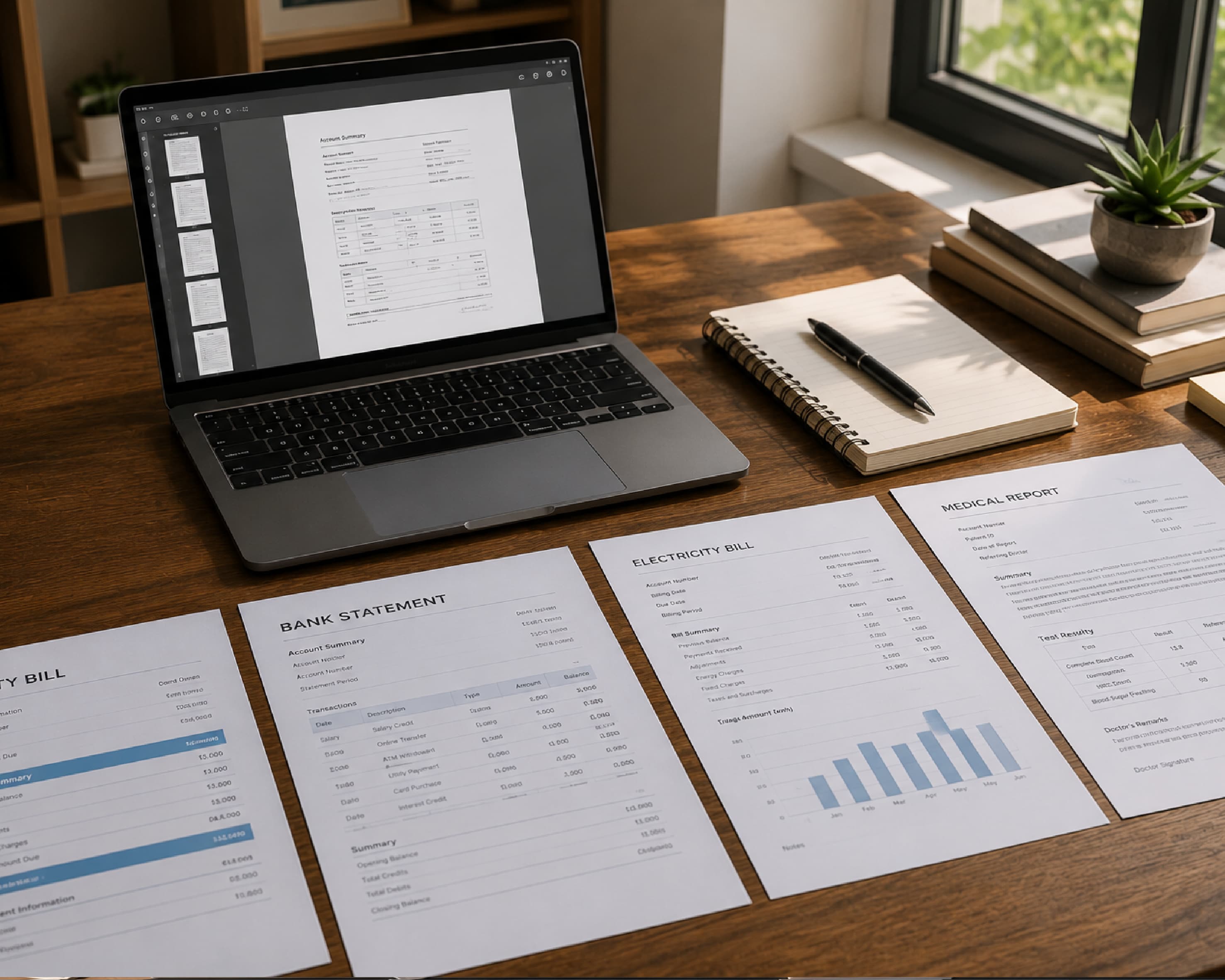
A small business might have a month of invoices to convert or compress. A student might have a pile of scanned notes to turn into text. An office worker might need to turn dozens of old reports into Word files so they can be edited. A school might want to shrink a whole folder of handouts before putting them online.
If you ever catch yourself repeating the same steps over and over, that’s a sign a batch approach could save you time.
One by One vs. All at Once
Here’s the honest math. A single conversion takes a minute or two. That’s fine. But multiply it by thirty files, and you’ve lost an hour of your day to clicking.
There’s also the mistake factor. When you repeat the same steps again and again, your attention drifts. You pick the wrong file, forget a setting, or save something in the wrong folder. A batch job keeps everything consistent, so every file gets the same treatment.
How to Use an Online Batch PDF Converter on Plainscan
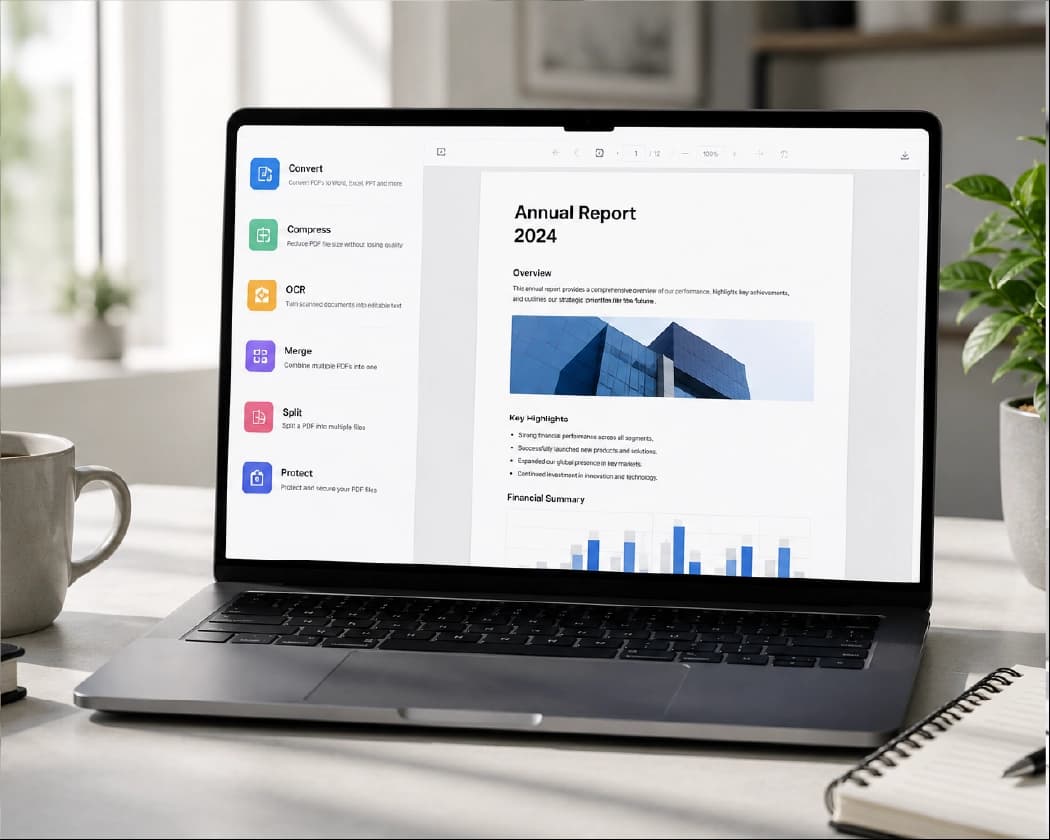
Plainscan works in your browser, so there’s nothing to install. Phone, tablet, laptop, whichever’s closest. The site has over 100 document tools, and it’s free to start.
- Open the tool: Go to the batch PDF converter page on Plainscan. You’ll see an upload area first.
- Add your files: Drag in your PDFs, or pick them from your device. Add the whole group you want to process. If you’re on the free plan, each file can be up to 50 MB.
- Choose what to do: Pick the job. Converting to another format, compressing, or something else the tool offers. Make sure it’s the right one, since it will apply to everything.
- Start it, then check it: Run the job and wait for it to finish. Larger batches take longer, so be patient. Then download your results and spot-check a few of them before you move on.
Get Your Batch Ready First
A few minutes of prep makes a big job go much smoother.
- Group files of the same type together: A batch works best when every file needs the same treatment. Don’t mix scanned pages and typed documents in one pile if they need different steps.
- Use clear file names: “Invoice-001” through “Invoice-030” is much easier to track than “scan (14).pdf”. If something goes wrong, you’ll know which file to look at.
- Remove duplicates and junk: Old drafts and blank files just waste time.
- Fix sideways pages first: If any of your PDFs have pages turned the wrong way, Rotate PDF can fix them before you start.
- And test one file first: Run a single PDF through the process, check the result, and only then do the rest. If something’s off, you’ve lost one file’s worth of time, not thirty.
Continue Reading:Audio Transcription Online: How to Turn Recordings Into Text
Common Batch Jobs
Here are the tasks people most often do in bulk.
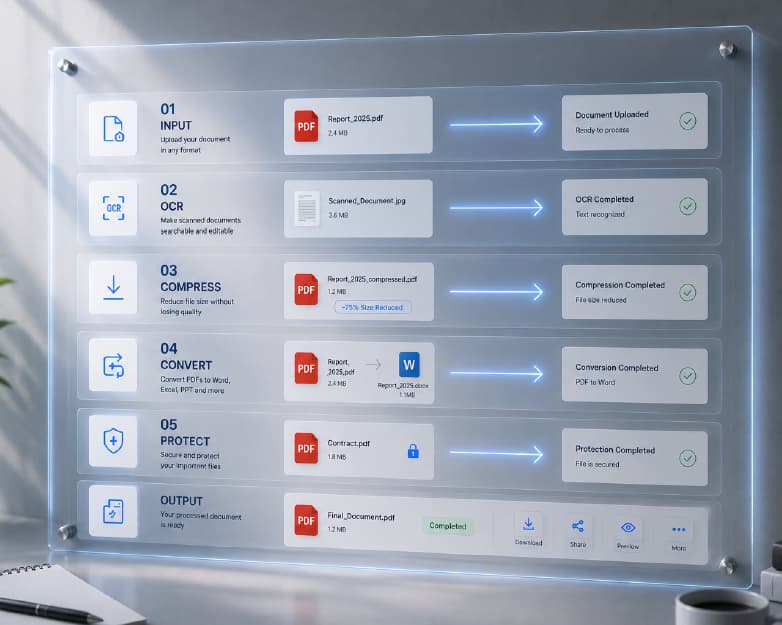
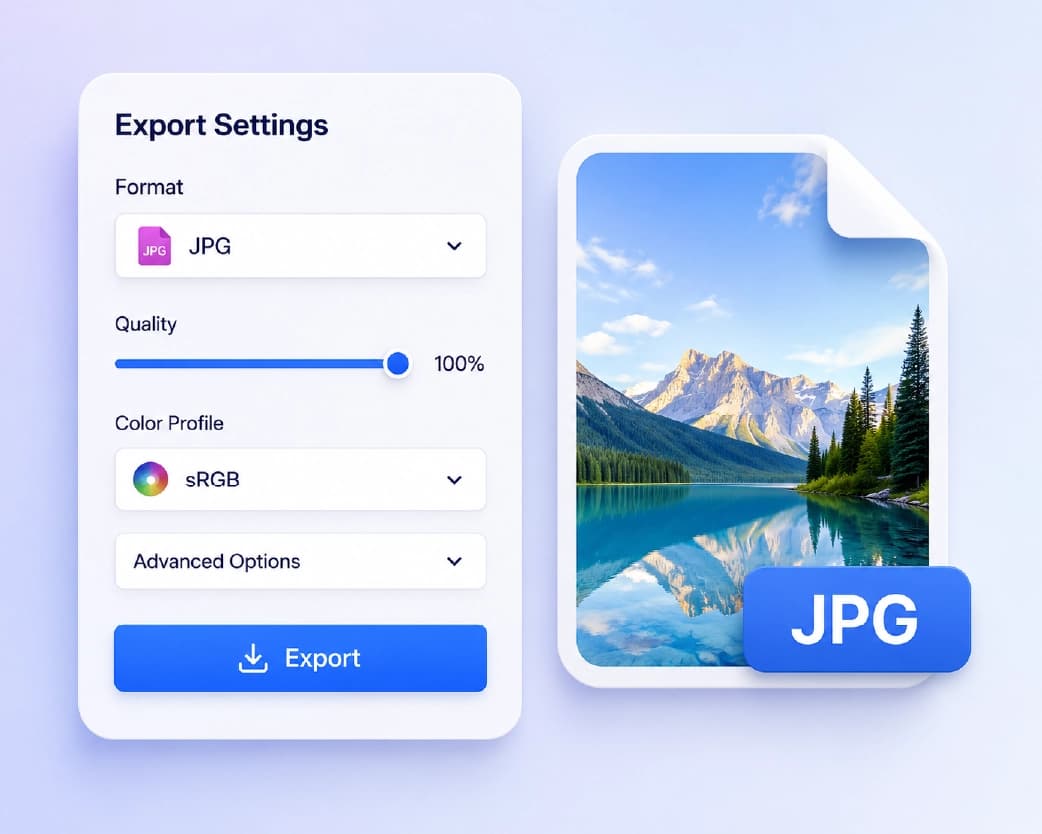
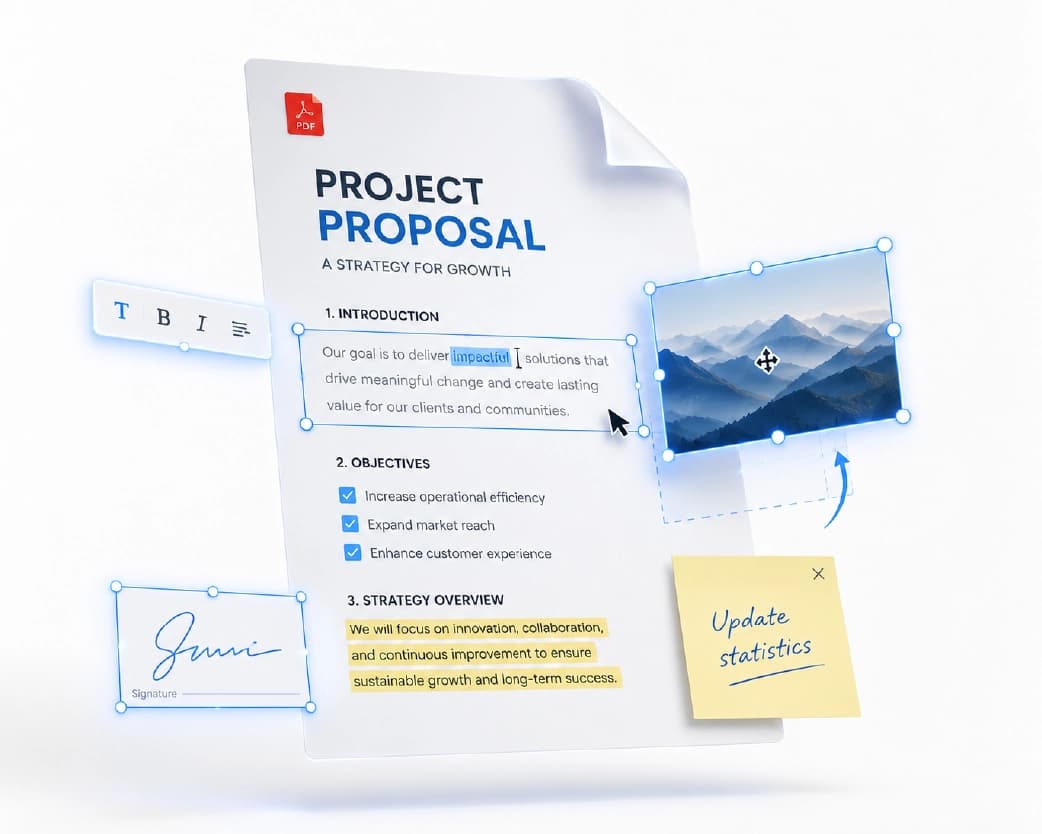
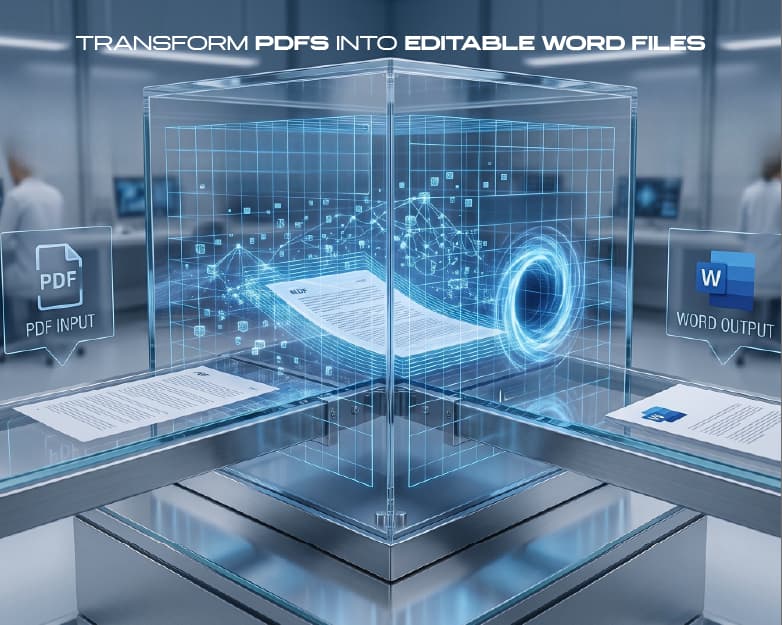
- Convert PDFs to Word: If you need to edit a stack of PDFs, PDF to Word turns each one into a Word file you can change. Layouts may shift a little, so check a few.
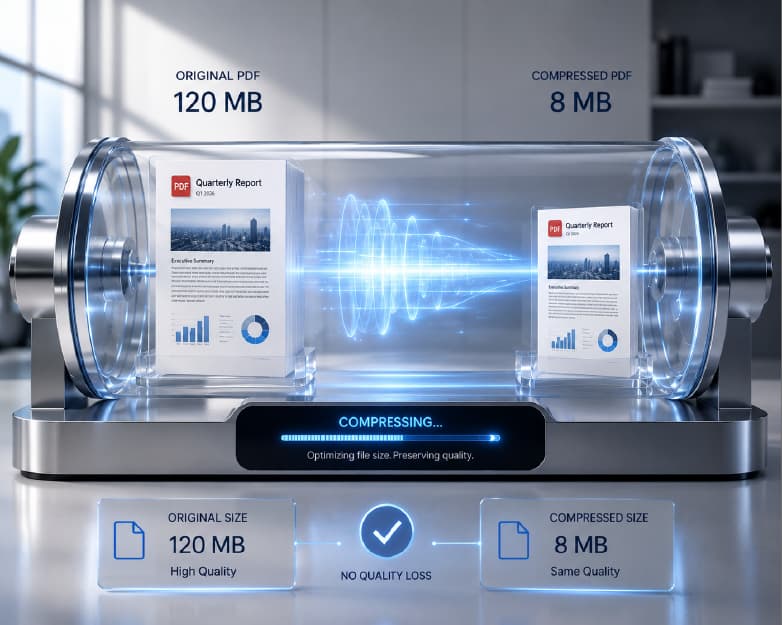
- Compress PDFs: Lots of heavy files? Compress PDF shrinks them so they’re easier to email, upload, or store.
- Merge PDFs: If you’ve got a pile of files that belong together, Merge PDF combines them into one document. That’s not the same as converting each one, but it’s often what people really need.
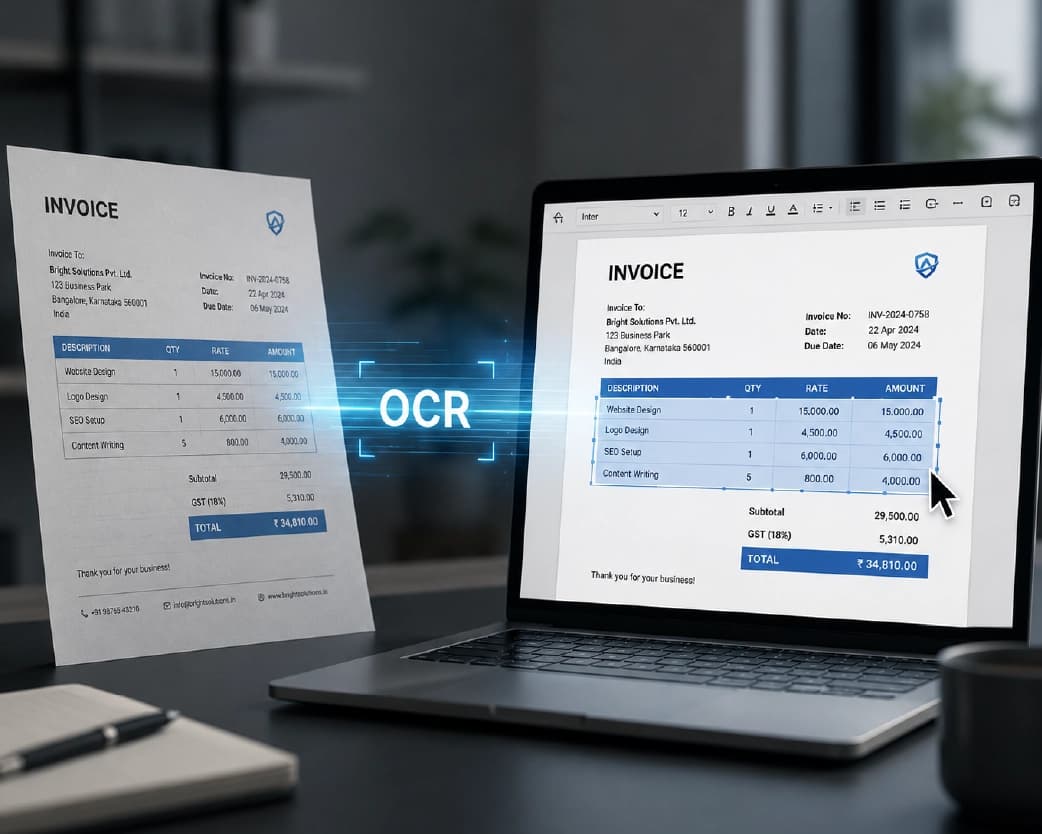
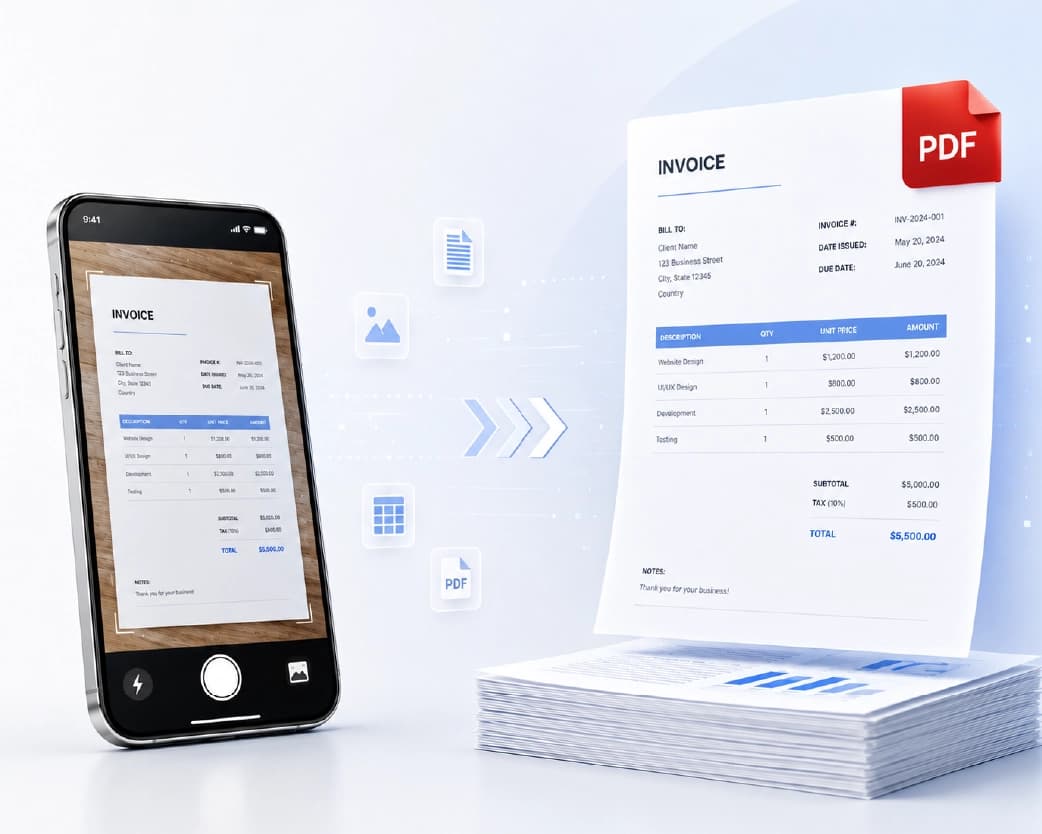
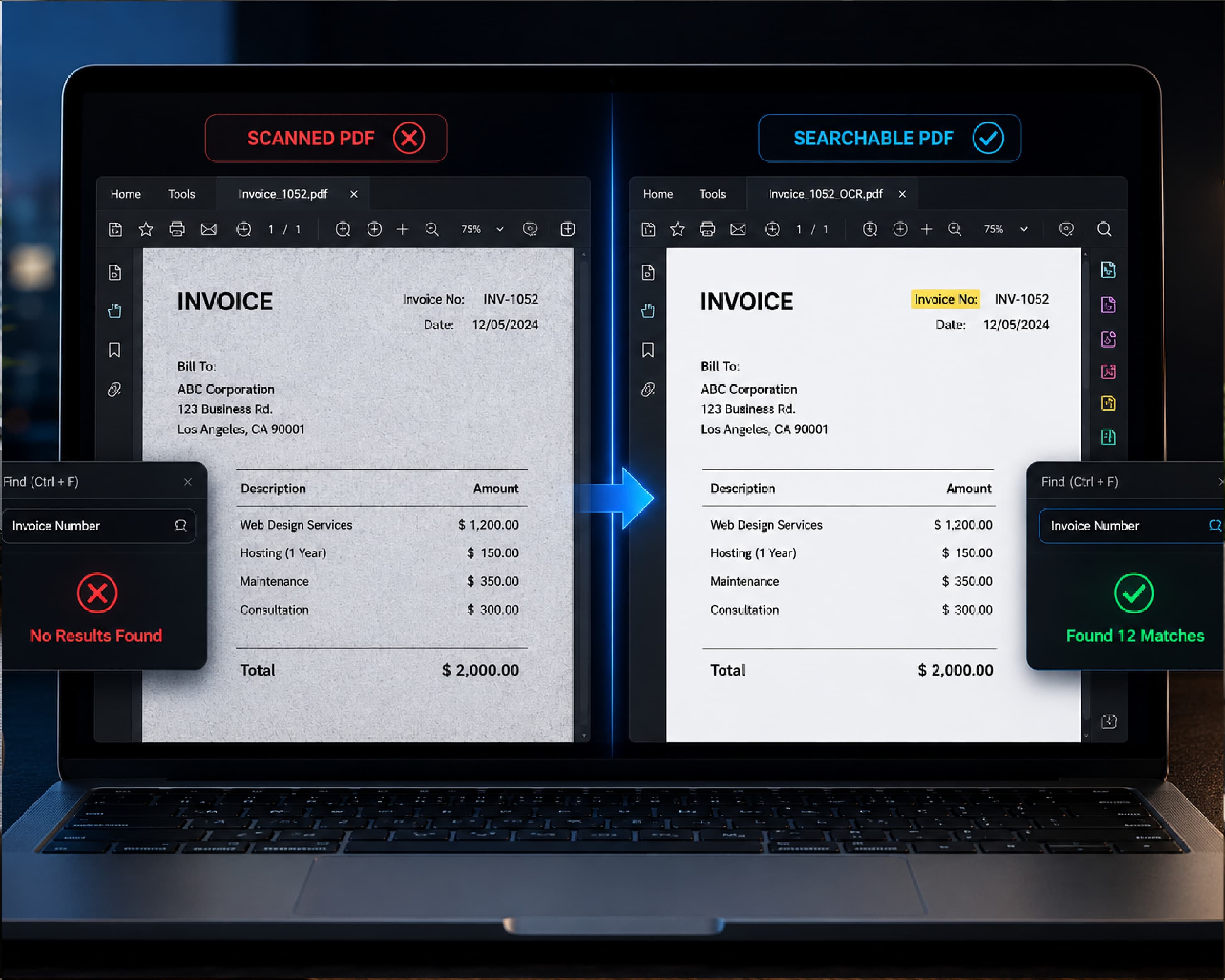
- Run OCR on scans: Scanned PDFs are just pictures. Scan & OCR turns them into text you can search and copy.
What the Free Plan Means for Batches
Here’s something worth knowing before you start a big job. Plainscan’s free plan covers up to four documents a day with the basic PDF tools. The count resets every 24 hours.
For a small batch, that’s fine. For thirty files, you’d hit the limit quickly. The Pro plan removes the daily limit and the file size cap, and there’s a pay-as-you-go option where you buy credits only when you need them. If you only do a big batch once in a while, credits might be a good fit. Check the current limits on the site before you plan a large job.
Always Check the Results
A batch is fast, but it’s not perfect. A setting that works for most files might not suit all of them.
Open a handful from different parts of the batch. Check the first one, a few in the middle, and the last. Look at the layout, the text, and the file size. If you’re converting to Word, check that headings and tables still make sense. If you’re compressing, zoom in on images to make sure they still look good.
If one file looks off, redo that one. It’s much quicker than starting the whole batch over.
Who Gets the Most Out of This?
- Small business owners: Invoices, receipts, and contracts pile up fast. Processing them together saves hours at the end of every month.
- Students: Notes, handouts, and scanned readings can be converted or compressed in one go, so you’re ready to study sooner.
- Office teams: Old reports and forms become editable, smaller, or searchable without someone clicking through them one by one.
- Anyone with an overflowing folder: Cleaning up a messy pile feels a lot less painful when the repetitive part gets handled for you.
Is It Safe to Upload a Lot of Files Online?
Smart question, especially with many documents. Plainscan uses encrypted HTTPS connections, and uploaded files are deleted automatically within 24 hours. The site also says it doesn’t share your files with third parties.
For everyday documents, that sounds reasonable. But if your files have very private details, like bank information, ID numbers, or confidential company secrets, think twice before uploading them to any website. That’s true for every online tool, not just this one.
Mistakes to Avoid
- Skipping the test file is the big one. A wrong setting on thirty files is much worse than a wrong setting on one.
- Another is mixing different kinds of files in one batch. If they need different steps, split them up.
- Trusting the results without looking is a classic, too. Always spot-check.
- And deleting your originals. Keep them until you’ve checked everything.
Conclusion
Doing the same job on file after file is boring and easy to get wrong. An online batch PDF converter lets you handle a whole pile at once, with the same settings and fewer slip-ups. So next time you’re staring at a folder full of PDFs, don’t start clicking one by one. Get your files in order, test one, and use Plainscan to process the rest. Then go enjoy the time you saved.
You may also like:How to Compress Video Online Free (Without Making It Look Terrible)
Related insights

Get the Plainscan App for iOS & Android