
Chat with Your PDF: Ask Questions, Get Instant AI Answers
Imagine you open a 50-page PDF and you only need one small fact from it. You don't want to read every page. You just want the answer, right now. This is exactly the problem that chat with PDF AI tools solve. Today, you can upload any PDF and simply ask it questions, just like you talk to a friend. The AI reads the whole file for you and gives you a clear answer in seconds. No more scrolling. No more searching page by page. In this blog, we break down how this technology works, why it helps so many people, and how you can use it the smart way.
What Is "Chat with PDF"?
Chat with PDF is a feature that lets you upload a document and ask it questions in plain, everyday language. Instead of reading the file yourself, an AI PDF assistant reads it for you. You type a question like "What is this document about?" or "What are the key numbers in this report?", and the AI gives you an answer based only on what is inside your file.
This is different from a normal search bar. A search bar only finds words that match exactly. A chat with PDF tool understands meaning, not just words. So even if you don't use the exact term from the document, the AI still understands what you are asking and pulls out the right answer.
You can use this feature with study notes, research papers, business contracts, user manuals, or even books. It works for almost any kind of PDF you can think of.
How Does Chat with PDF Work?
Using an AI PDF chat tool is simple, and most platforms follow nearly the same steps.
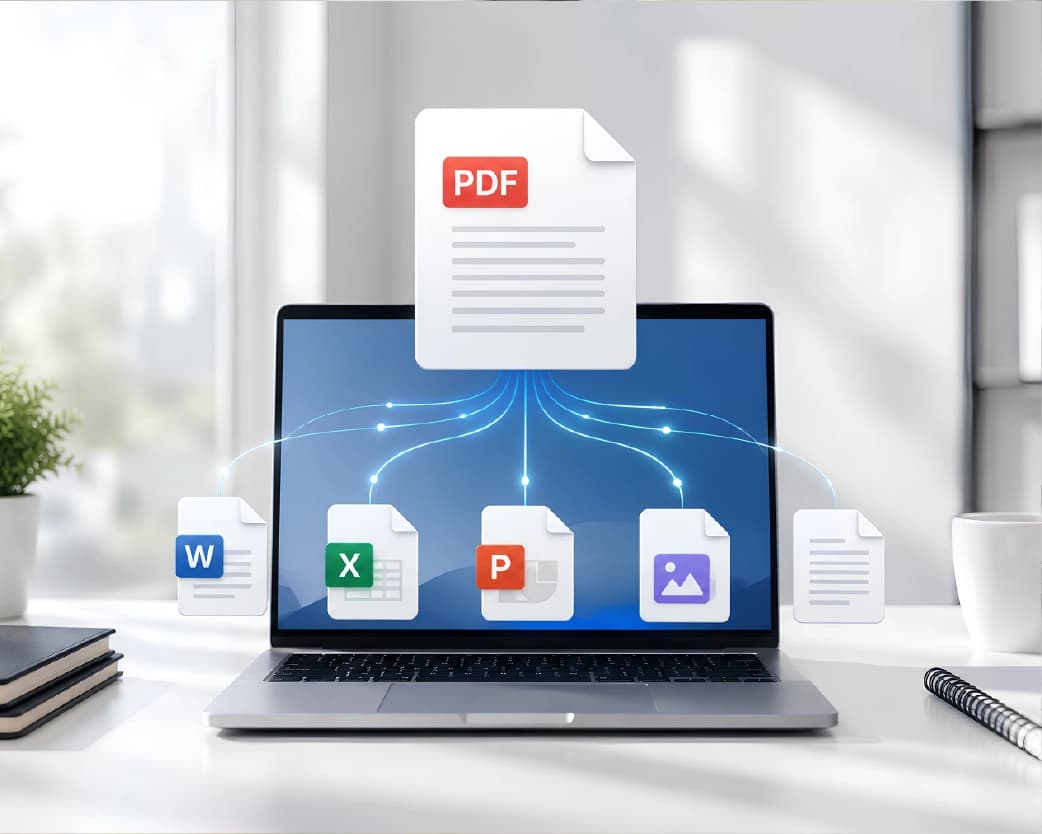
- Upload your file. Drag and drop your PDF, or pick it from your device. Some tools also accept Word, PowerPoint, or text files.
- Ask your question in the chat box. Type what you want to know, or ask for a quick summary of the whole document.
- Read the answer and ask follow-up questions. If the first answer isn't detailed enough, just ask again. You can dig deeper the same way you would in a normal conversation.
- Copy the answer and use it anywhere. Paste it into your notes, your email, or your report.
This simple loop, upload, ask, read, and follow up, is what makes the whole experience feel so easy. You don't need any training or technical skill. If you can send a text message, you can chat with a PDF.
The AI Technology Behind PDF Chat
You might wonder how a computer can actually "read" your PDF and answer questions about it. Here is the simple version.
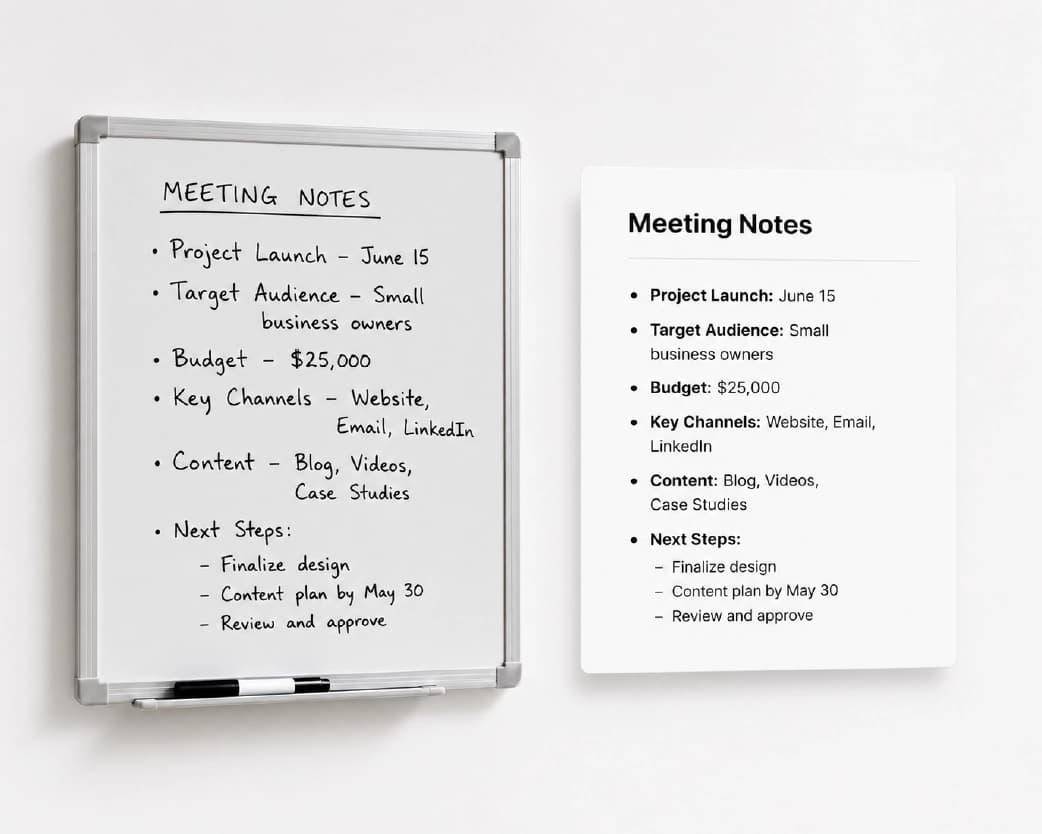
When you upload your file, the AI does not just scan it like a photocopier. It builds a kind of map of the document's content and meaning. It breaks the text into smaller pieces and studies how ideas connect to each other. When you ask a question, the system searches this map, finds the most relevant pieces, and writes a clear answer using only that information. Many tools also attach small citations next to the answer, so you can click and jump straight to the part of the PDF where that answer came from.
This is why a good PDF chatbot free tool feels much smarter than a basic search function. It doesn't just look for matching words. It actually understands the topic, the context, and the connection between different sections of your file.
Smart Features That Make PDF Chat Useful
Modern tools go far beyond simple questions and answers. Here are a few standout features you'll find across many platforms.
- Highlight and explain. You can select a confusing sentence or a hard paragraph, and the AI breaks it down into plain, simple words. This is a lifesaver when you're reading something technical, like a science paper full of equations and jargon you've never seen before.
- Multi-document chat. Instead of opening one file at a time, you can upload several PDFs together and ask questions across all of them at once. This is great when you're comparing two contracts or pulling data from a handful of reports.
- Source citations. Good tools show you exactly where an answer came from inside the file. This builds trust, because you can always double-check the AI's response instead of taking it on blind faith.
- Multi-language support. You can upload a document in one language and chat with it in another. This makes research and business work much easier for people working across different countries.
Who Uses Chat with PDF Tools?
This technology isn't built for one type of person. It fits into everyday life in many different ways.
- Students use it to study for exams, understand tricky textbook chapters, and finish homework faster.
- Researchers use it to go through long academic papers and pull out only the sections that matter to their work.
- Business professionals use it to review contracts, financial reports, and training manuals without reading every single line.
- Everyday readers use it to understand instruction manuals, government forms, or even long e-books.
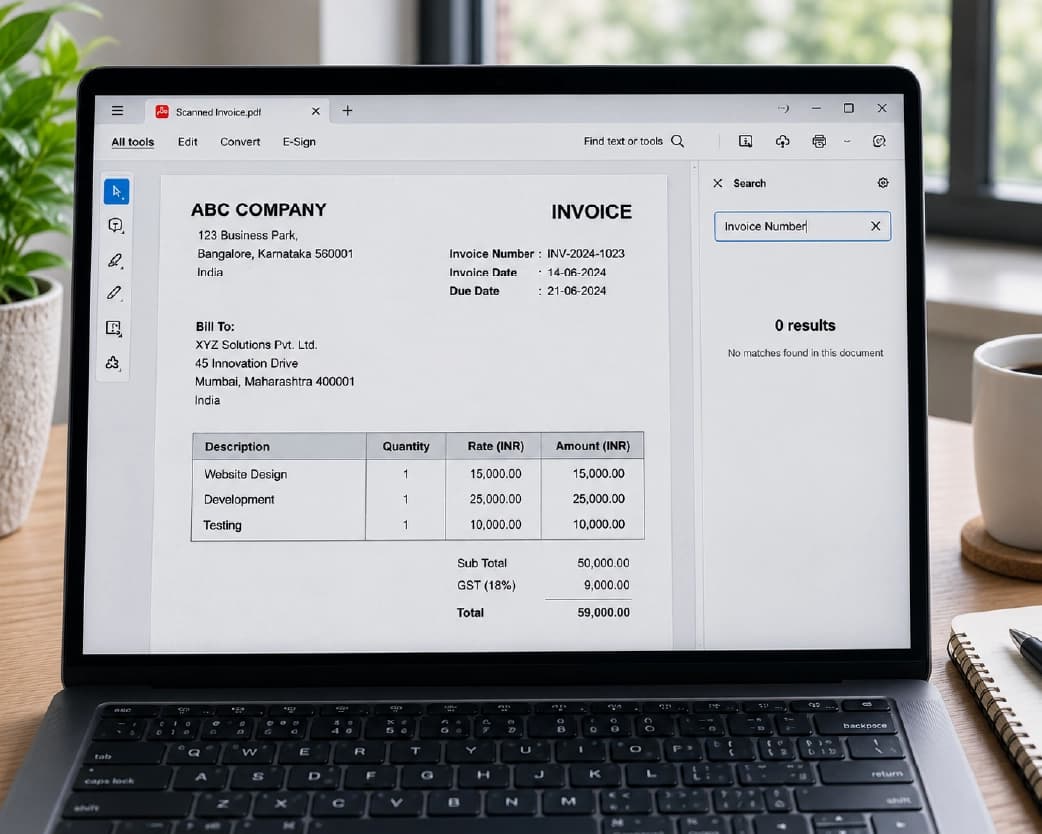
Real examples make this even clearer. Someone might upload a service contract and ask which parts of the service are actually covered, and when a payment is due. Another person might upload an entire e-book and ask the AI to explain one idea that is spread out across several chapters. These small, real tasks are where chatting with PDF tools save the most time.
Benefits of Chatting with Your PDF
So why has this feature become so popular? Here are the biggest benefits.
- It saves time. Instead of reading 40 pages, you get your answer in seconds. This alone is the number one reason people switch to these tools.
- It makes hard topics simple. Complex legal or scientific language becomes easy to understand once you ask the AI to explain it in plain words.
- It works for anyone. You don't need special training. If you can type a question, you can use the tool.
- It keeps answers grounded in your file. Since the AI only answers from your uploaded document, you get answers that are relevant to your specific content, not random information pulled from the internet.
- It's usually free to start. Most platforms, including tools like Plainscan, let you try the basic chat feature without paying anything or creating an account.
Is It Safe to Chat with Your PDF?
This is a fair question, especially if your document has private or sensitive information. Most trusted platforms protect your file using encryption while it uploads and while it's stored. Many also delete your file automatically after a short time unless you choose to save it to an account.
Still, it's smart to check a tool's privacy policy before uploading anything truly private, like a signed contract or financial statement. Look for signs like encryption, clear data deletion timelines, and recognized security certifications. A responsible AI PDF assistant should always give you control over your own data, including the choice to delete your file whenever you want.
Tips to Get the Best Answers from a PDF Chatbot
Not every question gets a perfect answer on the first try. A few small habits can make a big difference.
- Be specific. Instead of asking "What is this about?", try "What are the three main findings in section two?" Specific questions get specific answers.
- Use follow-up questions. If an answer feels too short, ask the AI to explain more, or to give an example.
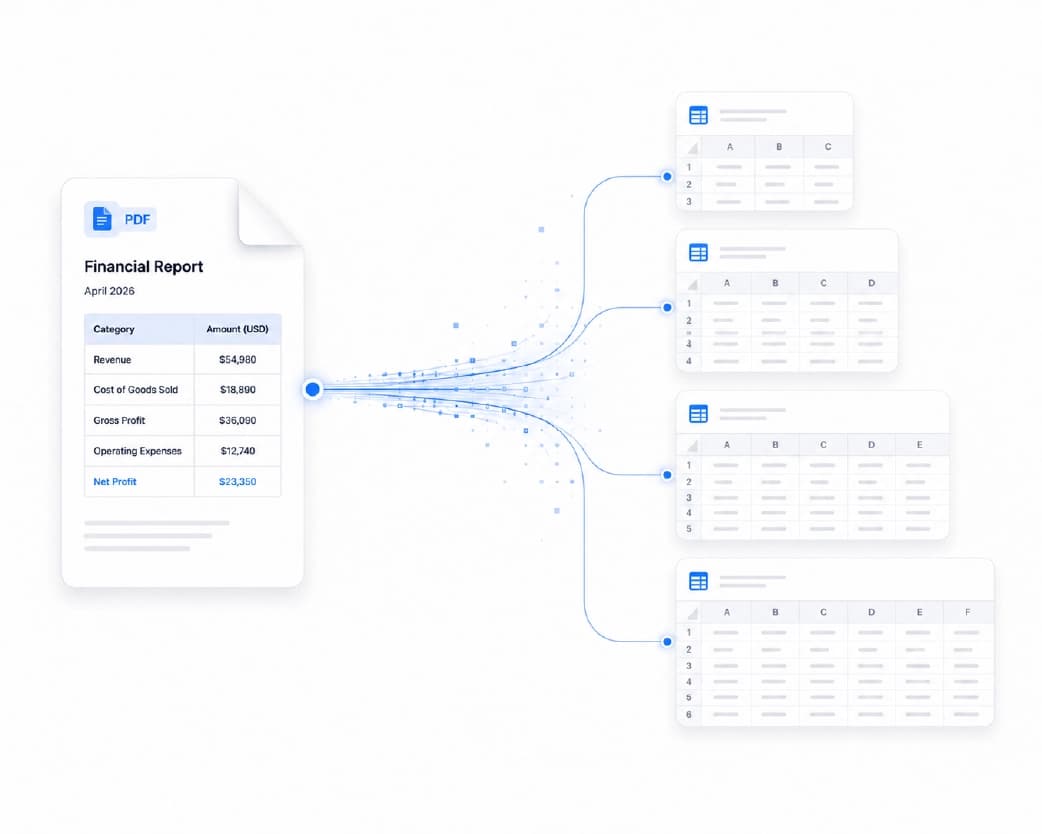
- Always double-check important answers. For anything that really matters, like a legal clause or a medical detail, glance at the original page the AI points to. AI is fast, but it can still make mistakes, so a quick human check keeps you safe.
- Try different phrasing. If the AI misunderstands your question, rewording it often gets you a much clearer answer.
Finding the Right Chat with PDF Tool
With so many platforms out there, choosing the right one depends on what you actually need. If you want a quick, free tool with no sign-up, pick something simple and fast. If you're a student or researcher, look for one with citation support and the ability to talk to your documents across multiple files at once. If you're searching for a chat pdf alternative free option, compare daily upload limits, page limits, and whether multi-document chat is included in the free plan, since these details vary a lot between tools.
Whatever you choose, the goal stays the same: turning a long, boring document into a quick, useful conversation.
Continue Reading:How to Humanize AI Text and Pass AI Detectors in 2026
Conclusion
Chat with PDF technology has changed the way we deal with documents. What used to take an hour of reading can now take less than a minute of asking. Whether you're a student cramming for an exam, a professional reviewing a contract, or someone who just wants to understand a long manual, this simple idea, ask questions to PDF files, and get instant answers, saves real time and real effort. As these tools keep improving, chatting with your documents will likely become as normal as chatting with a search engine.
Related insights









Get the Plainscan App for iOS & Android