
Convert Bank Statement to Excel Automatically (2026 Guide)
Do you copy numbers from a bank statement PDF into Excel by hand? If yes, you already know how boring and slow this job is. One small mistake, like a wrong digit, can throw off your whole spreadsheet. The good news is that you don't need to do this anymore. A bank statement to excel converter can read your PDF and turn it into a clean spreadsheet in seconds. This guide explains what a bank statement extractor is, how it works, what data it pulls out, and how you can use it to save hours every month. By the end, you will know exactly how to convert a PDF bank statement to Excel without typing a single number yourself.
Further Reading:Free ATS Resume Checker: Beat Applicant Tracking Systems
What Is a Bank Statement to Excel Converter?
A bank statement to Excel converter is a tool that reads a PDF or scanned bank statement and turns it into an organized spreadsheet. It picks out the important details, such as transaction dates, descriptions, debit amounts, credit amounts, and running balances, and places each one into its own column.
Most of these tools use technology called OCR, or optical character recognition, along with AI, to "read" a statement the way a person would. This means the tool works even if your bank statement looks different from someone else's, since every bank formats its PDFs a bit differently. Once the tool finishes reading the file, you get a ready-to-use Excel or CSV file. There is no retyping and no copy-pasting involved.
Tools like Plainscan make this process even simpler by handling many bank formats automatically, so you don't need to adjust anything by hand.
The Problem With Manual Bank Statement Entry
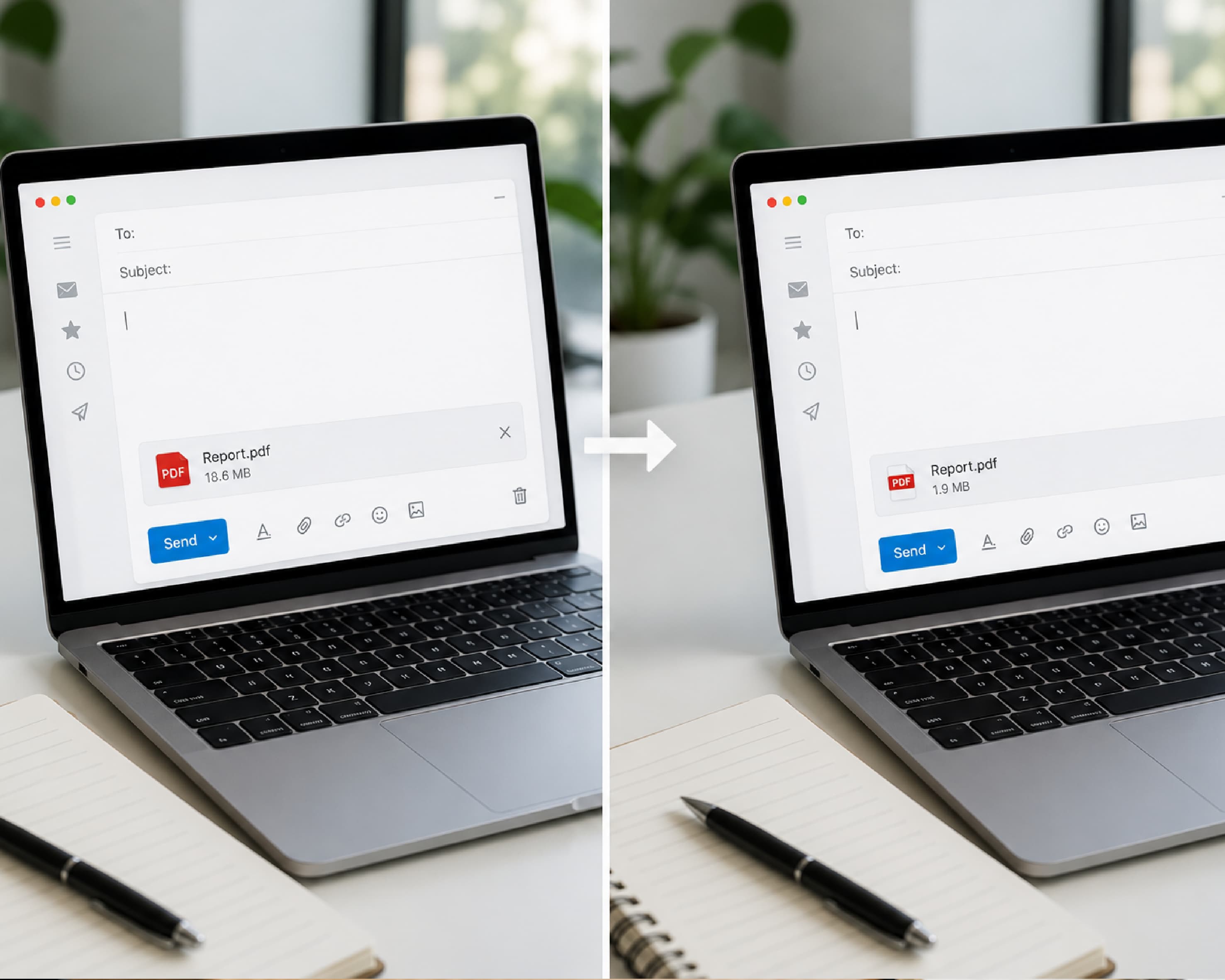
Typing bank statement data into Excel by hand causes more trouble than most people expect.
- First, it is dull and repetitive work. You move the same kind of information from one place to another, line after line, and a single statement can take up your whole afternoon.
- Second, mistakes happen even when you are careful. It is easy to miss a transaction, misread a number, or place a value in the wrong column, and financial data does not forgive small errors like these.
- Third, the problem grows fast with volume. One statement is manageable, but five or ten statements can eat up a full day of work.
- On top of all this, every bank uses its own PDF layout, so you constantly need to figure out where each piece of information sits on the page.
This is exactly why more people now look for ways to automate bank statement data entry instead of doing it by hand.
How to Convert a PDF Bank Statement to Excel
Converting a statement is much simpler than it sounds. Most tools, including Plainscan, follow the same basic process:
- Upload your statement. Click the upload button, or simply drag and drop your PDF bank statement file into the tool.
- Let the tool read your file. The software scans the document, finds every transaction, and sorts the data into rows and columns.
- Download your Excel file. Once the conversion finishes, download your structured spreadsheet and open it right away in Excel or Google Sheets.
That's it. There are no templates to set up and no manual formatting needed. What used to take an hour of typing now takes less than a minute.
What Data You Get From a Good Converter
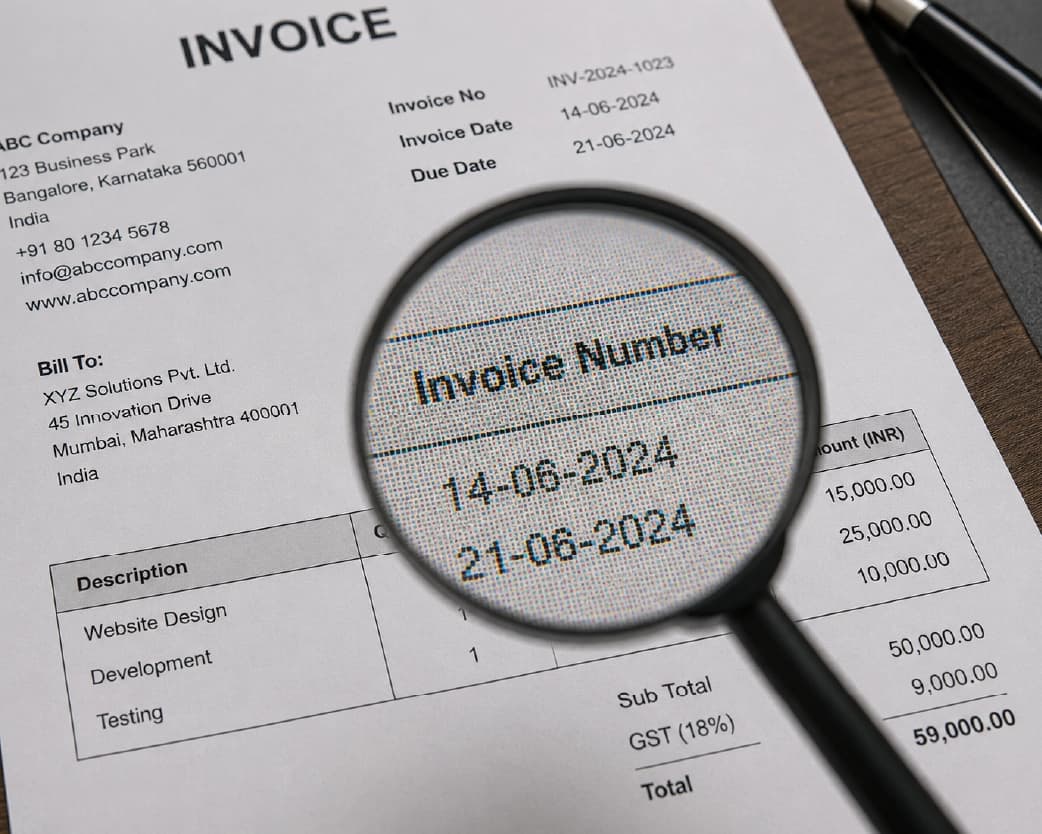
A quality converter does not just dump text onto a page. It organizes your bank statement into clear, labeled fields so the spreadsheet is ready to use straight away. Here is what a strong tool usually pulls out:
- Account number – the unique ID tied to the bank account
- Statement period – the date range the statement covers
- Account holder details – the name and address on the account
- Starting balance – the amount in the account at the beginning of the period
- Ending balance – the amount left at the end of the period
- Transaction table – a full list of every transaction, with its date, description, type, and amount
Because every value lands in its own column, you can sort, filter, and search your data the moment you open the file. This is a big step up from a plain pdf bank statement to csv dump with no structure at all.
Why Automatic Reconciliation Matters
A great bank statement extractor does more than just pull numbers out of a PDF. It also checks that the numbers actually add up.
Good converters compare transaction totals against the statement summary, check that the opening and closing balances match, and confirm that each individual transaction amount lines up correctly. Once this check is complete, the tool shows a clear status telling you whether everything balances. This step matters a lot, because it catches errors before they end up in your books. Instead of manually adding rows in Excel to see if your numbers match the bank's summary, the tool does this math for you and flags anything that looks off. This turns a simple converter into a genuine bank reconciliation tool online, not just a file-format changer.
Who Uses Bank Statements to Excel Converters?
Different teams use this kind of tool for very different reasons, and each one benefits in its own way.
- In finance and accounting, teams use converters to speed up bank reconciliation. The tool pulls out transaction data, account balances, and reference numbers automatically, and business-rule checks catch duplicate transactions or balance mismatches before they cause problems later.
- In lending and underwriting, converters help loan teams work faster. Account holder details, transaction history, and spending patterns get pulled out automatically and fed straight into loan systems, which speeds up decisions and reduces guesswork.
- In compliance and risk, teams use converters to strengthen identity and anti-fraud checks. The tool captures transaction patterns and account details across many statements, which makes audits faster and more accurate.
Freelancers, small business owners, bookkeepers, and personal finance trackers benefit too, since anyone who needs clean numbers in a spreadsheet can skip the manual work entirely.
Benefits of Converting Bank Statements to Excel
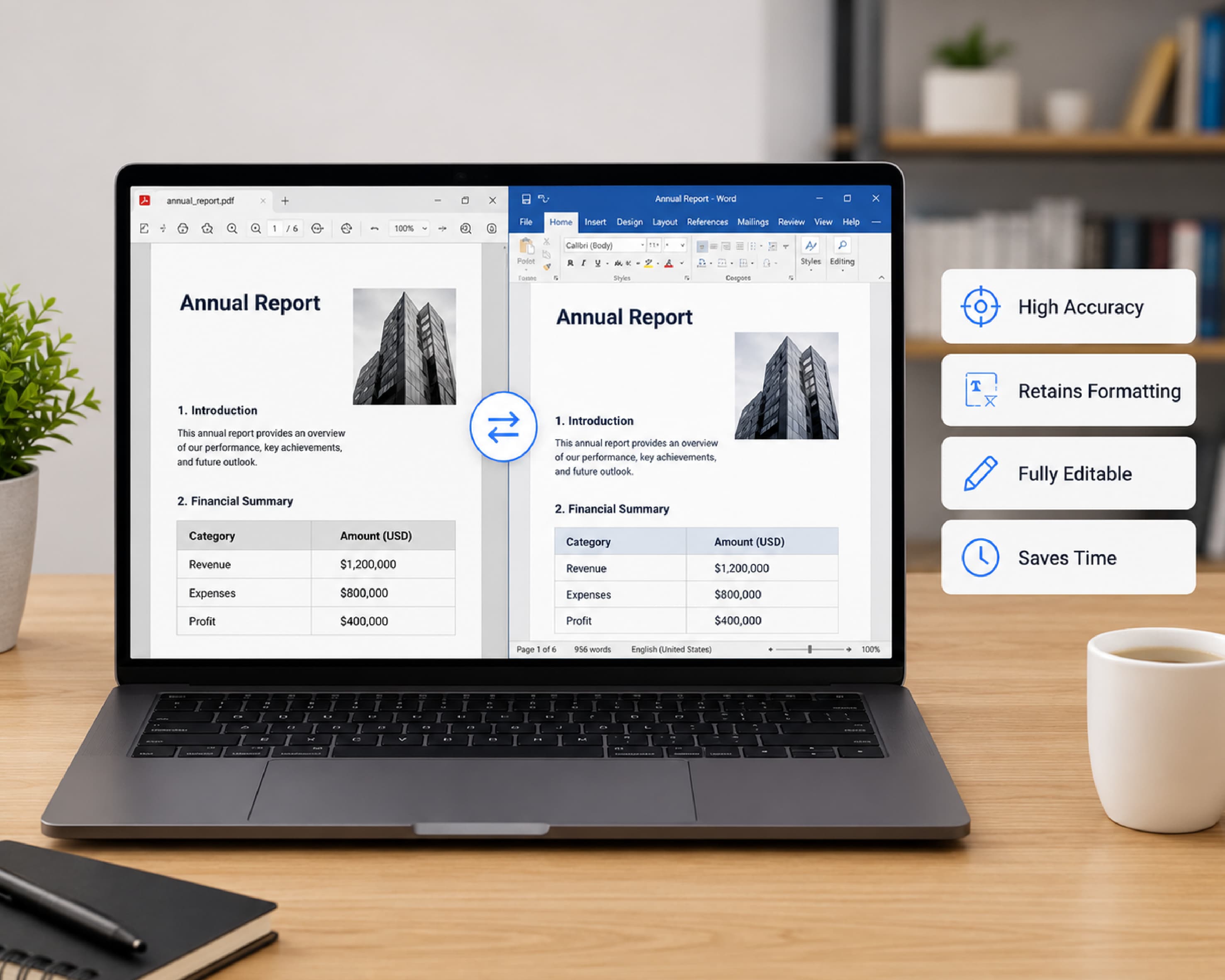
Bank statements almost always come as PDF files, and PDFs are not built for real work. You cannot easily sort a PDF, build a pivot table from it, or run a formula across its rows. Converting your statement into Excel changes all of that.
Once your data sits in a spreadsheet, you can sort transactions by date or amount, spot unusual charges quickly, and track spending patterns over time. This helps in many everyday situations, like tracking monthly expenses, getting ready for tax season, or reconciling accounts before you close the books. Business owners find this especially useful when preparing reports for accountants or filing returns, since a spreadsheet is far easier to share and edit than a scanned PDF. Even for simple personal budgeting, having your transactions in Excel means you can use basic formulas to see exactly how much you spend on groceries, bills, or entertainment each month, and check whether you are staying within budget.
In short, Excel turns static numbers into something you can actually work with.
Advanced Tips: What to Do After You Convert
Getting your data into Excel is only the first step. The real value shows up in what you do next.
Once your bank statement sits in a spreadsheet, you can build simple formulas to sort transactions into categories like rent, groceries, or subscriptions. You can also create monthly summaries that show how your spending changes over time, which helps you plan ahead instead of guessing. Some people go further and build cash flow projections based on past patterns, which is useful for both households and small businesses. A clean spreadsheet also makes it much easier to spot an unusual transaction, whether it's a billing mistake or something that looks like fraud. When tax season arrives, having everything already organized in Excel saves a huge amount of preparation time. And if you use accounting software like QuickBooks or Xero, a clean spreadsheet imports into these tools without any extra cleanup.
The real goal is not just to change a file format. It is to free up your time so you can focus on understanding what your money is actually doing, instead of typing numbers all day.
Conclusion
Manually typing bank statement data into Excel wastes time and invites mistakes that can cost you money later. A reliable bank statement to excel converter removes this whole problem. It reads your PDF, sorts every transaction into the right column, checks that your numbers balance, and hands you a clean spreadsheet in seconds. Whether you are a business owner, a bookkeeper, or someone managing a personal budget, tools like Plainscan make it easy to skip the manual work and get straight to the numbers that matter.
Related insights








Get the Plainscan App for iOS & Android